
Products>Utilities>Product Templates
The Product Templates feature allows creating product groupings for specific types of jobs to populate generic order lines and referenced product lines. This feature can assist the order entry employee, especially if a particular job requires multiple materials that could be possibly forgotten or overlooked. One example is a Hardwood Install Template created that consists of transitions, glue, quarter round, and the hardwood material.
Creating a Product Template
Create a Product Template Name and Add Template Master Product.
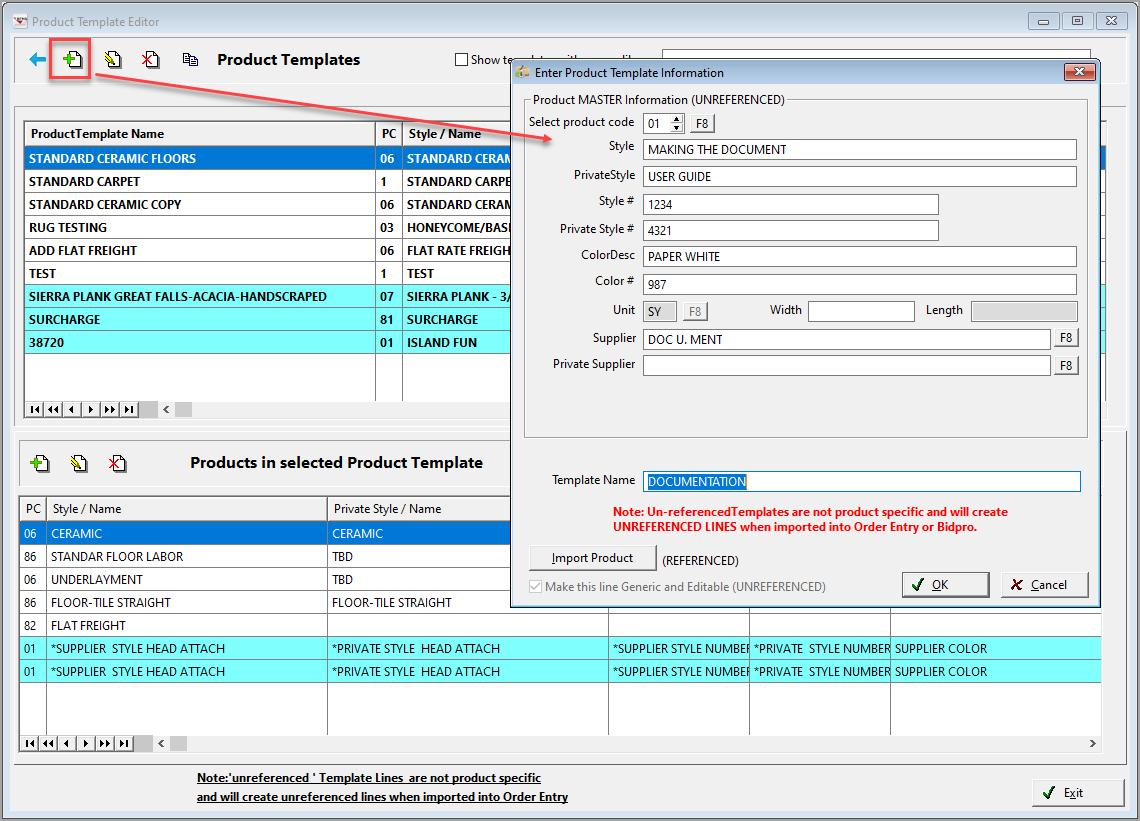
1. Click the Insert button. Create a Generic Template by typing in a Style and a Template Name. This template would not have an actual master product.

The Default Qty will only appear on Item templates.
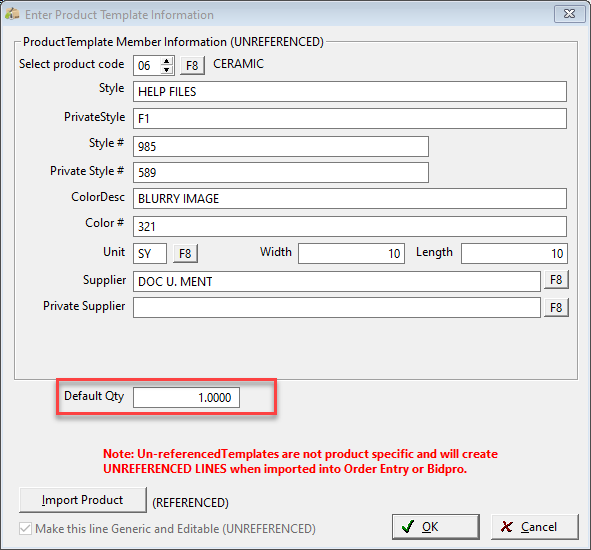
2. Create a Template based on a specific product by clicking Import Product and pull the product in. This will leave it referenced.

To leave the template record referenced to the product record, leave it as is. When changes are made to the product record, the template record will pick up these changes. This template record will only apply to the specific color used to create it.
The advantage is when a bid, quote, or order is created; the information from products is up to date.
The disadvantage to this method is one template must be created for every color in a style that is routinely used.
3. Create a Template based on a specific product by clicking Import Product and change it to unreferenced.
If the product information pulled in is going to be used as an example line that can be edited to select a specific color, check the box which says, and “Make this line generic and editable (UNREFERENCED).
A warning message will display.
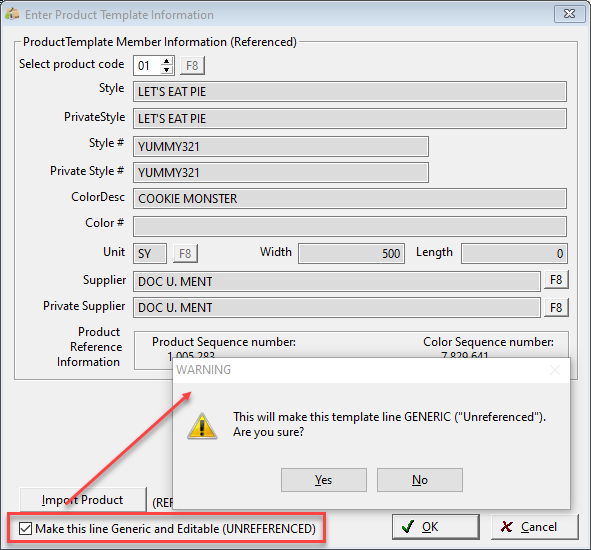
The template record is now unreferenced and will not pick up changes made to the product record.
This method's advantage is one template can be created that can be used for every color in style.
The disadvantage is when a bid, quote, or order is created; the user must F8 and pull the information back in from products to get the correct color and up to date information.
Adding Template Member Products
The template product members can be added in the same three options as the main record. When adding an item product, the product record must include a color record to be valid.
Using a Product Template in Order Entry or BidPro
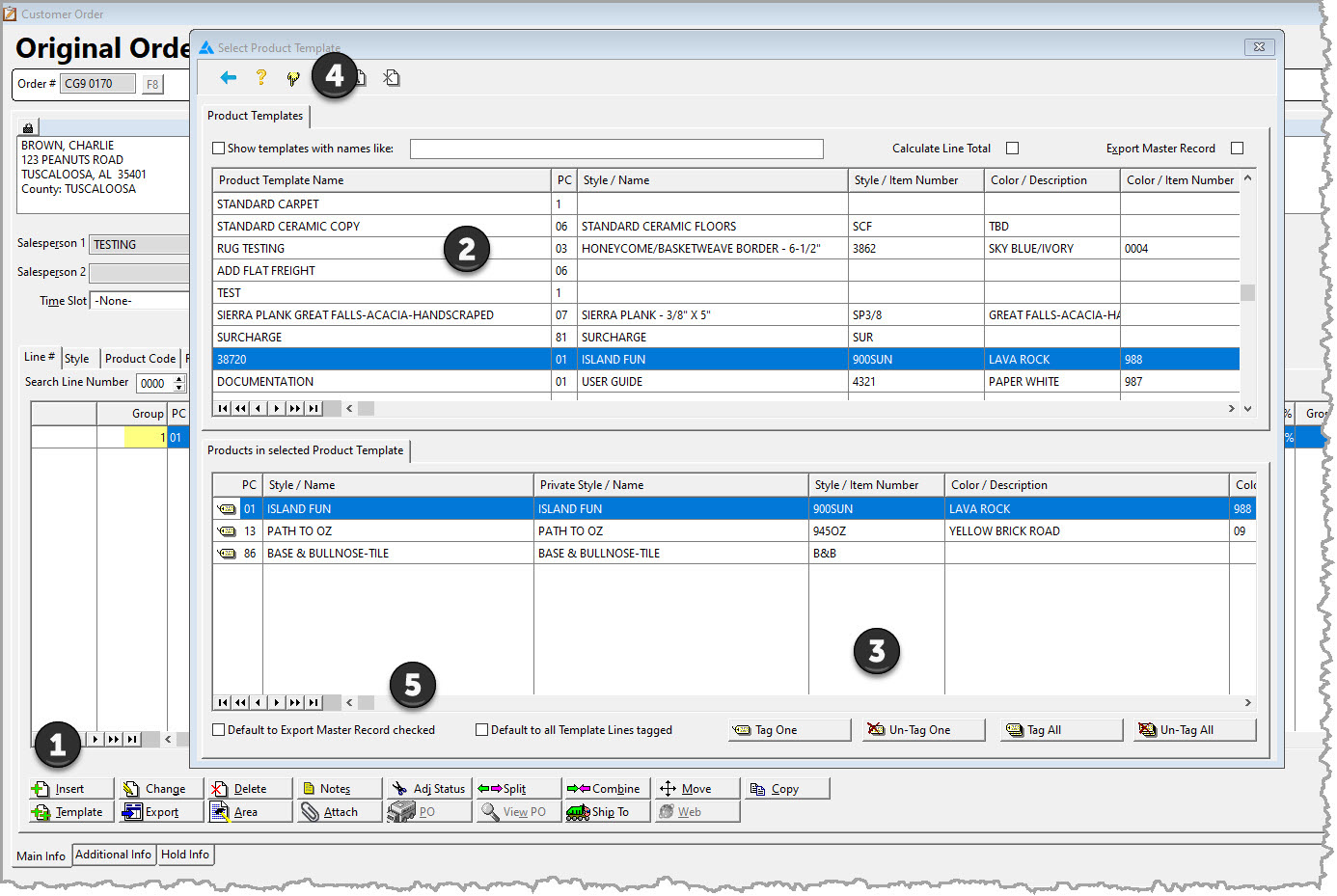
- When entering a quote, bid, or order line, click the Template button. The Template screen will display.
- Highlight the appropriate template for this particular job from the template screen.
- Tag the appropriate products. (If most often all records are imported select to default to all template lines tagged.
- Click the select button.
- If most of the time the master record is also imported, select Default to Export Master Record Checked.
- An order line will be populated for each material included in the template. Select the appropriate product for each line and enter the appropriate quantity for each order line.
- Product Templates can be created using actual products, and the template line will remain associated or referenced to the product.
Comments
Article is closed for comments.