
Click here to return to FULL Migration Document Package (for migrating program and database to new server)
Click here to return to FULL Install Document Package (for new client program installations only)
|
Note: These instructions are designed for clients using SQL Server Express Edition. If this client is using SQL Standard or Enterprise Editions, we recommend using the SQL Maintenance Plans that are included with these editions. Please consult with Microsoft SQL Support for instructions. |
Database backups are an important part of any SQL installation. Many of the most common problems could be solved by proper backup procedures. This 15-30 minute process can save a company untold hours of recovery and wasted company time.
That said, while we have simplified this procedure, there are better alternatives. For example, with SQL Standard or Enterprise there are SQL Maintenance Plans, which are even quicker and easier than our process. There are also third party backup programs that perform the same functions as the SQL Maintenance Plans as our scripts, and can email you if a backup fails. We do not, however, recommend using Windows Server backup or other procedures in place of verified, working SQL database backups.
This document also does not cover how to create multiple backup sets for the database, however keeping multiple backup sets is a part of our best practices – for more detail on these best practices, please see the end of the Initial Preparation & Folder Backups step in this document. If you want specifics on the process, or suggestions of how this can be done, while the RFMS technical department is not and cannot be responsible for a company’s backups we can certainly give suggestions, and can be reached by submitting a ticket to help@rfms.com and requesting technical support.
|
Disclaimer This document is not designed to be a replacement for local, certified IT professionals. RFMS recommends using a qualified technician for all tasks described in this document. IT best practices are beyond the scope of this document and failure to engage local IT professionals familiar with those standards can result in catastrophic consequences. It is important to understand that many of these processes need ongoing maintenance. Please also note that support for the Task Scheduler is outside the scope of RFMS Technical Department and is completely in the hands of the company's technician. |
There are five steps to properly setting up SQL Express backups using the RFMS backup scripts and batch files.
Step 1: Initial Preparation for Database Backups
Step 2: SQL Management Studio Setup
Step 5: Verify Database Backups are Running Correctly
The first step makes sure everything else will execute properly and includes RFMS best practices for folder backups, the second step allows one to setup the scripts, the .bat files tied to the .sql scripts allow one to manually execute the backups without being in SQL studio, and the task manager scheduling, of course, automates the backup procedure.
RFMS recommends running nightly Full Backups (after hours) and hourly Transaction Log backups (during working hours).
1. Initial Preparation for Database Backups
To use our recommended hourly log backups + nightly full backups plan, set the recovery mode to Full first. To do this, open up SQL Management Studio, log in, find the RFMS database, right click on it, and go to properties, like so:
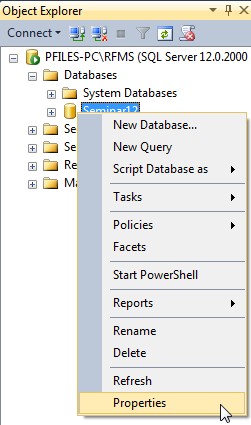
Then go to options from the left side, and go to recovery model, and set it to Full, like so:
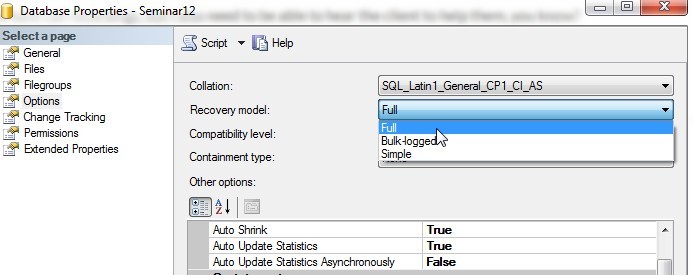
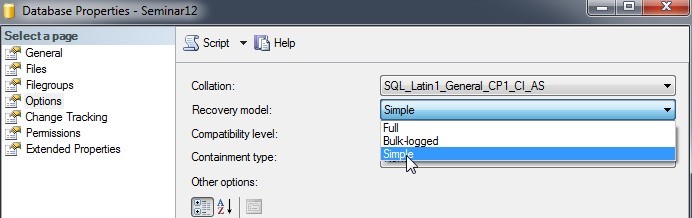
While it is not part of RFMS’ best practices, many clients prefer only to run nightly full backups and do not keep log backups. In this case, set the recovery model to Simple to prevent the log file from growing out of control, like so:
2. SQL Management Studio Setup
First, go into SQL Server Management Studio and log in.
Next, at the top of the object explorer, right click the server and go to Facets, shown here:
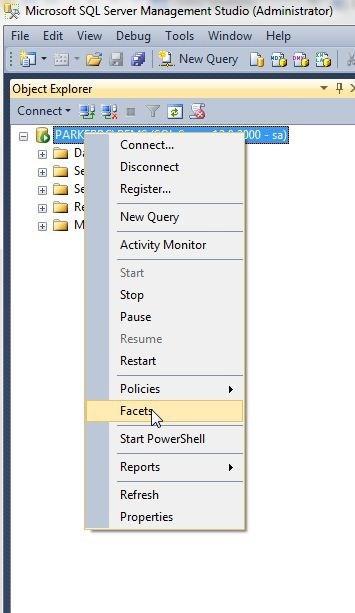
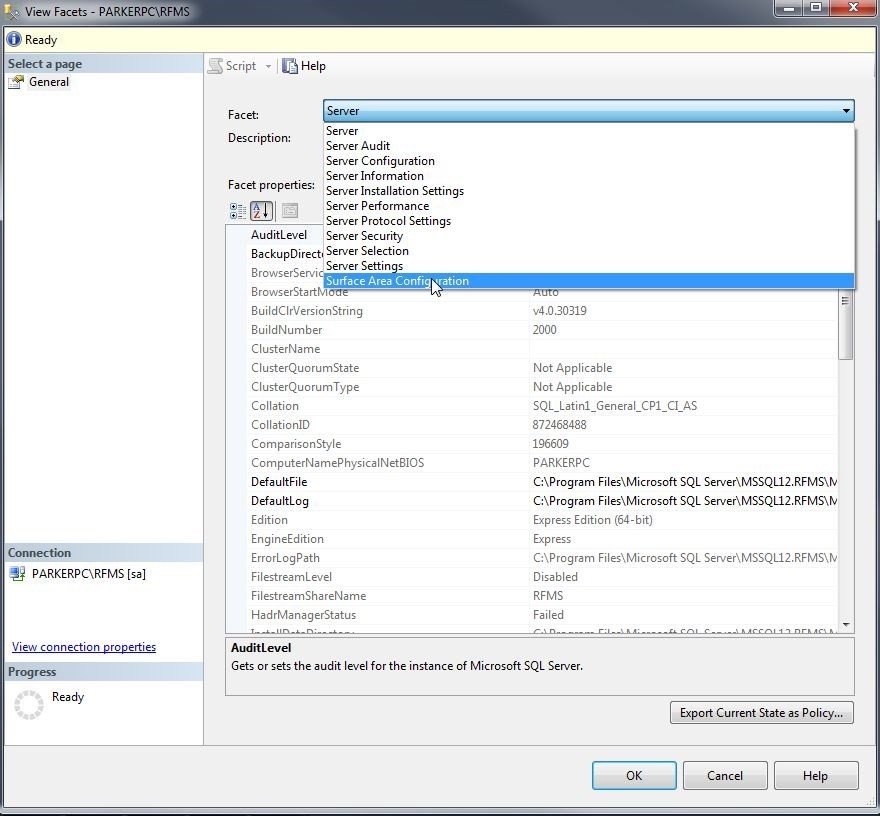
Next, go to Surface Area Configuration, shown here:
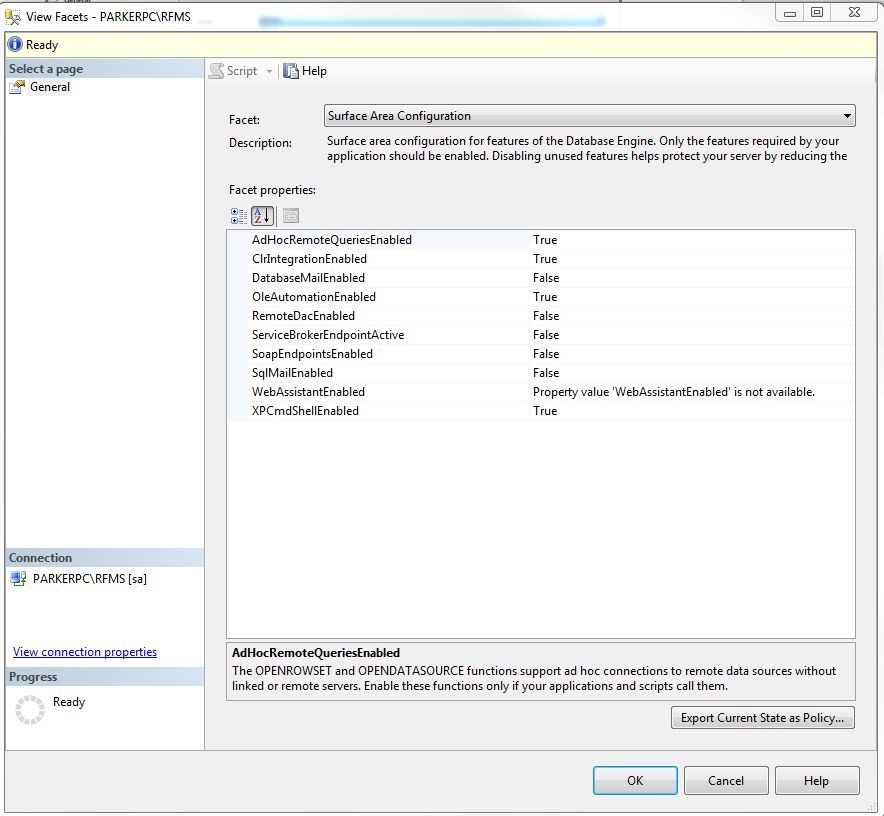
Enable AdHocRemoteQueries, ClrIntegration, OleAutomation, and XPCmdShell.
Click OK when finished.
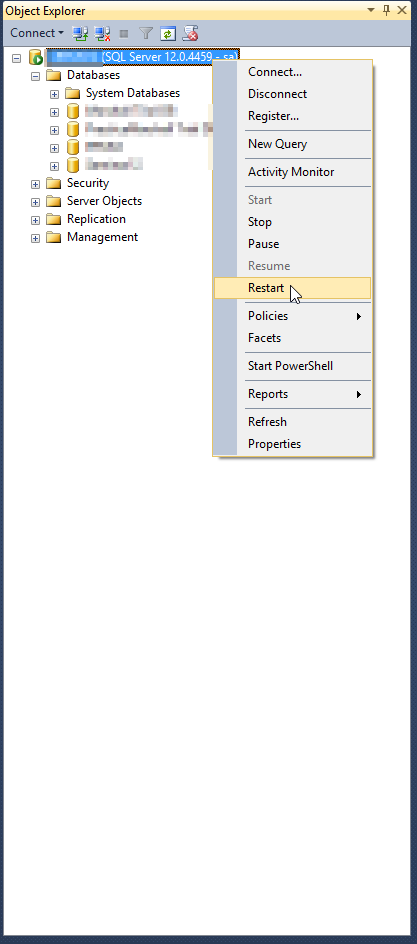
Once you have finished setting all facets, please click on the server name at the top of the object explorer in SQL Management studio and click Restart.
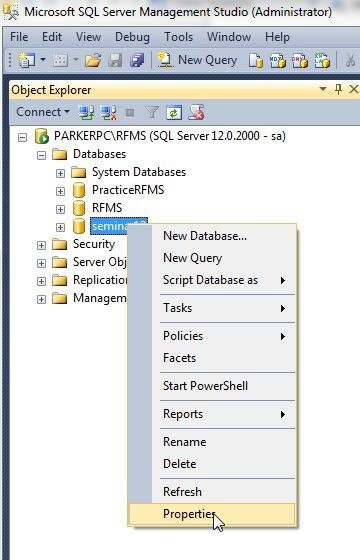
Next, in the object explorer, find the database (usually called RFMS or RFMSDB), right click it and go to properties, shown here (the database in this example is called Seminar12):
From Properties, go to Options on the left, and change SQL Compatibility to 2016 (130), as shown below.
Please note: Use this setting only if you are running SQL 2016 or greater.
Close Properties when done.
3. SQL Scripts Setup
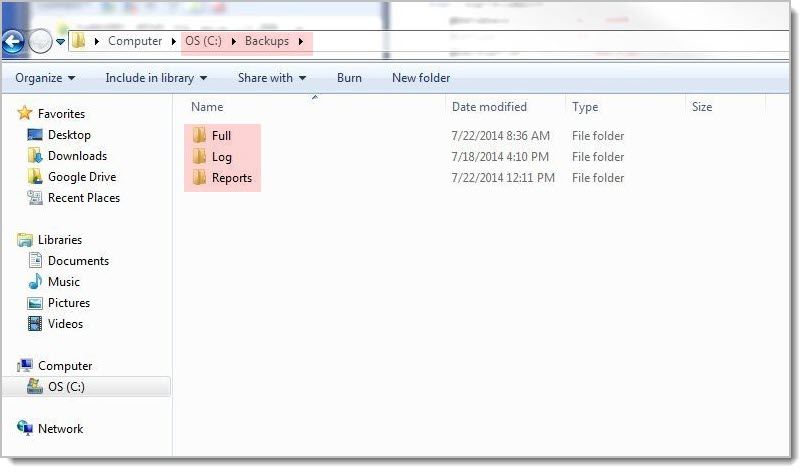
The first step of this process is to create the necessary backup folders (where backups will be saved). If you wish to mimic our example go to the root of the C:\drive (outside of the RFMS folder) and create a folder named, "Backups." Then, inside the Backups folder, create three folders named, Full, Log, and Reports
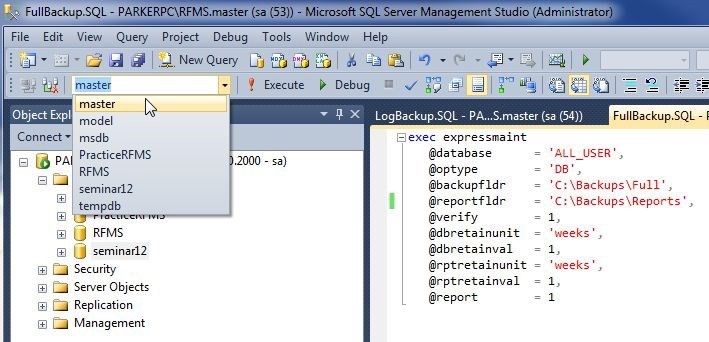
The next step is to run the expressmaint.sql script (found in your RFMS folder). To run the script, simply open it in SQL Management Studio, then run (execute) the script on the master database, as shown here. (Note: if the database list is grayed out, make sure this has the script selected in SQL studio by clicking some text inside the script):
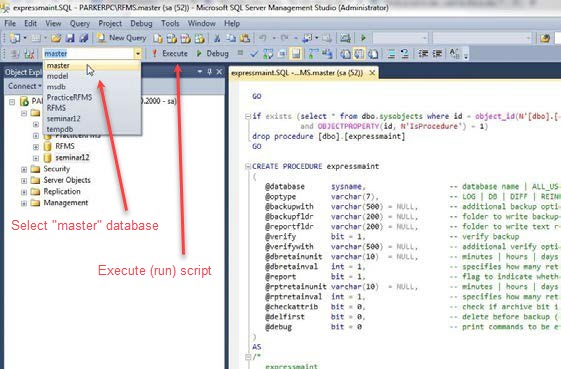
Please note: these screen shots are for reference only.
The .bat & .sql files referenced in the following steps will need to be configured with the correct information and paths for your system.
Next, setup the fullbackup.bat file.
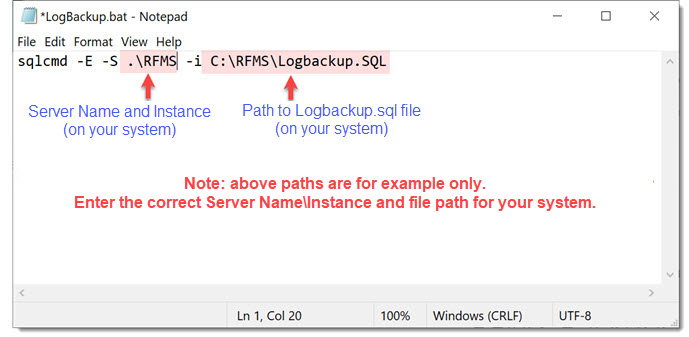
Edit the fullbackup.bat in Notepad from the same folder to match the server\instance name and scripts directory:
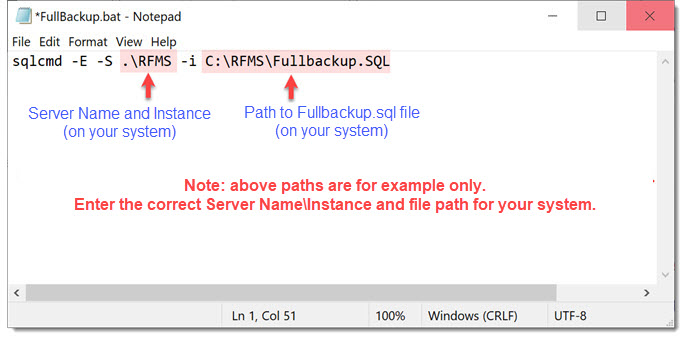
There are only two important things here: “.\RFMS” and “C:\RFMS\Fullbackup.SQL.”
The first is this example’s server name (in this case, .\ aka localhost) along with its instance name, RFMS. This information can be found at the top of the object explorer when logging in to SQL Management Studio. For example, earlier in this manual, one will see PARKERPC\RFMS as an example server name and instance name. For simplicity’s sake, leave the server name as localhost as it is in the example on this page.
The second is the directory, which can be obtained by just copying the directory the .bat was contained in and adding a slash, since the associated sql script is always going to be in that folder. (if it is “C:\RFMS” then it is “C:\RFMS\Fullbackup.SQL” like the example)
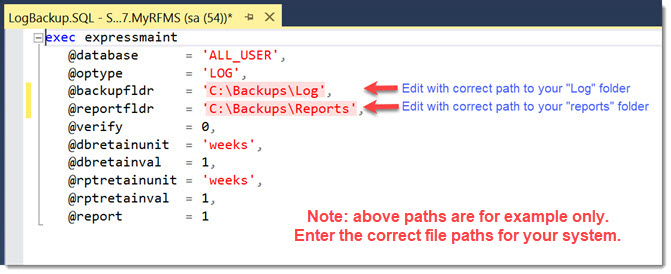
Next, setup the .sql script associated with fullbackup.bat. Open it and edit the variables “@backupfldr” and “@reportfldr” to save backups somewhere outside the RFMS folder (usually C:\Backups\Full and C:\Backups\Reports), like so:
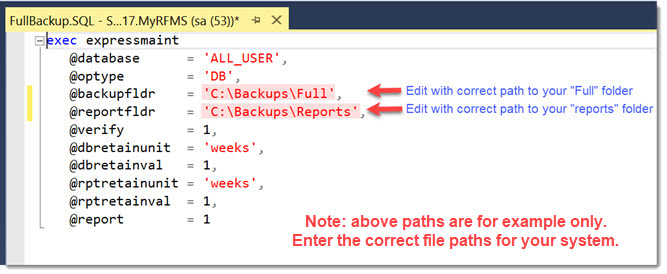
When this has been done, execute the FullBackup.SQL script on the master database.
For the Logbackup.bat, the process is the same.
Same process for the LogBackup.SQL script as well.
When this has been done, execute the LogBackup.SQL script on the master database.
4. Task Scheduling
The backups can now be automated. To do this, open the Task Scheduler. This can be reached in Windows Server 2012 one of two ways - the easiest is to right click the windows icon on the bottom left, click Control Panel, and then go to Administrative Tools, then Task Scheduler.
In Task Scheduler, two things need to be done – a daily full backup (Create basic task) and an hourly log backup. Usually, the full backup occurs two hours after the company’s closing time, and the log backup starts when their office opens and repeats every hour.
Full backups will be stored for the last 7 backups, and as many transaction log backups can be made as the company prefers for each of these 7 full backups. These are not set to expire on a timer – even if they are there for a year, the 7th backup will still be there until the eighth backup is run.
First, create a basic task:

This task can be named anything, with any description. In this example it is named Full Backup.
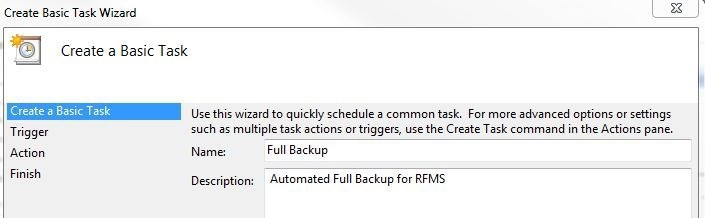
Click next, and trigger it daily two hours after the company closes. RFMS closes at 5:00 pm Central, so this one will be set for 7:00 pm. Daily will be selected by default, so just click next, which will go to this screen, where the time can be entered:
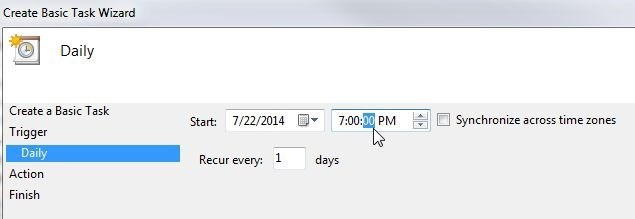
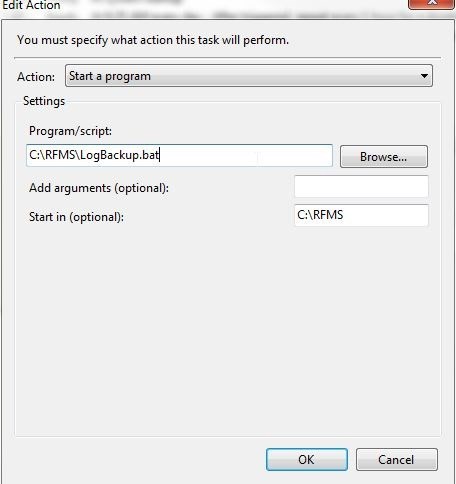
The next screen will have Start a Program selected by default, so just click Next again, which will go to this screen – which is a bit deceptive. There is a Start In line which claims to be optional. It is not optional - in many cases, backups will not run at all if this is not filled. This Start In line is just the first part of the .bat’s directory. In this case, it is C:\RFMS. The program/script line is self-explanatory: find the fullbackup.bat again and select it.
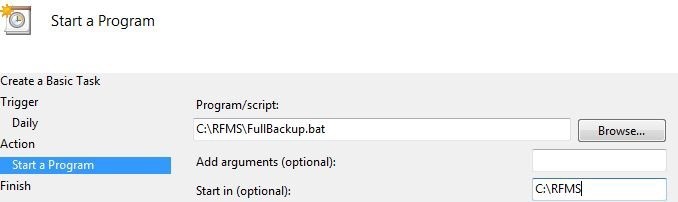
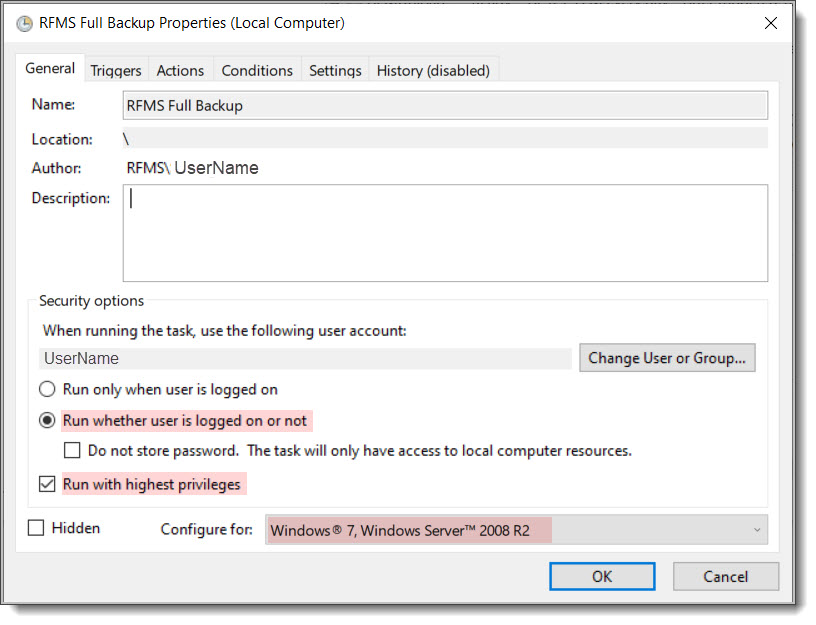
Click next, then finish, then right click the finished task and go to Properties.
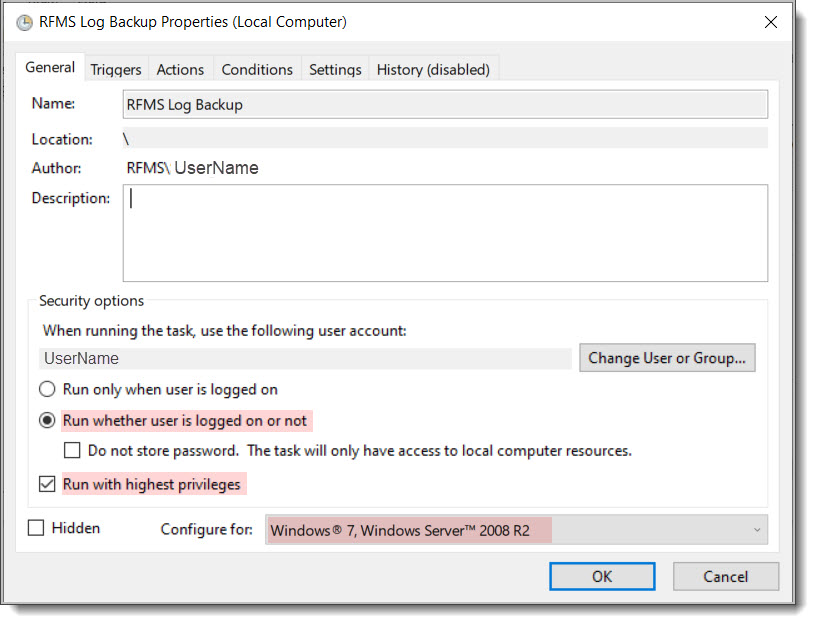
Select the options for Run whether user is logged on or not, Run with highest privileges, and Configure for Windows 7 / Windows Server 2008 R2.
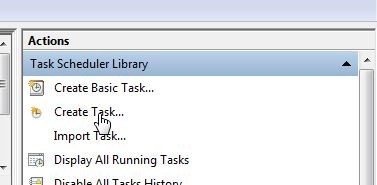
For Log Backups, the process is very similar: this time click Create Task instead of Create Basic Task inside the Task Scheduler.
Select the options for Run whether user is logged on or not, Run with highest privileges, and Configure for Windows 7 / Windows Server 2008 R2.
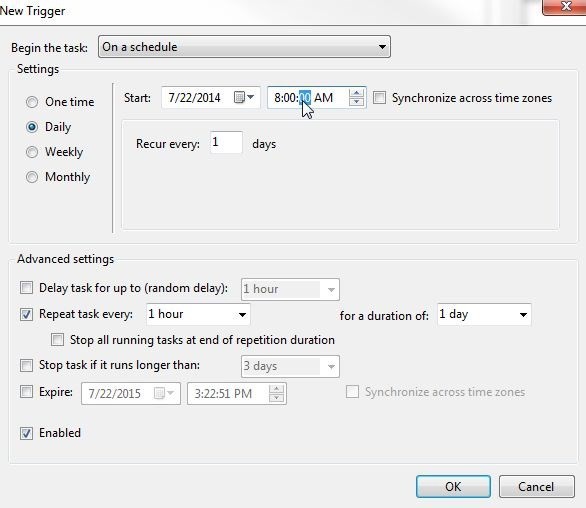
Then, go to Triggers, and click New at the bottom of that page, which will go to this screen, where it can be set it to run hourly starting when the company opens for the day:
On the actions screen, it is nearly identical to what was done for the Full Backup. The start in line is exactly the same as before on the full backup task. The file that needs to be run this time is the logbackup.bat:
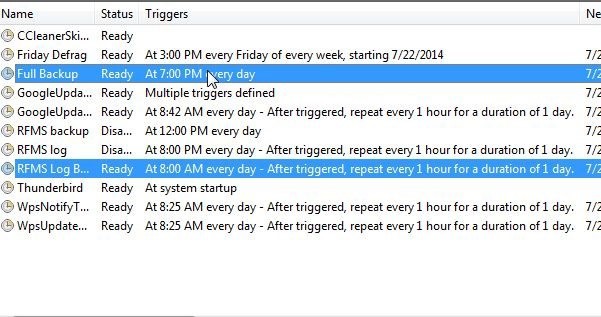
And here are the two finished tasks in task scheduler.
5. Verify Database Backups are Running Correctly
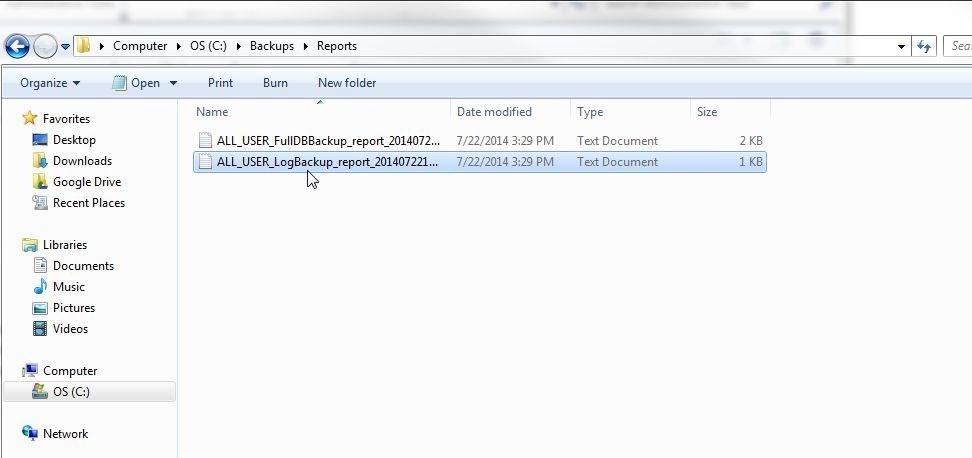
Check the Reports folder to make sure everything is running correctly:
Keep in mind that again, we recommend keeping multiple backup sets not just for the RFMS folder, but also the SQL Database Backup. Make sure that at the very least external or cloud backups of these backups get made by the automated scripts or the SQL maintenance plan.
6. RFMS Folder Backups
How and when the company prefers the folder backups to be run is beyond the scope of this document, but our best practices are to keep a daily copy of the RFMS folder to minimize downtime during a migration or IT disaster to its lowest possible amount.
Please configure the RFMS folder backup system to only run at a certain time/times in the day (after-hours is recommended). Constant backups will slow RFMS performance considerably (for example, a Dropbox folder by default will automatically sync any files placed to Dropbox up to the latest version. Carbonite and other cloud backup systems can be configured in a similar way, and we have also seen them set themselves like this as default.)
Best practices for keeping folder backups are to keep multiple backup sets as with the database backups system – simply keeping an extra copy on the hard drive is better than no copy but does not adequately protect against viruses, hard drive failure, etc. For example, an airtight system is to do a daily NAS backup, a daily cloud backup, and a daily external backup. We realize it is not reasonable for all companies to do all 3, and are not recommending expending money the company does not have, but using the best multiple-backup methods the company can afford is absolutely in their best interest – the more sets of backups they have, the more secure their data is against an IT disaster.
Please see this link for more information in our Best Practices for Performance, Backups, and Data Integrity
Comments
Article is closed for comments.