
Full User Guide for Product Import/Export (PIE)
Products>Utilities>Product Import/Export (PIE)
1. Select Import on the screen

2. Click Import from CSV 
3. Click Create Import File

4. This will create a file called Product_Import.csv that is saved in the RFMS Directory.

This file can be renamed if needed.
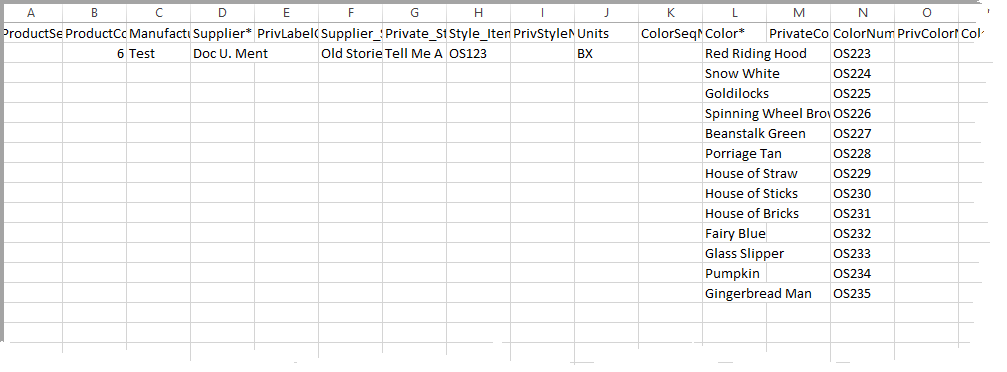
5. Open the CSV file. The columns with an asterisk (*) are required.
- Product Code (Column B)
- Manufacturer (Column C)
- Supplier (Column D)
- Supplier_Style (Column F)
- Style_ItemNum (Column H)
- Units (Column J)
- Color (Column L)
- Roll Width (Column AK) (if the product is a roll)
The columns that are used for the Fuzzy Match are marked with (FM).
The columns that are used for the Direct Match are marked with (DM)
The columns that are for Roll are marked with (R).
The columns that are for Items are marked with (I).
- If the products being imported are NEW, then Column A (ProductSeqNum) and Column K (ColorSeqNum) should be left blank.
- If editing existing records, FIRST export products to edit. DO NOT ADD or EDIT SEQUENCE NUMBERS IN COLUMN A (ProductSeqNum) OR COLUMN K (ColorSeqNum). Leave Columns A and K unchanged on the records that exported (leave blank if New). Adding or editing ProductSeqNum or ColorSeqNum may result in wrong records changed in Product catalog.
- If the Private Information is not filled in, then the Importer will pull the information from the required fields (Supplier and Supplier Style) and populate the PrivLabelCo column (Private Supplier) and Private_Style column.
- In column CD (MeasureProduct), a 1 must be entered to flag the product as a Measure Product.
- In Column CE (EstimatingUnit), use an IN for Imperial and CM for Metric
- In Column CH (PatternDrop), enter the number as decimal instead of a fraction.
6. Fill in the first row of a product and then fill in the colors. For example, a product named Old Stories has 13 colors. The information for Old Stories will be listed one time for the header information and then the 13 colors will be listed in the color area of the spreadsheet.
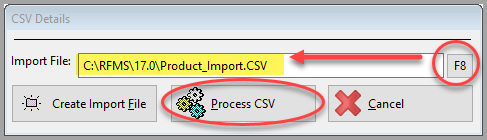
7. Once the spreadsheet is created, click Import from CSV and F8 in the file. Click Process CSV.
8. Once Header comes over with all 13 colors. Tag the Header Line and click Import Tagged To Products 

If there is a match by seqnum, then the Match Icon will appear.

9. The following message about Fuzzy Match will show. Choose Import with Match or Import w/o Match. 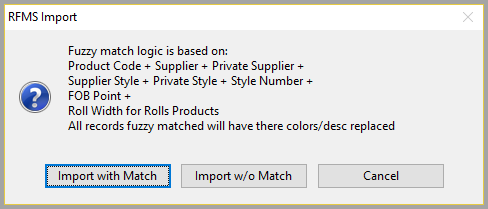
If Import w/o Match is selected, there is a possibility that duplicate rolls/items/services will be created.
10. The products are now imported over. The Entry type will be IMPORTED and in the Cost Source the Cost Type will be PIE IMPORT.
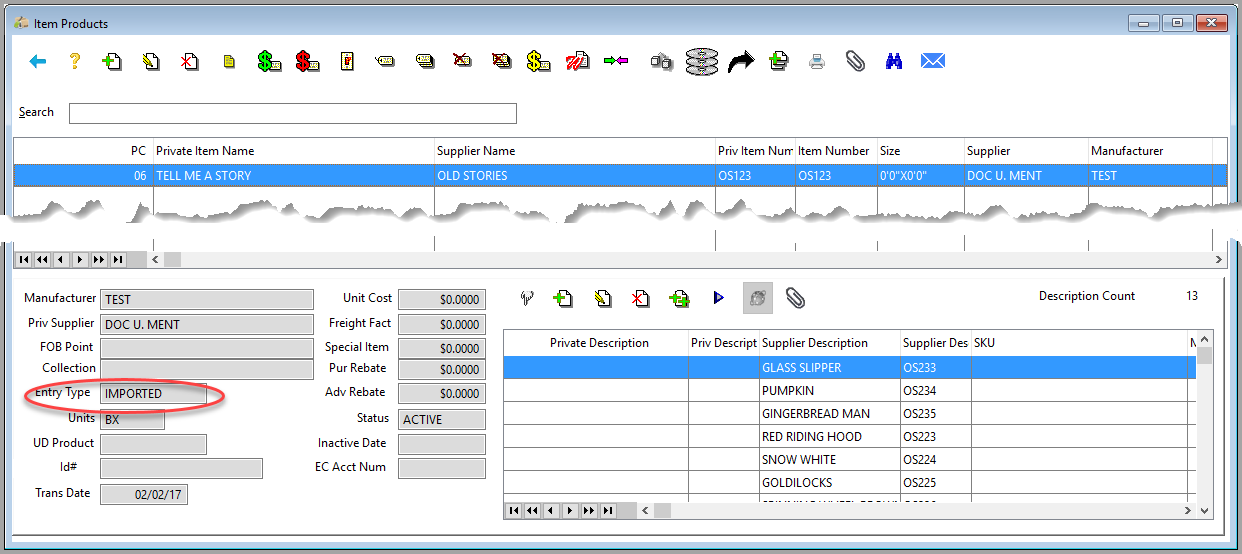
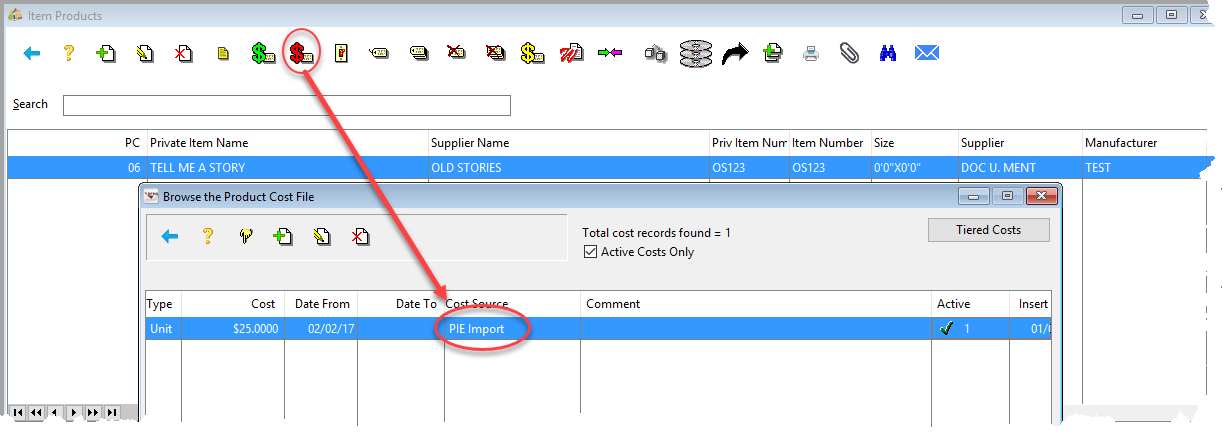
To insure that cost are brought over properly after the import, go to Utilities>Apply Cost.
Combined Tagged Products 
Tag the products that need to be combined. Click the Combine button. The products will become one record.
If some of the fields on the products do not match, a message will appear asking if they need to combined.

Comments
Article is closed for comments.