
Full Billing Group and Partial Billing User Guide
Overview of Partial Billing
Partial Billing is designed to bill out sections of a job, as they are completed. For instance, a job has 3 order lines (of material) and each line contains 2000 SY of carpet. At the end of September the first 2000 SY of carpet leaves the warehouse and goes to the job site for installation. At this point, that portion of the job is billed. Since the job may take months or longer to complete, income should be shown incrementally for each section of the job as it’s completed instead of waiting until the very end. Using Partial Billing, one particular line of material (2000 SY) and any corresponding lines of pad and labor can be easily exported to another order and billed it as if it were the original order. Job costing can be done on the new order so that this job can be booked to the journal.
This feature could also be used to separate material types. For example, a job includes ceramic, wood, and carpet. To separate work orders for each material type so that like materials may be scheduled and billed together. This would still allow showing profitability even though the entire job is yet to be finished.
How it Works
Partial Billing of customer orders is accomplished by using Billing Groups.
An order is entered for the entire job and a Billing Group is begun.
Job lines completed are split and delivered.
The Remaining lines or the completed are exported to a new order(s) within the Billing Group.
The completed order is job costed.
A billing notice is produced.
This process continues until all lines are completed and billed.
The original is final billed when the entire job is completed.
Change orders can be added throughout the process.
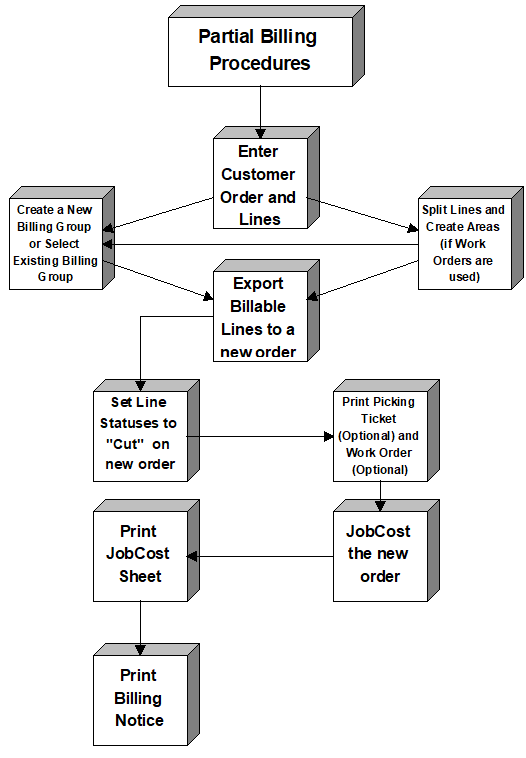
Example:
Enter the Order
Let’s say that a sale is made to Johnson Builders for installation in Willow Trace Apartments, owned by Bob Brown. The order consists of 40,000 square yards of carpet, pad and labor. There are no additions or upgrades. The order will be billed as the work is completed. Note that a Billing Group must be created to Partial Bill or attach the new order to an existing Billing Group.
Billing Schedule
The billing schedule is as follows: The builder will be billed incrementally for 40,000 SY of Carpet, Pad and Labor over the course of twenty billings.
First Billing
Prepare Lines
The lines are being split to bill ONLY 2000 SY of this job at a time. These lines will be exported to a separate order and have a separate CG or invoice number. Once the lines have been split click the export button and tag the necessary lines.
The lines on this order are as follows:
Carpet - Highstyle Pebble 2000 SY
Pad - 3/8" Rebond Contract 2000 SY
Labor - Carpet Installation 2000 SY
The first partial billing will be for the 2000 SY of the installation of the carpet, pad and labor. Optionally set the Areas if work orders are used. Work Order lines carry over to the new order.
Job cost and Bill
The next procedure is to job cost the order that has been delivered. By Partial Billing the order, the total amount billed will appear in the customer’s A/R file.
To Job cost, make sure that the line statuses are set as "Cut". Once this order is job costed, print the job cost sheet. Next, print the Billing Notice. Now in the Last Billed field, notice that the number 1 is present. Each time more orders are jobcosted and the billing group is billed, this number will increase.
Splitting Orders for Partial Billing
To split an existing order into two or more invoices for Partial Billing, follow the steps below.
- Highlight the order to split.
- Click the edit
 button.
 - Split lines, create areas (if work orders are used) and export lines from this customer order Screen.
- Click the Export button
 . (Lines in a delivered status may not be exported from Original Invoice to new invoice in Billing Group).
 - Choose the lines to partial bill, click the tag button.
- Click the F8 button next to the CG field to create a new CG number for the lines being split off. Lines may also be attached to an existing CG number. If this option is not utilized, a CG number will automatically be created when you finish the export.
- Click the Select button
 to complete the export process.
 - At the message, "Send selected lines to New Invoice?" Click the "Yes" button to export the order lines. Another message will appear, "Order Lines exported to New Invoice". A dialog box will appear and display the new CG number.
- Click the Save button and return to the Billing Groups Screen. Both orders will now be displayed under the Orders section of this screen.
- Highlight the order to bill by single clicking on the line.
- Click the Edit button and set the lines to a "Cut" Status.
- Click the Save button and return to the Billing Groups Screen.
- Make sure the Billing Group to job cost is highlighted, then click the job cost button
 .
. - Once you have Job costed this order, print a Billing Notice by clicking on the printer button
 . You will have the option to print several other documents as well.
 - After you have printed the Billing Notice, the Last Billed field will contain a number.
- Under the Delivered Section, you will now see that this invoice has been billed and the date is displayed.
- Click the Exit button
 to return to the Customer Browse Screen.
 - Now the Billing Group and Partial Billing information is shown to the right on the Customer Browse Screen. Billing Group is in blue and Partial Billing is in red.

If the original order was use tax, but no labor lines are exported to the new orders the new orders will not inherit the use tax status.
Comments
Article is closed for comments.