
Step 1
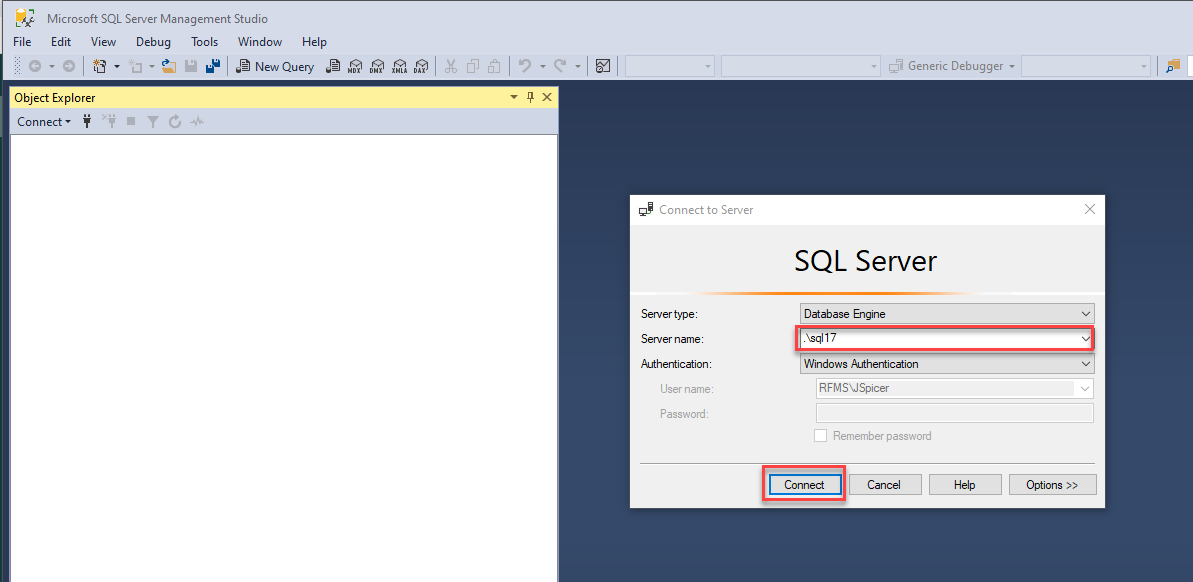
First, you will want to log into SQL Server Management Studio either locally on your server, or via remote connection. For the purposes of this article, we will use an example where the user is logging in locally using Windows Authentication.
Step 2
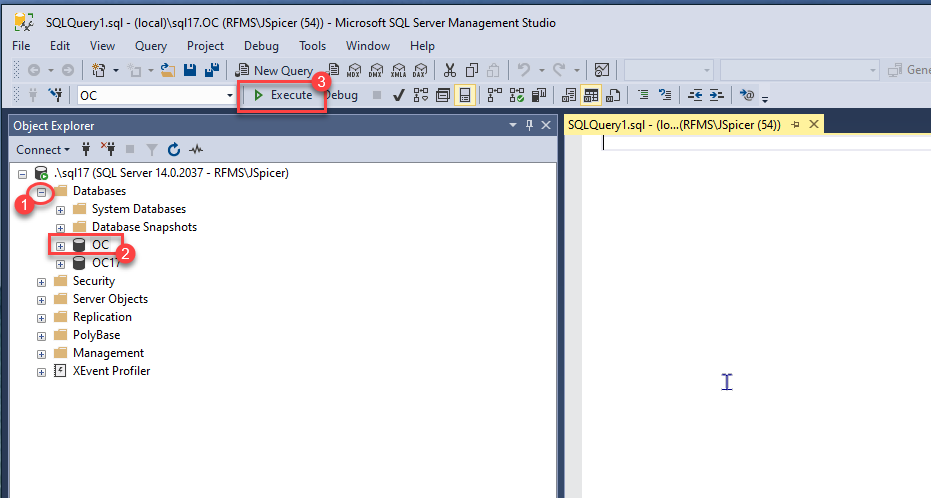
Next, you will want to select from the list of databases the one which you are running the query against. In this example, we will be running it against the ‘OC’ database.
(Please note that this is only an example used for the purposes of this article, and the ‘OC’ database should be edited with extreme caution, as it is inexorably tied to all other databases hosted on the server, and contains several vital stored procedures.)
Once the database is selected, click on the button in the upper left-hand corner of the window which says, ‘New Query‘.
Step 3
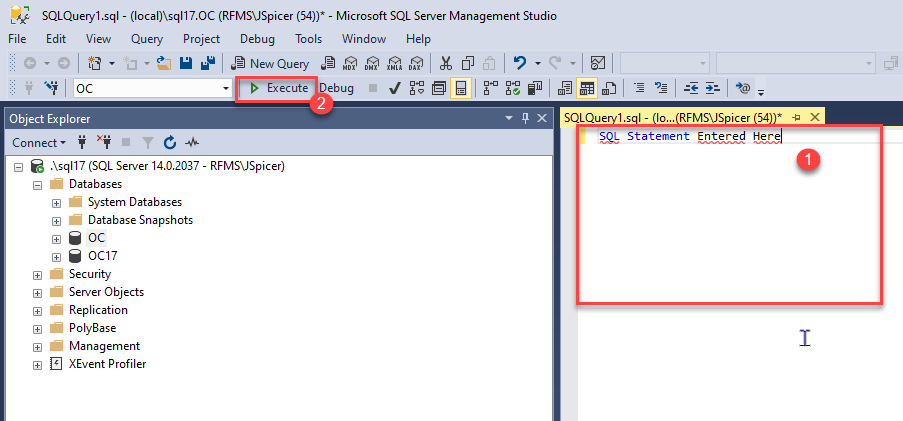
A window will then open beside the database list, enabling you to enter your query. Once it has been entered, click the button which says ‘Execute‘ at the top of the window. Management Studio will then run your query against the selected database, and once processed, it will confirm whether or not the query was run successfully.
Step 4
Some queries will be pre-compiled in a file with a ‘.sql’ extension. These are easily run, as well. Essentially, once the window in the above picture is open, double-click the ‘.sql‘ file, and it will automatically open within Management Studio. Once opened, click ‘Execute‘.
Please bear in mind that it is always good practice to back up a database prior to running any type of query against it. For assistance with backing up a database, please see the following Knowledge Base article: https://rfmsinc.zendesk.com/hc/en-us/articles/115012572827-RFMS-Backups
Comments
Article is closed for comments.