
Utilities>Client Management Set Up>Letter Templates
A template can be created while adding a letter
Commercial Project Management>File>Letters or Letters button on toolbar click Save as Template button.
Notice when dealing with a template, the letter icon is white. When adding a letter the icon is gray.
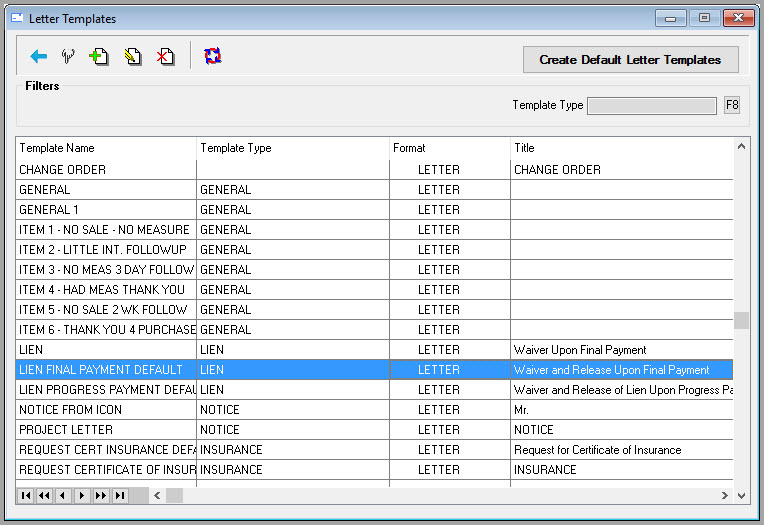
This will be used to set defaults for specific types of letters. The defaults will be used when creating a new letter but can be edited when printing a specific letter. Letter types are user-defined.
Click the edit button to add this information initially or to change it later.
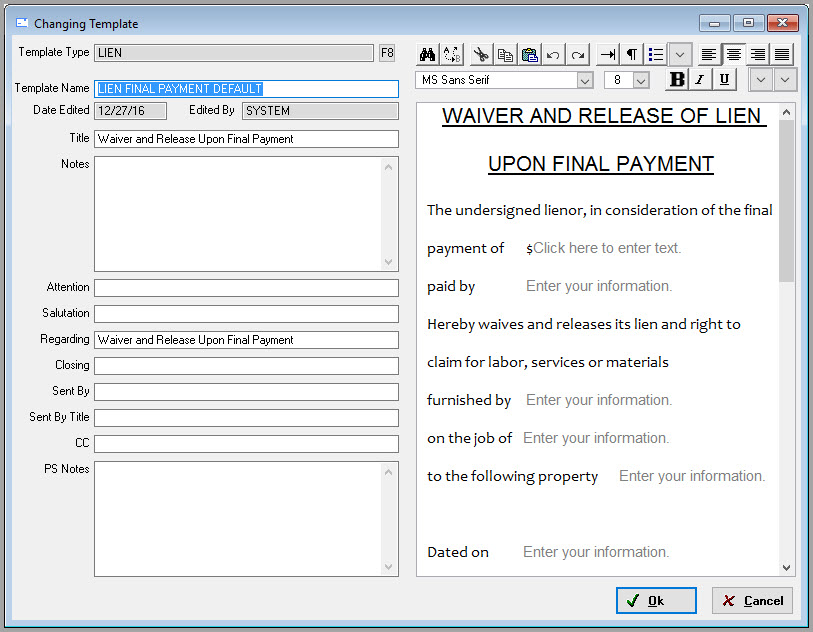
Complete as little or as much of the default information and fill in the rest at the time letters are created.

The attention, regarding and CC fields do not automatically include the leading indicators of attn, re, or cc on the letter so these fields may be used as custom fields.
It is possible to create multiple versions of letters by clicking the Insert button.
- Choose the Letter Type
- Template Name: Give it a description. In the example above the Name: Certificate of Insurance specifies the type of Request for Information. Duplicate Template names are not allowed. Then complete the default information for this or letter.
Comments
Article is closed for comments.