
Products>Utilities>Edit Displays
The ability to add display information and view display information from add on software such as CCA Pricing and Tagging was added in version 11.1. Soon clients wanted the ability to add non CCA displays. Some use them for listing products in actual displays while some use them as another way to group products.
Create the Display
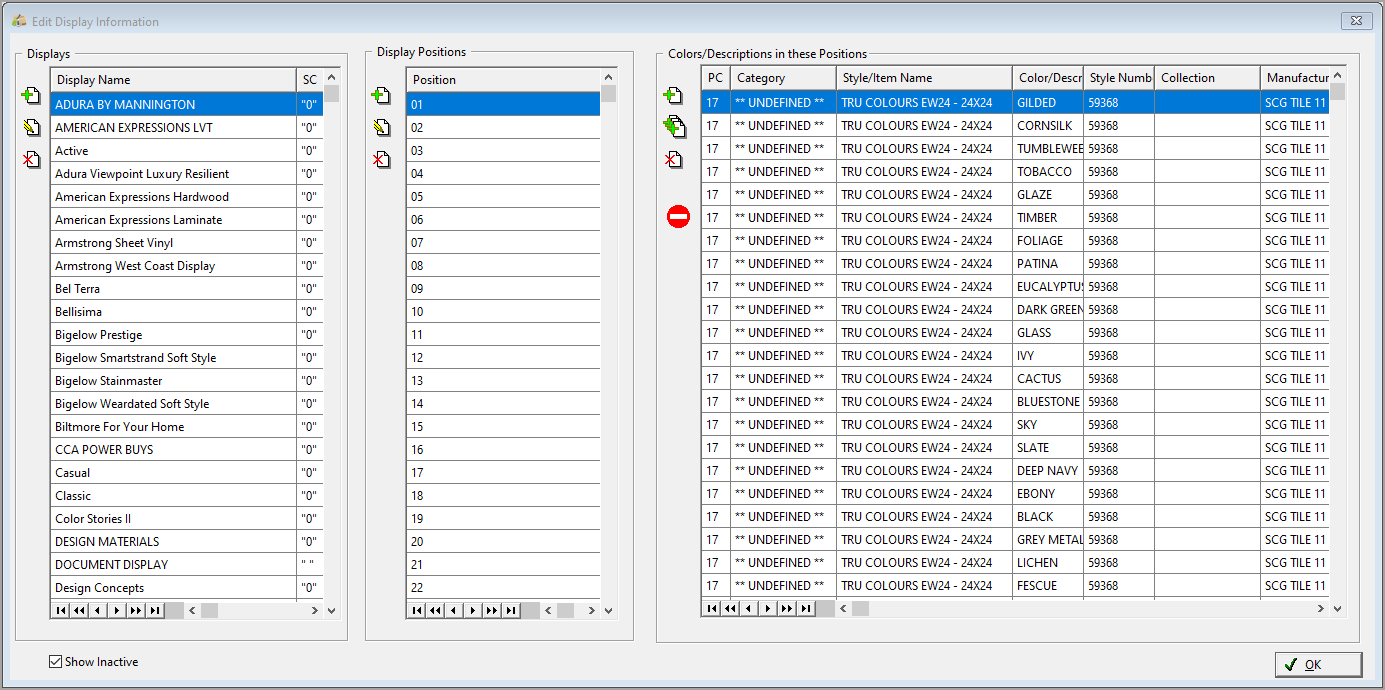
Click the Insert button in the Display Name Column. Type in a Display Name (Required)

To repeat adding a display without having to click insert each time, check the Repeat inserts until canceled box.
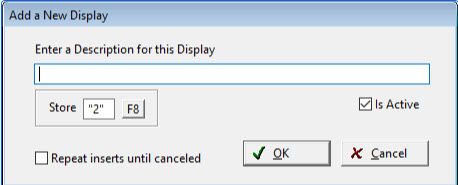
Store is also required for Store Specific- Defaults to “Single Store to Process (Default Store)” but another store can be selected.
Add display positions or slots
Highlight the display to work with and click the insert button in the display positions column. Type in a Position Name.

To repeat adding a position without having to click insert each time, check the Repeat inserts until canceled box.
To add Products to the Display Positions
Highlight the position to work with and go to the Colors/Descriptions in this Position column.
Click the Insert button to choose Colors individually to import into the highlighted display position by tagging them, or click the Multiple Insert button to choose all Colors of a style to import into the highlighted display position by tagging them.
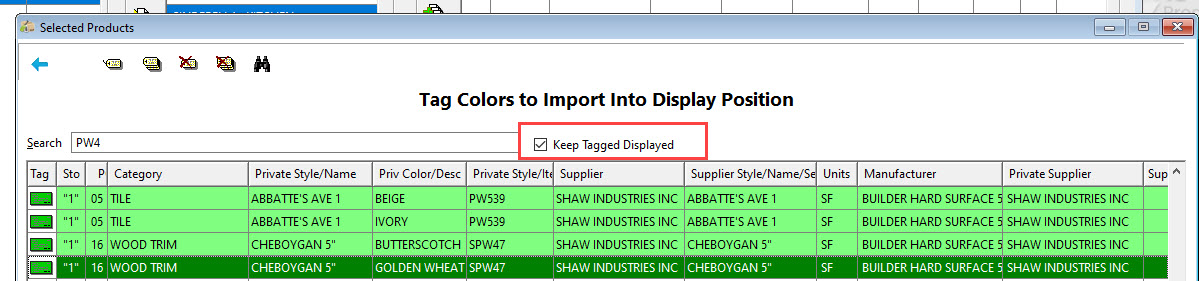
From the Preview Selected Products Screen, Tag colors to include, they will be highlighted in green. Click Import to add them to the display position, or click the Find button to narrow the list of possible products to import to the display position.
Click OK, to go back to the Preview Selected Products Screen.
Tag colors to include, they will be highlighted in green. Click Import to add them to the display position.

From either Insert records can be tagged and displayed and then another search done and more records tagged by selecting the Keep Tagged Displayed check box.
To remove Products from the Display Positions
Click the delete button to remove the highlighted product from the display position.
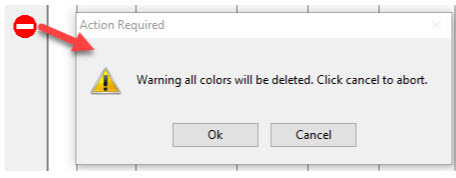
Click the delete all button to clear all records from the display position.

Comments
Article is closed for comments.