
Products>Utilities>Product Sets
The ability to associate products is called product sets. It can also be added to an individual product record.
First, add a new set by clicking the insert button next to the product set area of the edit product set membership screen.

Next, add members to the set by clicking the insert button next to the Product Set Members area.
This displays the RFMS Range Find screen allowing filtering of the products to be added. Select the options to refine the list.
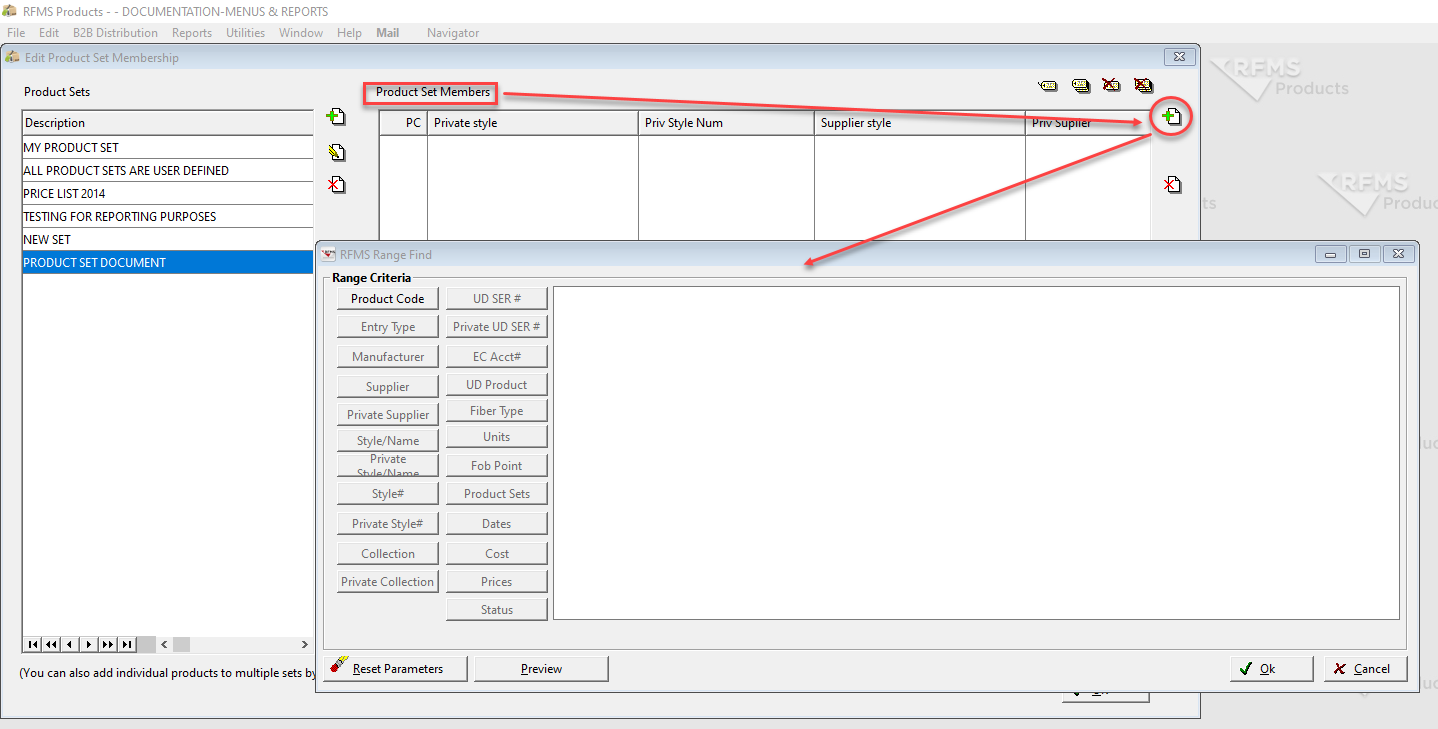
Click the preview button to see if the selections are giving the desired results. Click OK when the list is refined.
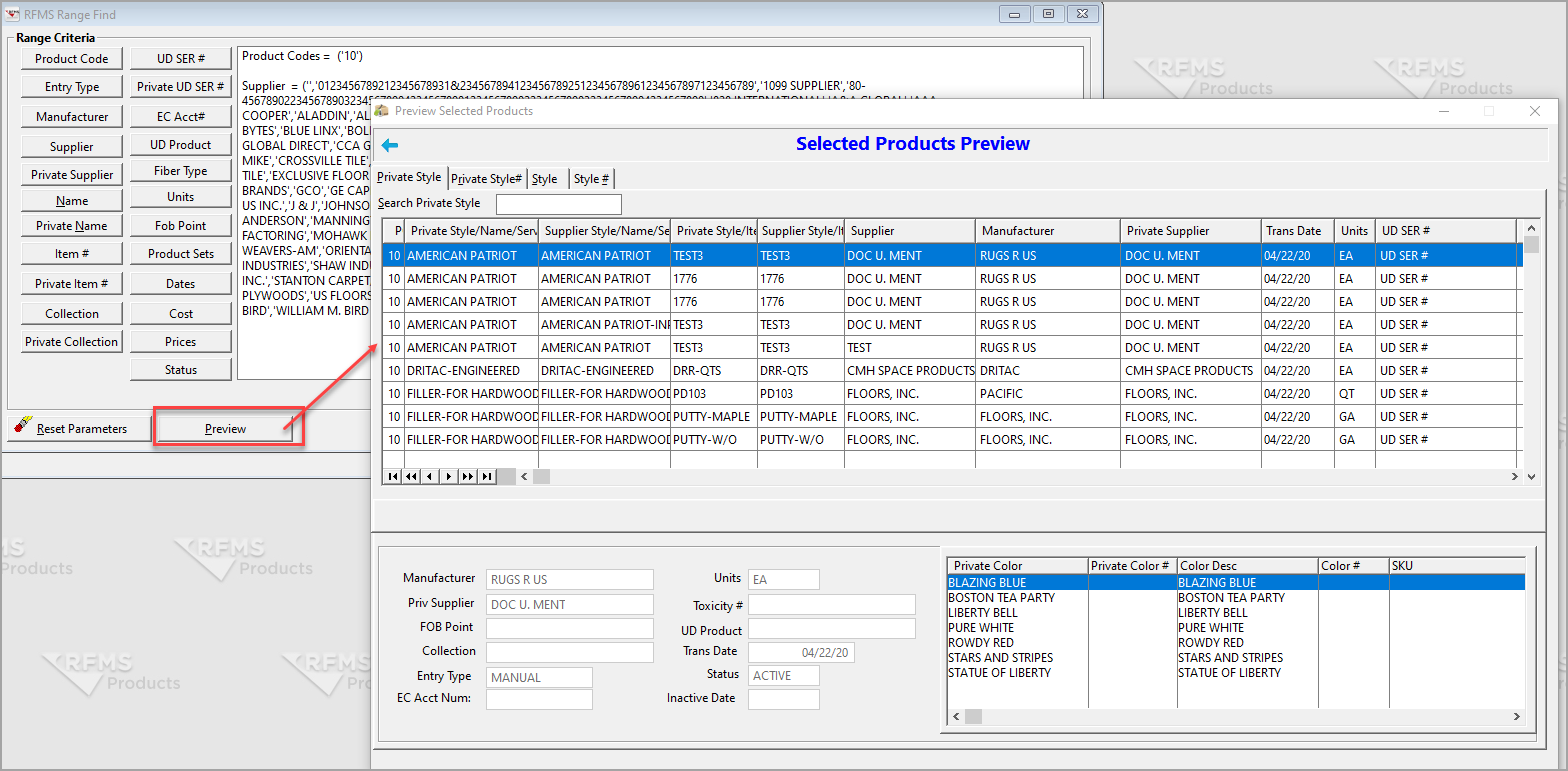
Now the filtered list is a part of the set.
Click the insert button to filter and add more members.
Highlight a product and click the delete button to remove it from the set.
To remove members of a set, tag it and then click the delete button.
Set members may be sorted by clicking the column headers.
Editing Product Sets on an Individual Product Record
The membership can be accessed on individual product records by going to the extended information tab and clicking on the edit product set membership button.
This displays the edit product set membership screen. This shows the sets the product is a member of, the sets the product is not a member of and allows the addition or removal of the product.
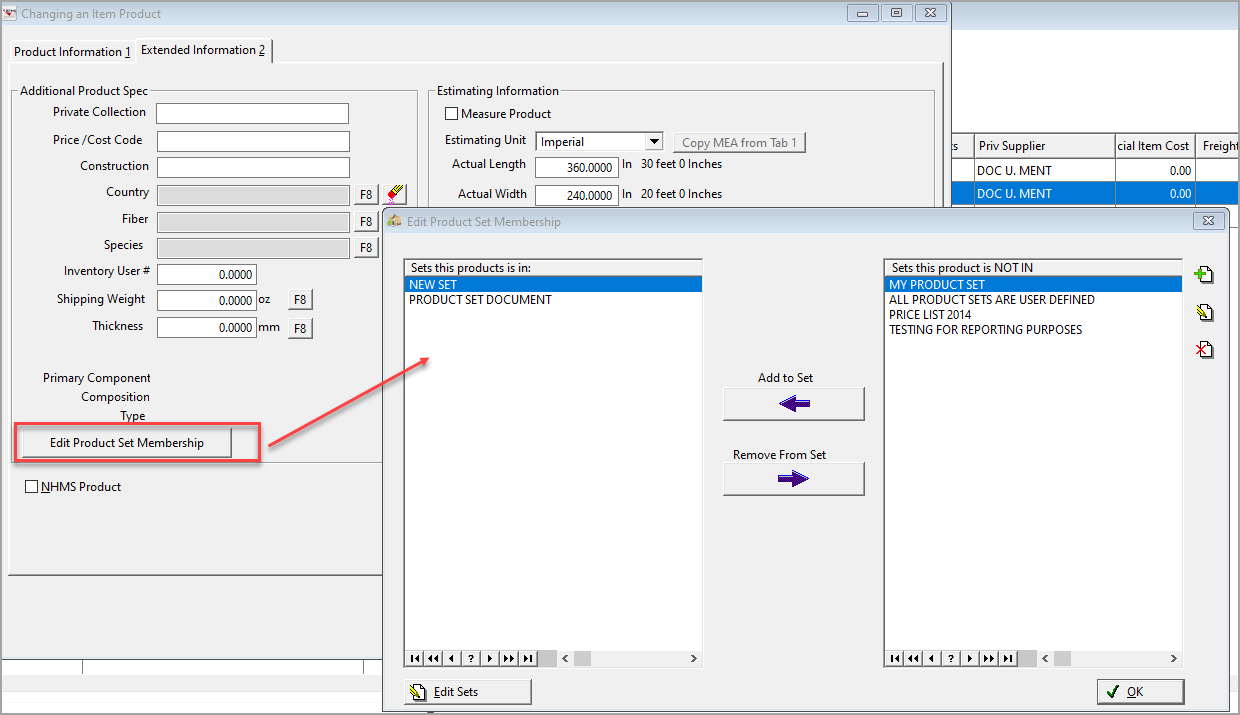
Using the buttons next to the sets, this product is NOT IN section; sets can be added, the names edited, or sets deleted.
Click the edit sets button to display the screen to add new members as a group to sets.
A product may be added to a set by right-clicking on the product and selecting add to set from the pop-up menu.
The product set has been added as a sort option and a filter parameter to the materials analysis report.

While product sets are used to associate products for analysis, associated product bundling can be used to associate products to be sold together in order entry.
Comments
Article is closed for comments.