
Project Manger>File>Remarks or Remarks button on tool bar

Remarks are notations about a record; these can be printed on several reports. Because of that it is recommended to keep them succinct. These are called remarks to differentiate them from the notes in RFMS. RFMS Notes can also be edited from Project Manager. Filter the list by remark date using a provided selection list which includes today, this week etc. To view details or edit a remark, highlight the line then double click or click on the edit button.
Remark can be added via RFMS in a customer order or a quote, by clicking the Remote Action button. 
Choose to add it to the selected order or the selected customer or both. Adding to both requires clicking the add remark button twice.
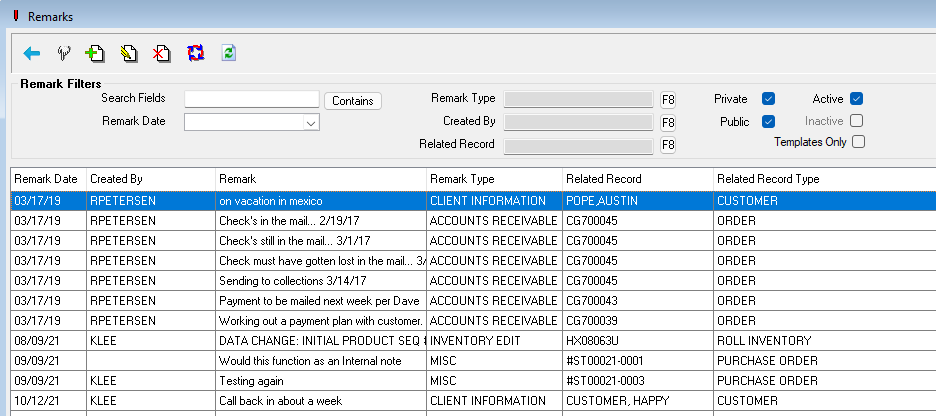
Browse Remarks
Search Fields: This will search the remark field in the remark for the value typed. Click the button to the right to change from Contains to Starts with.
Remark Date: Use the drop down list which includes today, this week etc.
Remark Type: Types are set in Utilities>Project Manager Set Up>Remark Types.
Related to: A remark, appointment or task can be added to this related record from this screen
Created By: Set the default for this in >Utilities>System Options>Project Manager>General>Created by
Active/Inactive: If included in the filter, inactive Remarks will be listed in gray.
Template Only: Use this to easily find template remarks to edit or mark inactive.
Data can be sorted by any of the column headings including date fields.
From the Toolbar or Edit Menu

Add/Edit/Delete a Remark Reset Filter Refresh listing
Add/Edit Remark
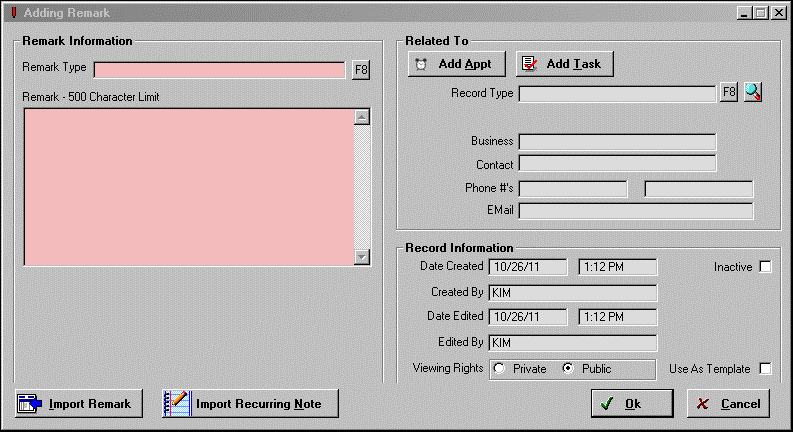
Enter information or use the Import Template Button to pull information from a previously created template.
Remark Type: Types are set in Utilities>Project Manager Set Up>Remark Types.
These remark types are available on the A/R Report, A/R Collections and Ageing Reports in RFMS and as filters for Customer Orders and Quotes.
Click Import Remark to use a previously created Remark Template.
Click Import Recurring Note to use a recurring note from RFMS for the remark. The maximum size for a remark is 500 characters. The remark field size has been decreased to not allow more than this many characters.
Related to: A remark, appointment or task can be added to this related record from this screen
Much of the Record Information is automatically updated by the software:
- The Date/Time Created
- Date/Time Edited
- Created By
- Edited by
Check to make a record inactive.
By default Remarks cannot be edited and cannot be deleted. Although the Remark cannot be edited or deleted it can still be marked Inactive or Use as Template in Client Management.
This can be changed on the Project Manager Utilities>System Options>Project Manager> Remark>Allow Users Without Administrative Rights to Edit and Delete. Users with Administrative rights will be able to edit and delete Remarks regardless of this setting.
Choose the Viewing Rights as either Private or Public. If a record is marked Private, it will be private not only to the “Created By” user. It includes the user that the item is assigned to.
This has the effect of creating a private record between the Created By user and the Assigned To user.
This is very important as each person will be able to view only their own private records plus all public records. If a record begins as public only the record creator or the administrator can change it to private.
Check Use as Template to make this information available for creating future items. The Remark Type and Remark will be saved as the template.
Comments
Article is closed for comments.