
Products>File>Price Range Edit

Doing a range edit allows establishing general products formulas that can be used for any or your entire inventory and alleviates the need of entering them in each individual Products record. When adding individual new products records, you can leave the Selling Prices blank and created globally through this selection. Here you can create several different products formulas and designate what records you want to apply them to by establishing your parameters from the options displayed. Those formulas will then automatically be exported to all of the records designated. EXISTING FORMULAS WILL BE REPLACED WITH PRICE RANGE EDIT.
This screen allows specifying product records to apply formulas. This screen does not apply the pricing to the product records. This will be done via update selling prices in Products>Utilities>Update Selling Prices.
This allows setting formulas for a future date and then not applying the price changes until that actual date.
Criteria for Edit Buttons
Select Product Code(s)
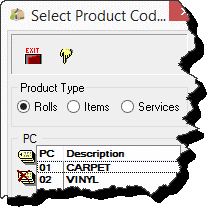
This screen allows you to select the type of product you are looking for and tag the Product Codes needed. You may select individual codes or click the tag all button to select all the product codes in a list.
Entry Types
E-Commerce-Records imported via RFMS E-Commerce
Imported & Imported w-xref - records that were imported through a routine such as FloorLink, PL Import, etc.
Manual - records entered by hand and created by the RFMS Product Importer.
RFMS Created-records created that have been created in inventory and did not have a product record associated with them.
Individual Types may be selected or the Tag All button can be used.
Dates
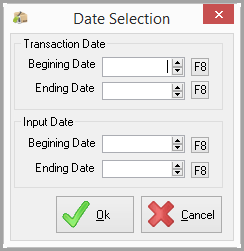
Transaction Date
The transaction date displays the last system date on which the record was updated. Changing the cost does not update the transaction date. For example, when a price range edit is performed, the transaction date will be the day the edit was performed. The transaction date may not be manually changed.
Starting -Ending Input Date
Input date is when the product record was entered into your RFMS system. It cannot be changed. This will allow you to take a group of products that came in on a particular day and apply the formulas at that time.
These date parameters allow entering formulas that won’t affect past or future products.
Other Buttons in Criteria
These buttons allow the selection or exclusion of certain criteria.
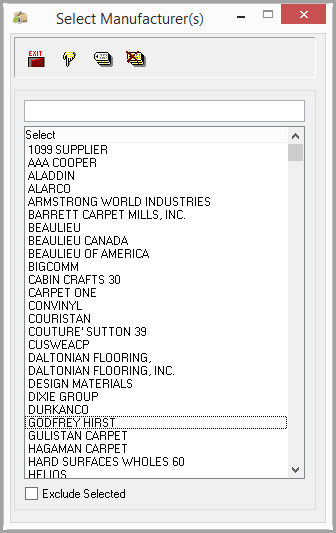

The search tool at the top makes it easier to find the specific criteria. Type letter, letters or the full name in the search box and click Tab.
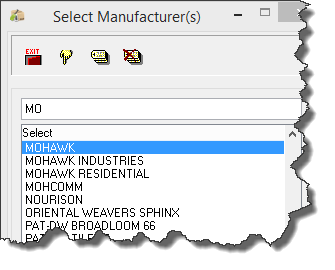
Individual criteria may be selected or the Tag All button can be used.
The Exclude Selected checkbox at the bottom of the screen allows the tagged or selected manufacturers to be excluded instead of being part of the criteria.
Clear, Save or Load Parameters
Clear-starts the criteria over with blank screen
Load Price Range Edit Parameters
Save Price Range Edit Parameters
Go To Formula Setup
Click the Go to Formula Setup button to display the Set Formula screen.
First, choose to edit either the formula or the price. The commission can be edited alone or in conjunction with formula or price.
The list of products to be edited can be narrowed by a cost range. For example
Cost from 5.00 to 6.00.
Specify which cost will be used. For rolls enter R for roll cost or C for cut cost. An actual formula for specifying the cost can also be entered. For example C/.75. Then only records where Cut Cost/.75 = 5.00 to 6.00 would be edited.

Autopopulate Formulas
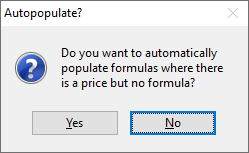
With no formula entered in price range edit, answering yes here will take a price that has been entered on a product record with no formula and backfill in a formula.
With no formula entered in price range edit, answering no here will leave the entered price with no formula.
If a formula is entered in price range edit, this question is irrelevant, as the formula will be applied.
Comments
Article is closed for comments.