
Full Color Crossover User Guide
Rolls or Items
Click the radio button located next to the appropriate selection
To set up crossovers for material located in Roll Products file, select Rolls. To set up crossovers for material located in Item Products file, select Items.
This will determine which products file is being searched

Creating/Editing New Links
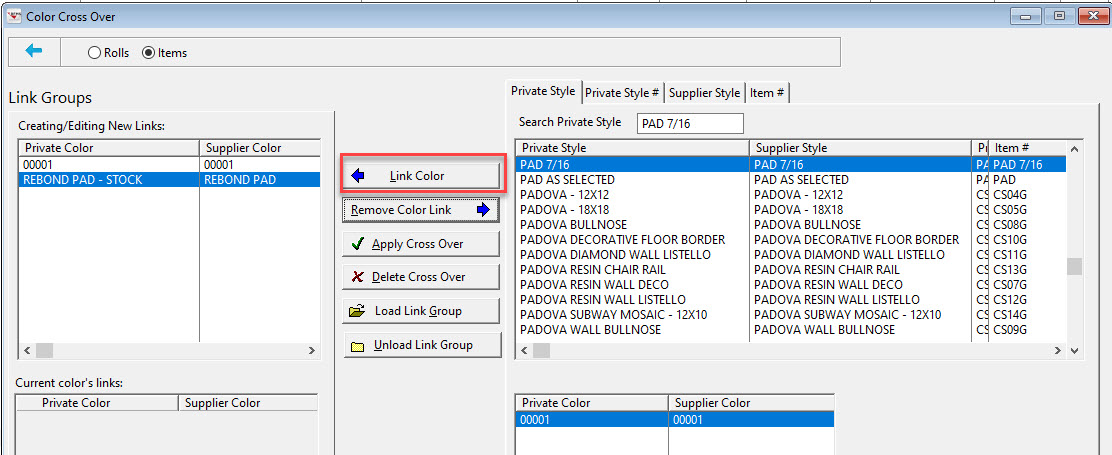
1. Begin searching for colors to link together; this screen will display current choices. For example, say that the product Pad 7/16 Color 0001 is essentially the same product as Village Medium 7/16 Rebond Pad 2. Chose each of these products individually and click the Link button. As these colors are linked together, notice that all the choices highlighted will be displayed in this column. When the product colors are displayed here, the option to remove these color links is available. Add as many colors to this column as needed.
Linking
This column of options is designed to assist in linking products together on the color level. Link colors, remove colors that are linked, apply the links created, delete previously linked colors, and load and unload link groups.
Current Color Links
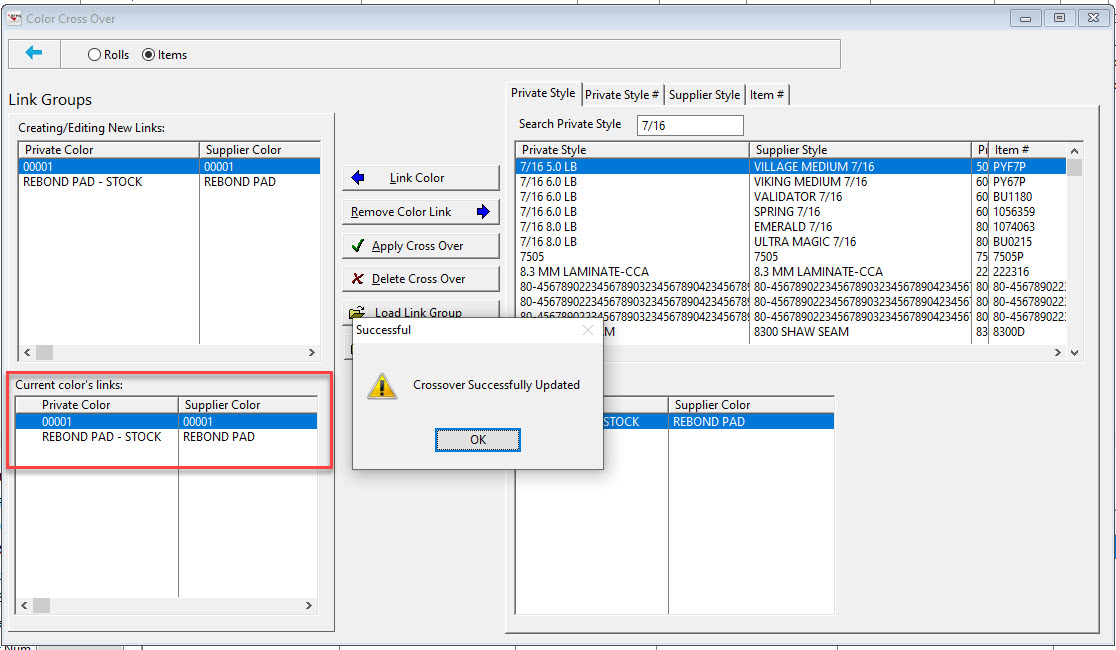
This column displays the color links as they are applied.
Style Section
Use this section to search for the particular styles to link together on the color level. Sort by Private Style, Private Style #, Supplier Style or Item #.
Color Section
This section displays the colors (by Private and Supplier Color) that correspond with the Style highlighted in the Style Section of the screen.
Creating the Group
When all the selections are made click apply Cross Over 
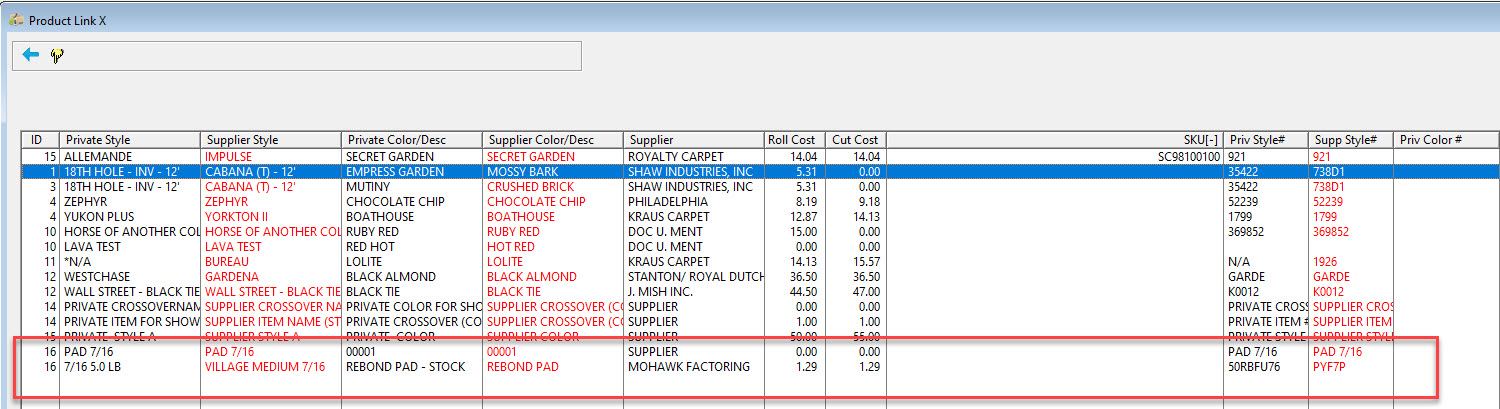
To see the newly created group or to edit a group click Load Link Group
Comments
Article is closed for comments.