
Full Color Crossover User Guide
Inventory>Purchase Orders>Auto PO 
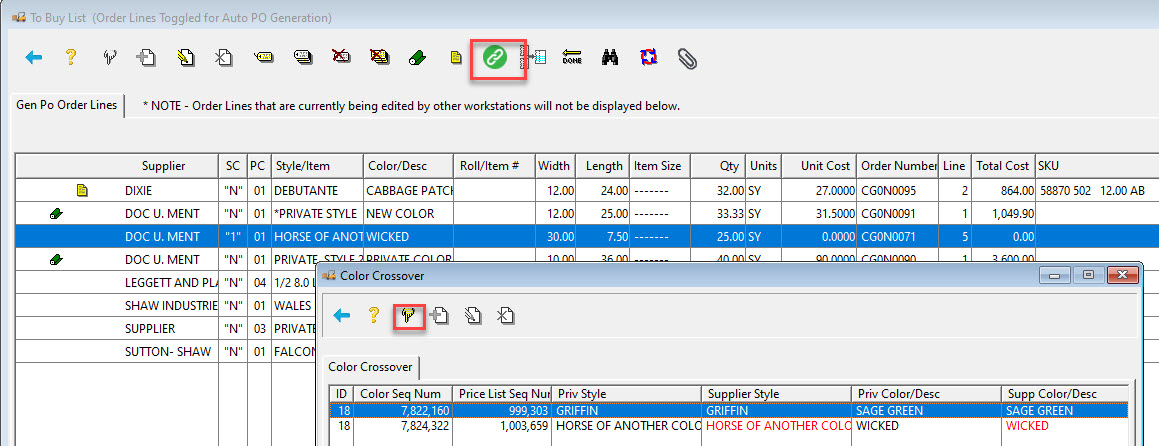
If a Crossover is applied for the highlighted roll/item, click the chain button  on the toolbar. The chain is only green if a crossover is available. The Color Crossover browse will appear.
Using Alternate Product for Purchase Order
To swap the purchase order to one of the crossover materials highlight the product to use for the purchase order, click the select button.
Tag the purchase order and click done.
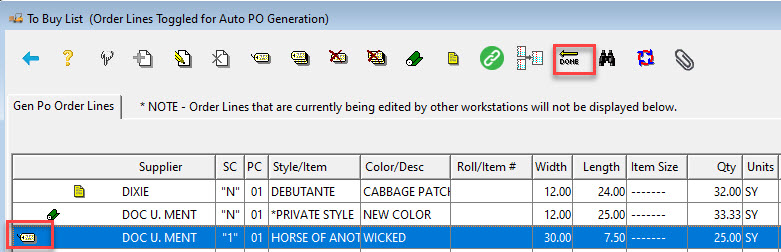
The purchase order will now be for the crossover product not the one on the line. The line will keep the original information through receiving just as if the crossover material had been assigned from there.

Note: Editing the line at this point will result in the crossover link being lost.
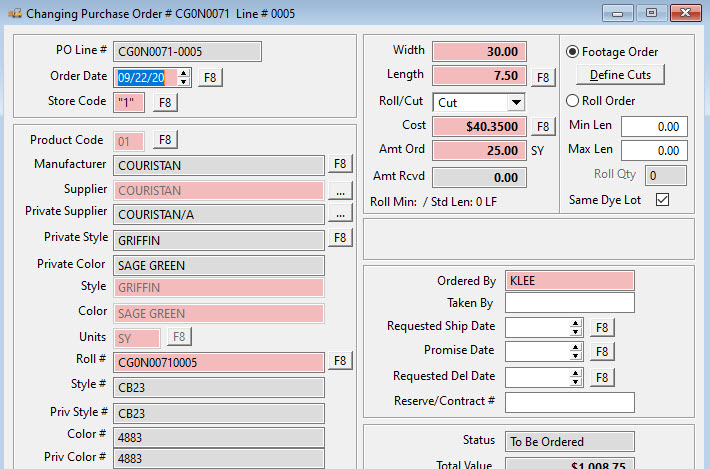
To assign a crossover material from here. Make note of the roll/item to use.
Click the blue arrow to close the screen.
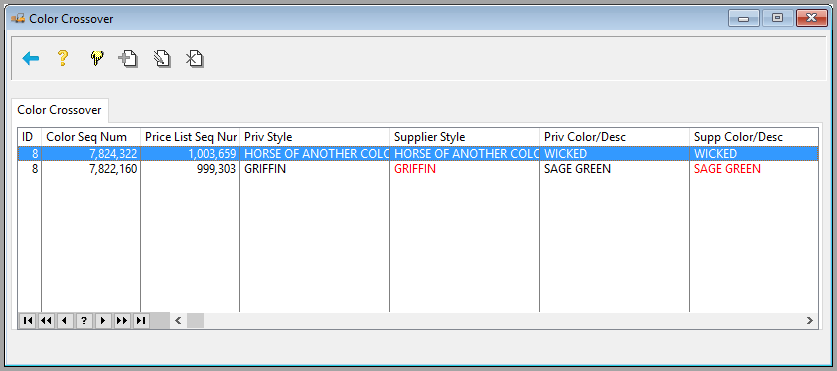
Click the Green Roll button  on the tool bar. Once in the assign screen, search for the roll/item from the previous screen.
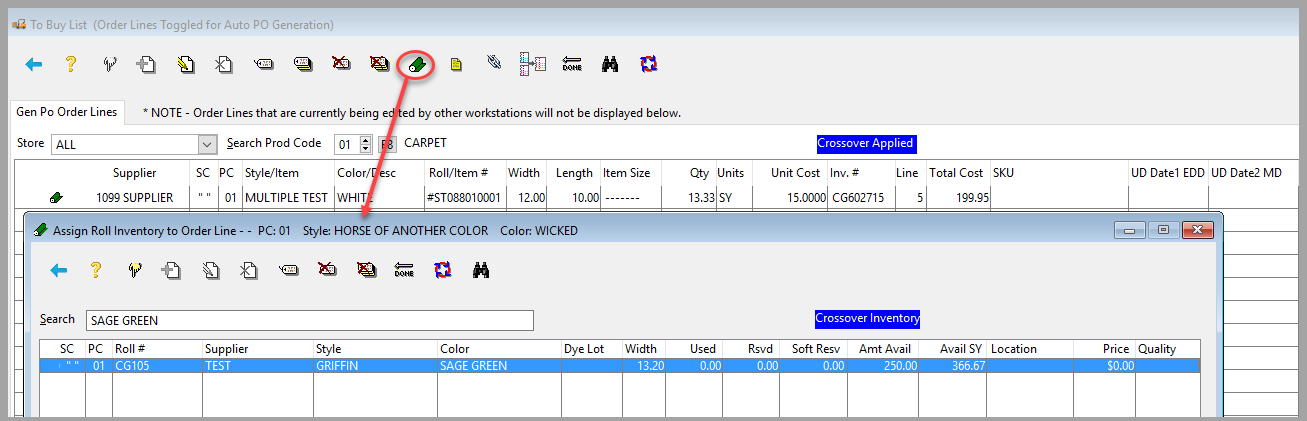
Assign the roll/item to the order line by tagging the record to use and clicking the Done button  . Highlight the line and click OK.
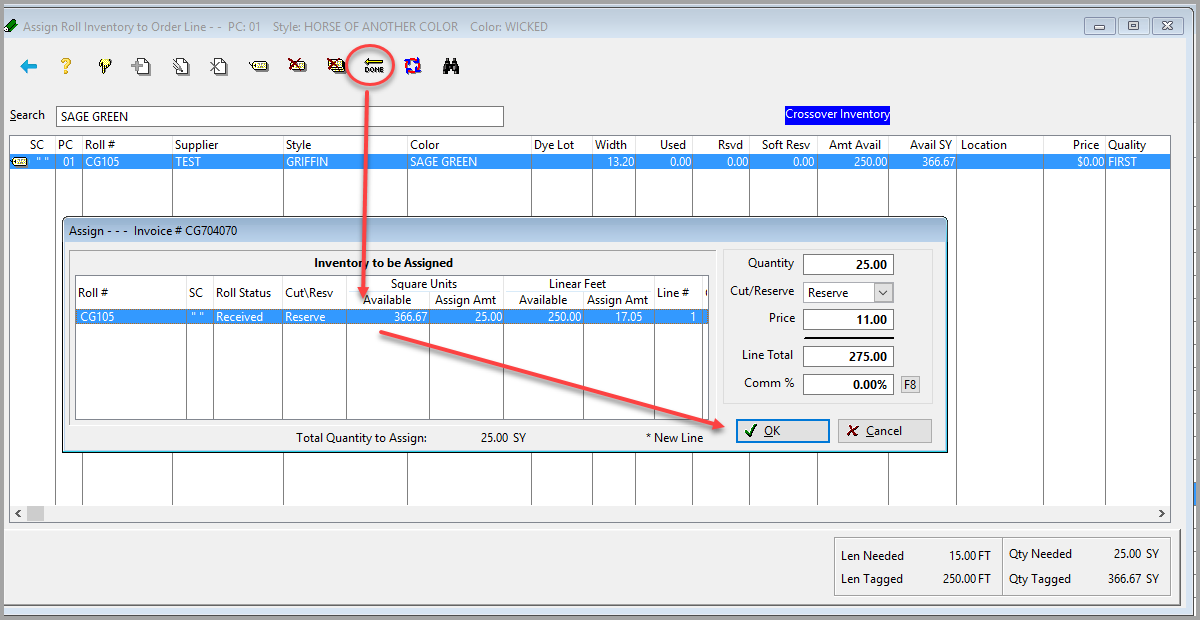

This will replace the original material with the crossover material on the line and therefore on the invoice, it will not keep the link.
 Best Practice
Have centralized purchasing open the original order in order entry and assign the material via the order line.

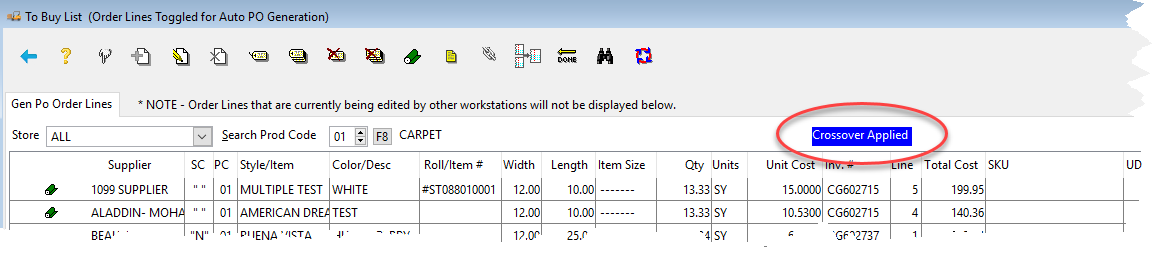
The Crossover Applied indicator at the top of the screen is a notice that at least one of the Open Gen PO lines has a crossover color linked to it.
Comments
Article is closed for comments.