
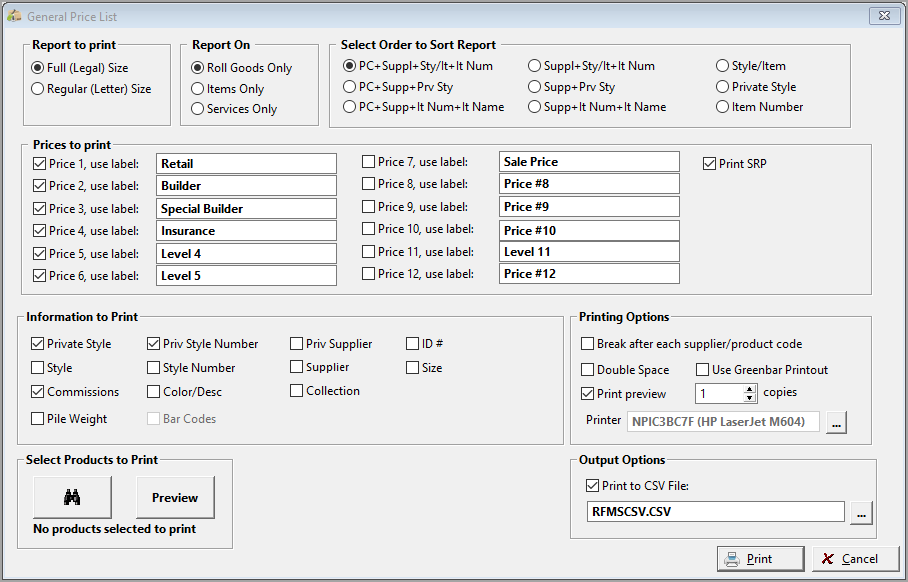
Report to Print
The Full form prints Legal Size. The Regular form prints Letter Size.
If Regular is selected it will print most of the same information as Full. The exceptions include the following:
Under the field "Information to Print", the regular report will only allow retrieving information by Private Style, Private Style Number, Width-Length, and Commissions.
Report On
This selection allows printing a report based on the prices of either the roll, item or services file. Click in the circle next to the desired field.
Select Order to Sort Report
This option allows choosing which fields will appear on the printed report. Click in the circle next to the desired arrangement.
Prices to Print on Report
Click in the box next to the types of the price to print. (Multiple prices can be selected.)
Information to Print
This selection provides additional options for the pricing report. Clicking next to any of the fields in the section (multiple fields can be selected) will allow a user-specific pricing report.
Private Style, Style, ID#, Collection, Width-Length, Priv Style Number, Style Number, Commissions
An option to print Pile Weight was added to the Price List Report (Full) when roll goods are selected in version 11.1.
When selecting options to limit the report by price range, the range limitation only applies to the prices being printed - if ANY of the prices selected to print satisfy the range criteria the product will print, otherwise it will be excluded.
Even if a product had Prices 10-1,2 which fell into the range of 5.00-10.0,0 that product would not print on the report because those prices are not checked.
Printing Options
Break After Each Supplier-Product Code - This option applies to the PC+ Supplier sorts and prints a break after each Supplier + PC rather than for example supplier + style which would produce hundreds of pages.
Double Space - Clicking this option places a double space between each line on the pricing reports.
Use Greenbar Printout - This option prints highlights on every other line on the color section, making the printout more easily read.
Select Products to Print
Click the Find button to choose the products to include in the report. Click the Preview button to see which products will be included.
Output Options
If this option is selected, the pricing report will print to a CSV file.
Comments
Please sign in to leave a comment.