
Full Cut Machine User Guide
Cut Software Parameters
Upon opening the RFMS Cutting Machine software, you will find the following setup button on the main screen.
Click the Setup button. Depending on which Cutting Machine you are integrated with, the following parameters will display.
Accu-Cut
If you are using the Accu-Cut Cutting Machine, the following parameter box will display upon clicking the setup button.
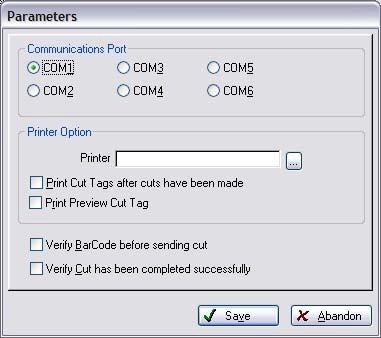
Communications Port
COM1 is the default setting for this port.
Printer Option
The printer type is a Dymo LabelWriter 4XL printer and 4”W x 5”L labels are used.
Verify BarCode before sending cut
This parameter, if set, will require the user to scan an RFMS roll tag bar code before the cut will be sent to the Cut Machine.
Verify Cut has been completed successfully
The Cut Machine Software does not have a sensor to indicate that a complete cut has been made. This option ensures that the cut blade has made a complete cut through the material. For safety reasons, if you lift your fingers off the CUTTER SAFETY and CUTTER buttons the blade will stop and try to send back cut information. This switch prevents the program from logging incorrect cuts.
EZ Cut

Communications tab
Keep the defaults unless otherwise specified by your technician.
Switches
Optional Material Code Descriptions
Enter the appropriate material codes in the fields provided. This information will display when sending cuts over to the EZ Cut machine.
Verify Bar Code before sending to EZ Cut
Requires you to scan an RFMS roll tag bar code before the cut will be sent to the cut machine.
Await response from EZ Cut
Waits for the cut machine to send back a cut finished response.
RFMS System Options
Comments
Article is closed for comments.