
Full Cut Machine User Guide
Accu Cut

- Highlight the record with the corresponding roll number that you would like to send to the cut machine.
- Move Up/Down buttons allow you to change the order in which cuts are sent to the machine. It is best to send the larger cuts first.
- Remove Cut button toggles between the Cut Status “Waiting for Cut” and “Cut Cancelled”.
- Click Send
- Verify Cut – You must press button after each successful cut. This lets the computer know the cut is complete.
- Roll Balance – this lets the computer know that this is the roll balance and that the cut blade will not be used.
Save Cuts Button – Accu-Cut Screen
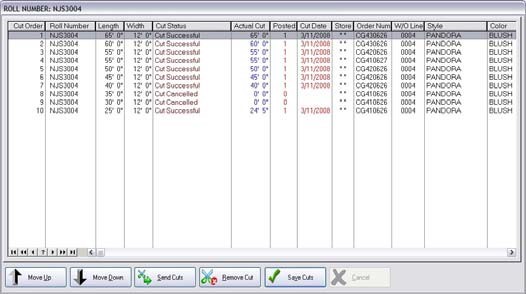
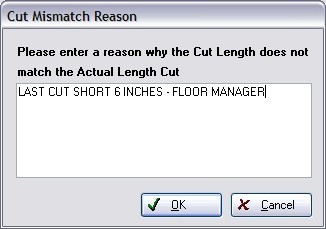
Clicking the Save Cuts button saves “Cut Successful” records back to the cut machine file. If Actual Cut length does not match the Length field user is prompted to type a reason for cut errors. That message will show up on the Accu-Cut main screen and the Cutting Table in RFMS.
EZ Cut
- Press the Send Cut to EZ Cut button.
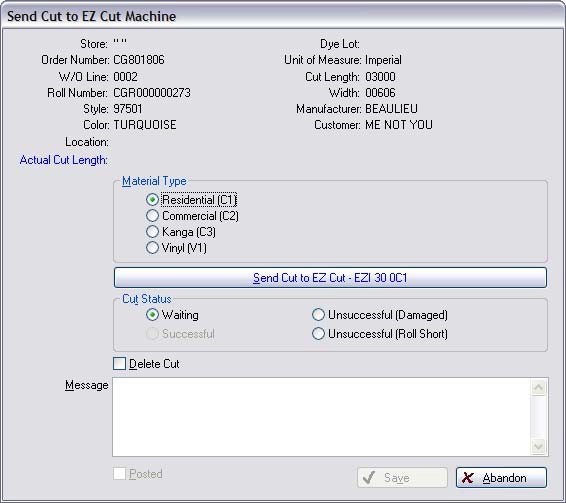
- If Parameter switches (Await response from EZ Cut) is true the following window will appear. When the machine is done the window will close.
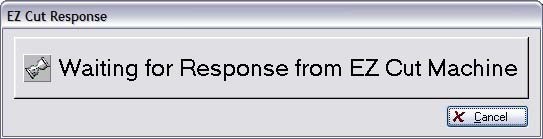
- Press the Save button and the send cuts window will close
Comments
Article is closed for comments.