
Products>File> (Roll or Item)
To generate price tags, first the select the product record by tagging one or more records. Then click
the printer button.
Click the down arrow to select a price tag format.
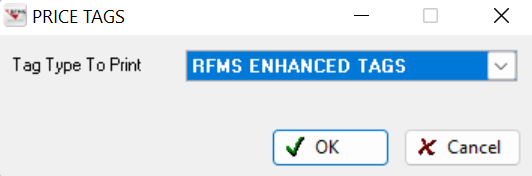
Standard Options
Enhanced Tags
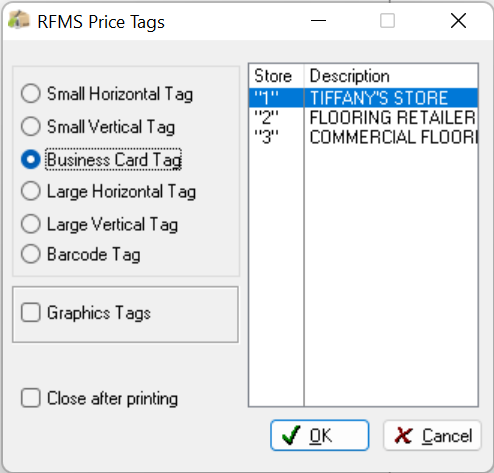
| Tag Name | Size | # on Sheet | Link to Order From RFMS |
| Small Horizontal |
5 ½" wide by 3 ½" tall Print Landscape |
4 | 3 ½ x 5 ½ Showroom Price Tags – RFMS |
| Small Vertical | SAA Printed Portrait | 4 | 3 ½ x 5 ½ Showroom Price Tags – RFMS |
| Business Cards | 3 ½" wide by 2" tall printed portrait | 10 | Business Card Price Tags – RFMS |
| Large Horizontal |
7" wide by 5" tall Printed Landscape |
2 | 5 X 7 Showroom Price Tags – RFMS |
| Large Vertical | SAA Printed Portrait | 2 | 5 X 7 Showroom Price Tags – RFMS |
| Graphics Tags | No longer Available |
Printing Options:
This screen has options to customize product tags depending upon the size and orientation. These setting are sticky.
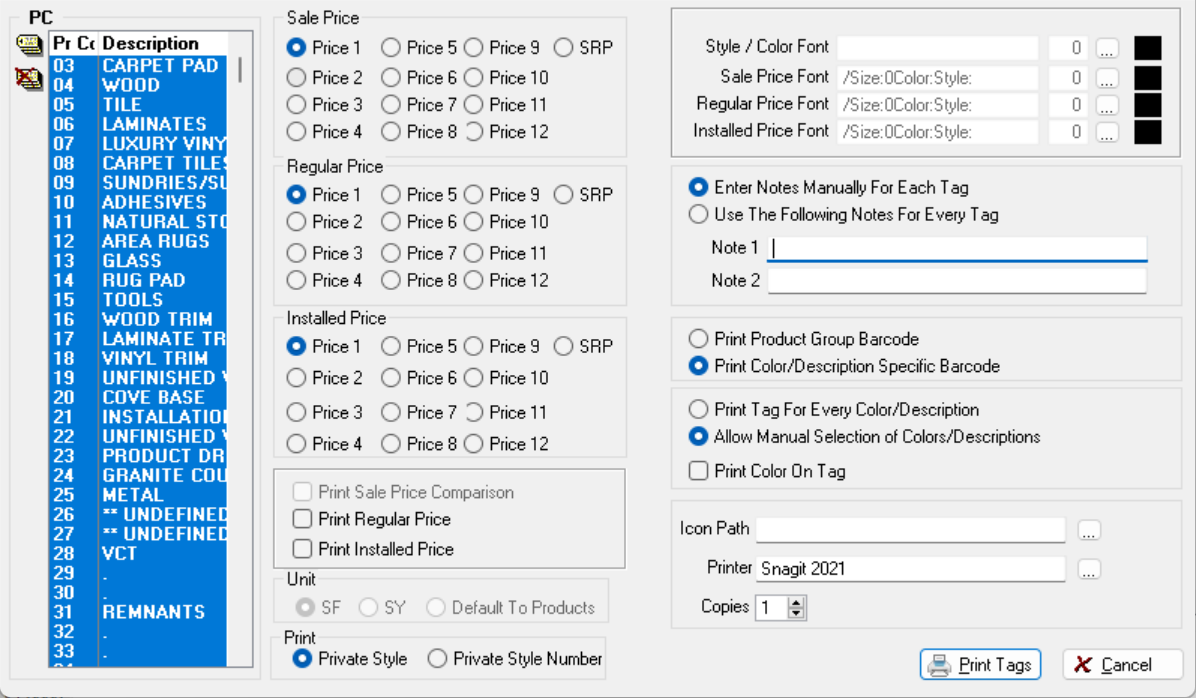
|
Print Option |
Available on Tag |
What it Does |
|
Product Code |
All Tags |
Allows printing a run of tags for a single product code at a time |
|
Print Sale Price Comparison |
Both Large Tags Both Small Tags |
Prints the comparison price between square feet and square yards for the "Sale" price. |
|
Print Regular Price Comparison |
Both Large Tags |
Prints the comparison price between square feet and square yards for the Regular Price. |
|
Installed Price |
Both Large Tags Both Small Tags |
Prints the selected price preceded by the word "Installed". Select the price that includes your formula that adds labor to the selling price. |
|
Unit |
All Tags |
Controls whether the price will print in square feet, square yards or the unit of measure as entered on the Products record. |
|
Sale Price |
Both Large Tags Both Small Tags |
Select one of the formulas or the SRP. Prints along with the word "Sale" preceding it. |
|
Regular Price |
All Tags |
Select one of the formulas or the SRP. Prints along with the word "Regular" preceding it. |
|
Print Regular Price |
Both Small Tags |
If checked, will print the Regular Price on the tag. If unchecked only the "Sale" and/or installed price will print. |
|
Print Installed Price |
Both large Tags Both Small Tags |
Prints the selected price for the Installed Price preceded by the word "Installed". |
|
Sale Phrase |
Both Large Tags |
Selects the sale phrase to print. Click the down arrow to choose a phrase from a predefined list, or manually enter one up to 19 characters. |
|
Show Print Date |
Business Card Tag |
Prints the system date on the tag. |
|
Style Color Font/Size/Color |
All Tags
|
Allows changing the font and font size for Style/Color. To change the color, click the color square |
|
Sale Phrase Font/Size/Color |
Both Large Tags |
Allows changing the font and font size for the Sale Phrase. To change the color, click the color square to the right of the field. |
|
Sale Price Font/Size/Color |
Both Large Tags Both Small Tags |
Allows changing the font and font size for the Sale Price. To change the color, click the color square to the right of the field. |
|
Regular Price Font/Size/Color |
Both Large Tags Both Small Tags |
Allows changing the font and font size for the Regular Price. To change the color, click the color square to the right of the field. |
|
Installed Price Font/Size/Color |
Both Large Tags Both Small Tags |
Allows changing the font and font size for the Installed Price. To change the color, click the color square to the right of the field. |
|
Enter Notes Manually |
All Tags |
For a different note for each price tag, click here. Then, when printing begins, a prompt displays to enter the note for each tag. Not recommended for large volume. |
|
Use the Following Notes for Every Tag |
All Tags |
Select this option to print the same note on every tag. Two notes are available for the Large and Small Tags. One note is available for the Business Card Tag. |
|
Print Product Group Barcode |
Both Large Tags Both Small Tags |
If using the Item Group Barcode feature, click here to print the main product barcode. Then only print one tag for the main style or item, not for each color/description. |
|
Print Color/Description Specific Barcode |
Both Large Tags Both Small Tags |
To print a barcode on the price tag for each style/color or item/description, click this option. If this option is selected, the next two options become available. |
|
Print Tag for Every Color/Description |
Both Large Tags Both Small Tags |
Only available if the Print Color/Description Specific Barcode option is selected (above). This option will print a price tag for each color / description that is available for the style / item. |
|
Allow Manual Selection of Colors/Descriptions |
Both Large Tags Both Small Tags |
Only available if the Print Color/Description Specific Barcode option is selected (above). This option displays a pick list of all available colors / descriptions for the style / item. Click the color / descriptions to print and click the Tag button. When you have tagged all colors/descriptions, click Exit. The next Style/Item will display in the pick list. Continue for each style/item. |
|
Print Color on Tag |
Both Large Tags Both Small Tags |
To print the name of the color/description on the tag, below the style/item name, click in this box. |
|
Icon Path |
Both Large Tags Both Small Tags |
This option allows selecting an electronic graphic file that will print in the upper right area on the price tag. Good option to print a company logo on the tag. |
|
Copies |
|
Enter the number of tags to be printed for each style |
|
Printer |
All Tags |
Allows specifying the printer to be used for the price tags. |
Comments
Please sign in to leave a comment.