
Full Contract Pricing User Guide
BidPro
When a property or company with Contract Pricing is used on an estimate, the system automatically detects the Contract Pricing and uses it for the estimate.
When an estimate is exported to order entry, the latest contract prices are applied unless override selling price has been checked.
A contract product is indicated by a note on the line detail screen.

To manually change a price on a contract item in an estimate, click the override selling price box, then enter the new price. The system will flag this price. The price of flagged items will not update automatically for example if the update cost routine is run on this estimate.
Note if contract pricing is in place, the override selling price box will display even on products which are not under contract. If this box is checked in this case, future contract prices will not apply to this bid.
Update Line Cost 
Using the Update Estimate Line Cost with any settings selected will update lines on estimates where contract prices have been changed.
Update Contract Pricing
Utilities>Update Contract Pricing
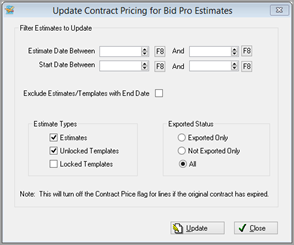
The ability to update existing estimates to the current contract pricing for a customer is available.
Estimates can be filtered for update by Estimate Date, Start Date, End Date, Templates, Locked Status and Exported Status.
Order Entry
When manually entering an order for a company or property with an active contract using a product under contract the contract price will be pulled from the product information.
If a Line gets a Contract Price, no other discounts (like percentage discounts) will be added to it. Unless, one of the following system options are set to yes.
Allow Price Modifier Discount Percent
If the order was entered prior to the contract, click the ellipses button next to price. Click the contract price button to override the price from products.

Customers
Credit Check
RFMS Navigator>Order Entry>File>Customers
Credit check can apply to both main customers and their branches. The customer additional information tab of both has a “Shared Main / Branch Credit" field. This value can only be changed from the Main, but it will show in all the Branches as checked in the Main. Click the unlock button to edit the check box. If this box is not checked, then credit checks will be done independently on the main and branch locations.

Products
A list of contracts using a particular product can be accessed from the RFMS product record. Click the button  on the color toolbar to view the list.

Comments
Article is closed for comments.