
Main Navigator
Windows Start Menu>Programs>RFMS for Windows
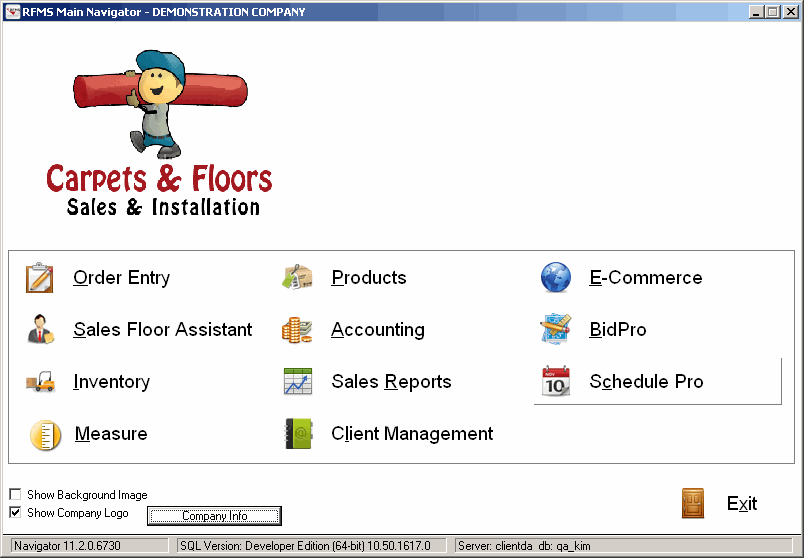
Upon opening RFMS the main navigator is shown. The RFMS Navigator is a graphical menu system that allows access to all of the modules in RFMS. Click one of the module buttons or type the hotkey as shown by the underlined letter for that module.
Customizing the Modules
To hide or unhide certain modules, click CTRL + F8. If the box around the module turns red, it will be hidden.


Navigator Version
This is the version of the RFMS Navigator currently running. It is shown in the bottom left.
Show Background Image
Selecting this box displays a banner at the top of Navigator screen.
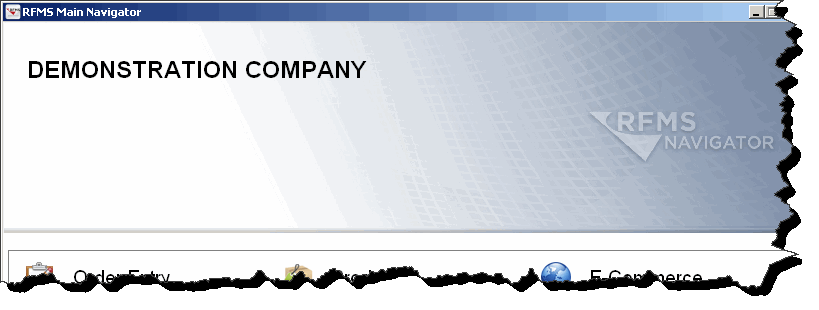
Show Company Logo
The Main Navigator screen can use company logo as the background image. Check the show company logo box, and a box pops up allowing a choice of graphic files to use as the logo. A logo with a transparent background looks best. If the box is not checked, the company name from the license information is displayed in its place.
Company Information
This screen displays the company name and address along with other software licensing information. It is used by RFMS when upgrades are necessary to your system. If a software or technical support representative asks for this, click the Print button to print a copy of this screen.
This screen is also used when adding additional system users (that are purchased) to increase the total number of users for this RFMS license site. Press the F8 button next to the Maximum RFMS Users field. Call RFMS Sales to obtain an Update Code to complete the process.
SQL Version
This is the version of the Microsoft sequel software used on the server.
Microsoft ceased support for its legacy SQL Server 2000 products. Microsoft’s newer SQL Server releases have added many speed and stability improvements to the product, and Microsoft has long recommended that users upgrade to SQL Server 2005 and SQL Server 2008. In keeping with Microsoft’s decision, and in order to take advantage of these improvements, upcoming versions of RFMS will no longer support SQL Server 2000. If this says Version 8.0 or 2000 please contact the RFMS technical support department.
Database Name
The path and name of the RFMS database running will be shown here.
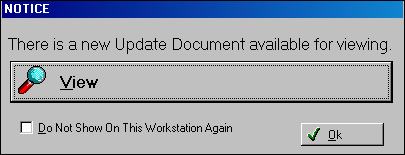
Update Notification
Each user will be notified with a pop up box that a new update has been applied when entering the RFMS Navigator. This box will allow access to the Update document.
Drop-Down Navigators
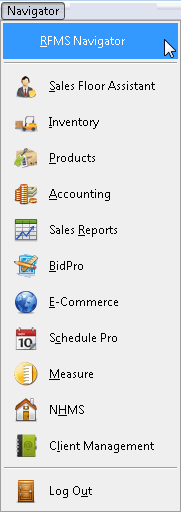
Every RFMS for Windows module has a drop down Navigator that serves as a "Main Menu". Click one of the module buttons or type the hotkey as shown by the underlined letter for that module.
Log Out
Click Log out to exit all RFMS Modules at once. If this option is set to no, the logout function is available. Utilities>System Options>System Wide>General>Disable Log Out
Comments
Article is closed for comments.