
Utilities>Range Edit
This feature gives the user the ability to filter and edit Bid pro estimates or lines.
It allows for bulk changing for things like price changes or discontinued products.
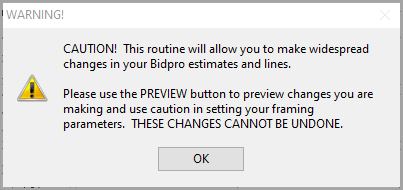
The following warning appears when you go into Range Edit Screen.
Edit Lines
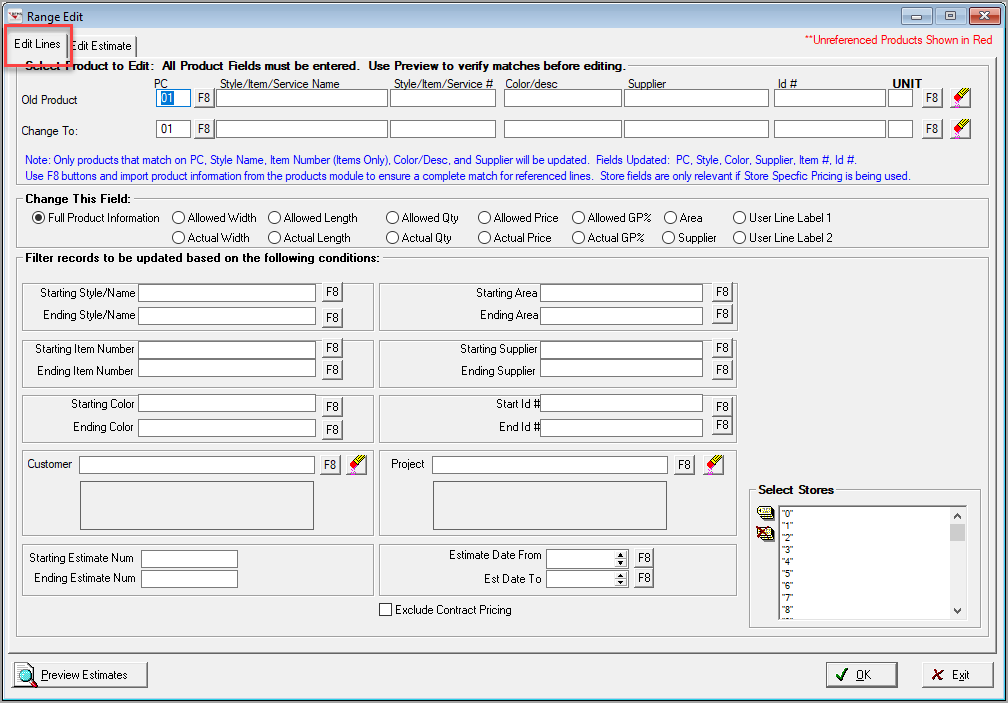
1. Choose the edit lines tab to edit information on the estimate lines.
2. Select the Old Product by using F8 to pull in the Product Code and Style/Item/Service Name, Item Number, Color/Desc, Supplier, Id#, and UNIT.
3. Enter the changes that need to be made to the product.
4. Choose the field to change by clicking the option next to the field name.
5. Choose other options to limit the lines that will be changed, such as only estimates from a certain supplier. To clear any limiting information, click the clear button.
6. A screen will display asking for confirmation of making the changes.
7. If yes is answered, the changes will be applied, and a box will display confirmation the changes have been made.
If the edit to the lines will affect the estimate total the routine will ask the user if the total on the estimates should be recalculated by the routine.
Edit Estimate Screen
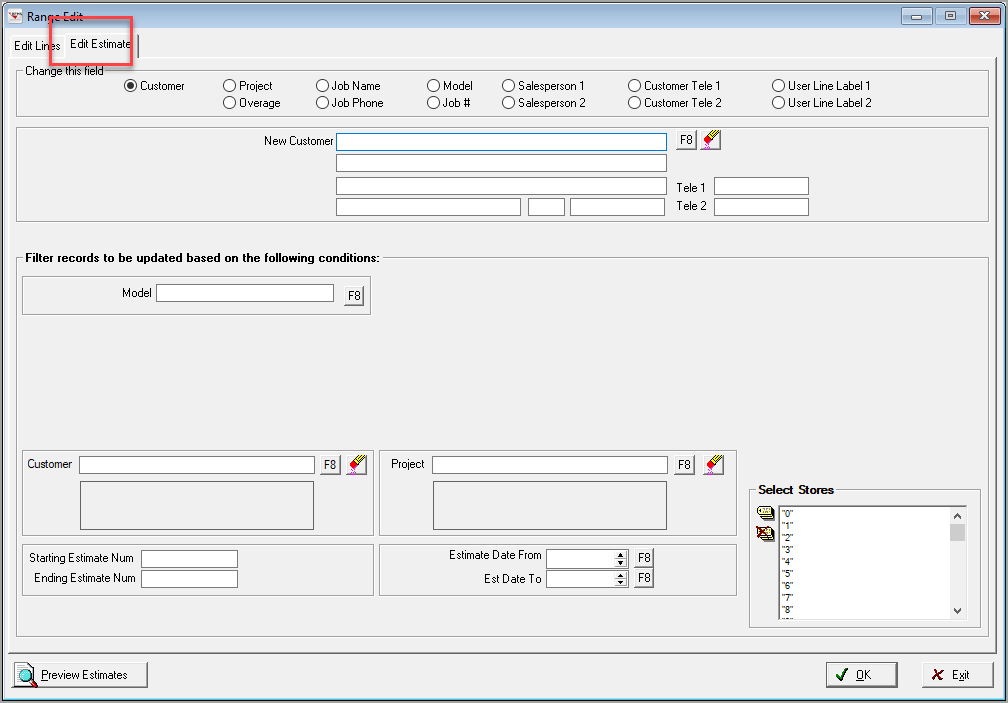
1. Choose the edit estimate tab to edit information on the estimate headers.
2. Choose the field to change by clicking the option next to the field name.
3. Choose other options to limit the estimates that will be changed, such as only estimates with material from a certain project. To clear any limiting information, click the clear button.
4. If desired, enter limiting estimate dates so as not to include older estimates.
5. Click the preview estimates button to see a listing of estimates which will be changed.
6. If the preview list meets expectations, click ok. If not, click exit and redo the options.
7. A screen will display asking for confirmation of making the changes.
8. If yes is answered, the changes will be applied, and a box will display confirmation the changes have been made.
Comments
Article is closed for comments.