
Utilities>System Options>Order Entry>Inventory
Category-Display
Type- Must be Assigned or User 
When the change value button is clicked, this screen will display.
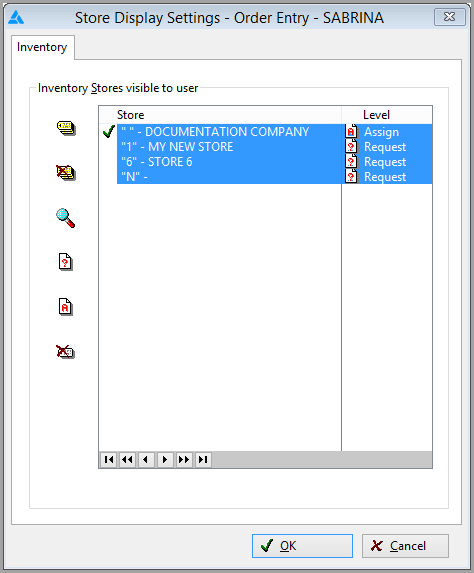
The tagging possibilities for a Store’s Inventory are:
o None – Not available to this workstation, the store will not be highlighted
o Request- Request inventory from another store.
o View – Only viewable from this workstation
o Assign – Can be assigned and viewed from this workstation (no moving required)
This is indicated in the level column.
Tagged stores (highlighted) are those that will be available for viewing or assignment to the user. Normal tagging is on or off. However, because Store Inventory can be in three levels, simply clicking on a Store will move the focus to the selected Store and then one of the three options can be chosen for that store.
-
The green check indicates default Store. The default Store is always on Level Assign in Inventory Stores. If the Miscellaneous / Default Store is changed Order Entry will automatically move the check mark to the new designated default Store and select it for Level Assign. The old default Store will remain at Level Assign.
-
The red X indicates an Inactive Store. For Inventory Stores, all designated Stores will be available whether Active or Inactive, if it has available Inventory.
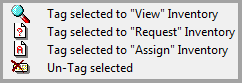
The following is the tag button behaviors. Bear in mind that none of the buttons change the state of the default Store which will remain at Level Assign.
-
 Pressing the multiple-tag button will tag all Stores and set them to Level Assign.
 -
 Pressing the multiple-untag button will untag all Stores to Level None.
 -
 Pressing the View button while having a specific store highlighted will immediately change the Level to View.
 -
 Pressing the Request button while having a specific store highlighted will immediately change the Level to Request.
 -
 Pressing the Assign button while having a specific store highlighted will immediately change the Store's Level to Assign.
 -
 Pressing the Untag button will while having a specific store highlighted immediately change the Store's Level to None.
Right-clicking on a Store will move the focus to that store and bring up a popup menu with the same choices as the buttons.

The Default Store cannot be set to Request.
Comments
Article is closed for comments.