
Only pertains to Generation 1 API (deprecated)
In the RFMS directory, Click on ApiManager.

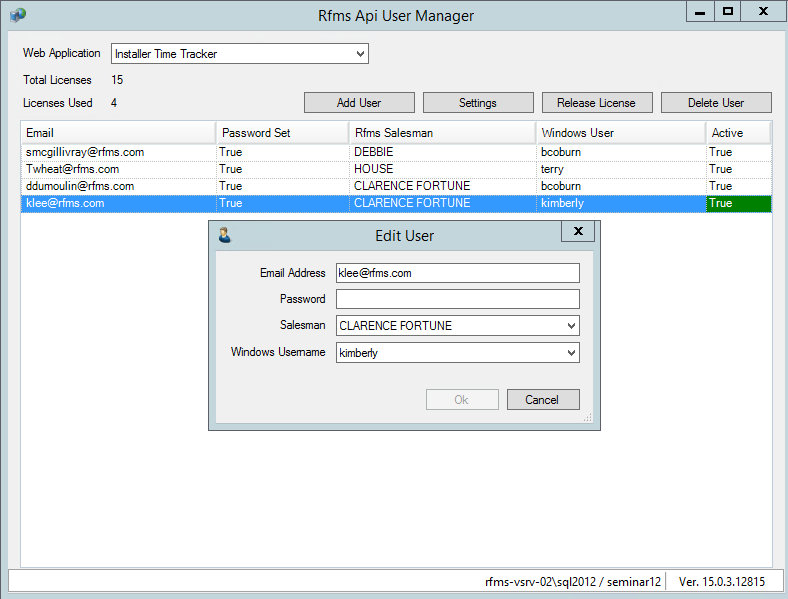
The RFMS API User Manager Screen Opens. Using the dropdown menu, choose the application.
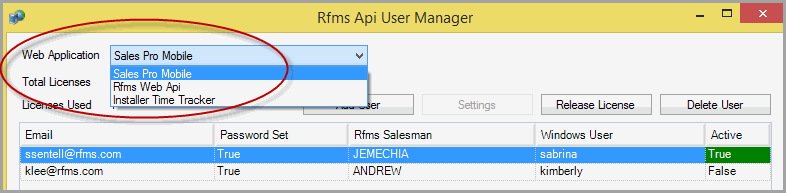
The total number of license and the licenses in use for the program are displayed on this screen.
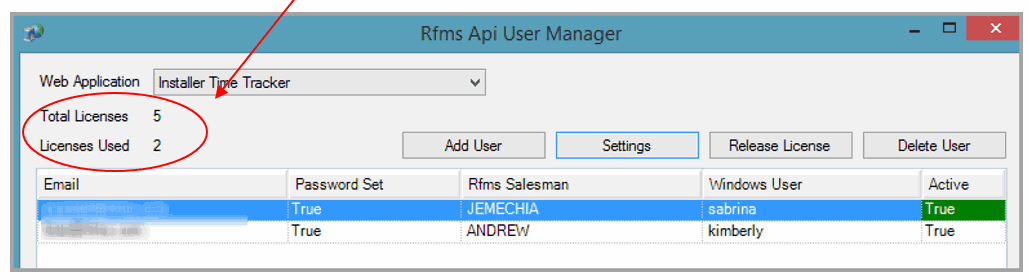
From this screen you can Add Users, Change Settings, Release a License or Delete Users.
Add Users
To add a user, click the Add User button.

The Add User screen opens. Complete all the information.
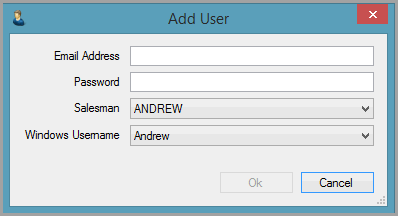

The Windows Username ties to the RFMS user name. This ties it to the appropriate system options settings and permissions.
Release a License
If a user isn't using the program and their license is needed, highlight the name and click the Release a License button. This does not delete the user but allows the license to be used by another user.
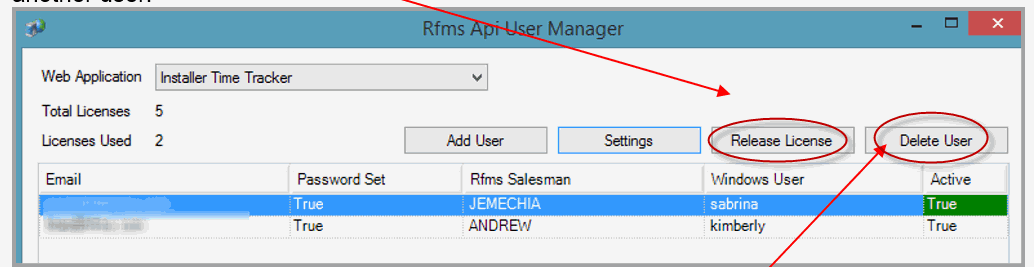
Delete a User
Use this button when the user will no longer be using the program.
Password
To change password for a user, double click on the user. The Edit User screen will display. Type in the new password and click ok.
Comments
Article is closed for comments.