
Full Order Entry Utilities User Guide
Order Entry>Utilities>Set Up>Stores
Store Codes are used to track sales at multiple store locations. For more than one store location, specify here which store will be the default. Normally, this operation should occur during RFMS Configuration and should only be done by management. Various reports generated will reflect activities of a specified store code. Store code - number cannot be edited once it has been entered. A store code can be deleted only by obtaining an access code from RFMS. Duplicate store codes are not allowed.

Store Code ID
Enter the number or letter that identifies the store. This field cannot be edited.
Inactive
Check this box to make a store inactive.
Division
Enter up to 6 characters for division.
Name, Address
Enter all pertinent information regarding the store name, etc.
Tax Method
Choices are:
Use Tax
All Use Taxes are calculated on installed jobs only and are automatically based on the net of the materials cost. If this selection is made, the system will still calculate sales tax on orders without labor charges. If configured as a Use Tax state and there is not a figure in the sales tax field of a customer order with no labor, the system will assume that this is a Use tax order. If there is a figure in the sales tax field of a customer order with no labor, the system will assume that it is a Sales tax order.
Sales Tax
This selection should be made in states that require that taxes be paid on the total selling price, including profit, of either material only or material and labor. If configured as a Sales Tax state and there is no figure in the sales tax field of a customer order, the system will assume that order is tax exempt. If configured as a Sales Tax state and Line Balancing has been enabled, tax will automatically be broken out at the time of exporting the line totals to the header.
Line Tax
Line Tax allows the tax method to be determined on a line-by-line basis when entering the customer order. Therefore, an invoice or order may have lines on which use tax is paid and other lines on which sales tax is paid. If this selection is made, "Use Tax line?" (Y/N) will be asked on each order entry line. If a Tax Method of Use Tax or Sales Tax is chosen, that question will not appear.
Sales Tax Base
Select one to use as the sales tax base (GST base in Canada):
Material
Material + Labor
Material + Labor + Misc. Charges (+ GST in Canada)
Material + Misc. Charges (+ GST in Canada)
Misc. Tax Base
Select one to use as the miscellaneous tax base (Sales Tax base in Canada):
Material
Material + Labor
Material + Labor + Misc. Charges
Material + Labor + Misc. Charges + Sales Tax
Material + Misc. Charges (+GST in Canada)
Material + Misc. Charges + Sales Tax
Tax Percentage
Enter the tax percentage rate commonly used, whether it is for use tax, sales tax, GST (for Canadian companies), or a miscellaneous tax.
Pay Tax When
When the tax reports are printed, the tax considered due is based on the selection to "Pay Tax When":
Delivered: tax is due when the customer order has been job costed.
Delivered & Paid: tax is due if the customer order has been job costed and paid in full.
Require Styles to be in Products for this Store
Selecting this option will prohibit adding unreferenced lines for the selected default store. In order to add a line, all styles must be in the products file.
Automatically Check Duplicate Orders
If this option is checked, the Ship-To Address #1 on the customer orders is checked against existing orders (for the same store code). When you change the Ship-To address on an order, a box appears that reads Check Orders for the Past XXX Days. Enter the number of previous days for which you wish to compare orders. If duplicate orders (those with the same Ship-To Address #1) are found, they will display in a browse screen. The setting to automatically check for duplicate orders on the add/edit stores screen as of version 11.0 is being followed by Quotes being imported into customer orders.
Why use this feature?
There are many situations where checking for duplicate orders would be beneficial. For example, a dealer who does replacement, apartment management, etc. may have problems with orders being placed by more than one person at the property management firm. If Joe calls in Apartment 15A on Monday and Jan mistakenly calls in Apartment 15A on Wednesday, the duplication will be detected immediately and a costly mistake avoided.
This feature is set in Edit Store only and if selected will only apply to that particular store.
When this option is set and the Sold To or Ship To information is edited (assuming the order is not an Estimate or Claim but Original Order) the following screen will appear.
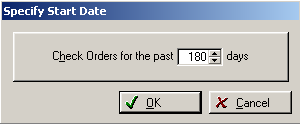
Check for the past ____ Days
This field is user definable and the value accepted here will be presented the next time this feature is utilized.
Order Entry will search out other Orders that have the same Ship-To Address Line #1, Customer Name and Order Dates that fall within the specified time period. (As defined above)
If matching orders are found, they are presented for examination. The browse on the top of the screen displays the matching Orders. The browse at the bottom of the screen displays the lines from the highlighted order. Check the Order Lines to make certain that the order being input is not a duplicate.

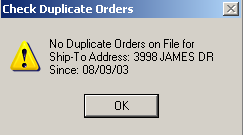
If there are no duplicates, the following message will appear atop the Duplicate Check On screen.
Ship to Information
A Ship-To address can be entered for each store code. This could be used, for example, if goods are ordered from a "main" store and want the goods to be shipped to a satellite storage location. The Ship-To for purchasing works like this:
If a Ship-To record is present on a customer order line, then that Ship-To information is imported to the purchase order.
If Ship-To information is present on the Store Code record and not on the customer order line, then the Store Code Ship-To information is imported to the purchase order.
If there is Ship-To information either on the customer order line or the Store Code record, then no Ship-To address will be imported on the purchase order.
Comments
The comment field is for notes only and does not show on any report. However, this screen can be accessed from where ever store information is being accessed.
Store Prefixes
The Computer Generated prefixes of invoice numbers, quotes and estimates can be changed. This does not affect any previous invoices.

There are subsections for Order Entry, Quotes and Bidpro. To change the prefix, select the checkbox located next to module to change.
After doing so, for the store code you changed, all future Computer Generated Invoices, Quotes or Estimates will display with the prefix added as opposed to CG, ES, or JE, which are default with the RFMS system.
This will number documents sequentially without regard to the year. With the order setting as above at AO, after order number AO999999 is reached, the numbering will then start at AOA000001.
Once invoice prefixes have been changed for a particular store, Utilities>System Options>Order Entry>Order Entry>CG Sequence Number by Store is no longer available.
Comments
Article is closed for comments.