
X>Utilities>System Options>Order Entry>Order Entry
Category Data Transfer
Type- Can be Global, Assigned or User
This will only be available for users with the user option set to yes.
Browse until the correct directory path is found.
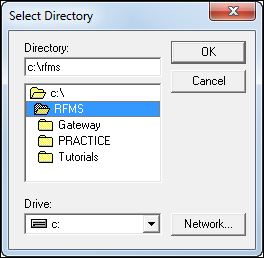
Configure where invoices will be output.
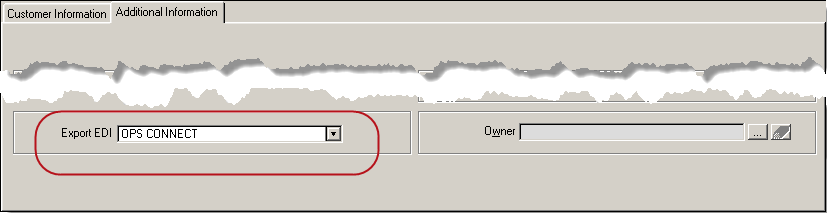
For the customer using OPS technology go to their customer record on the additional information tab and select OPS CONNECT as their Export EDI option. Make sure this is done before creating any more invoices for this customer, as only those invoices created after this change will be eligible for OPS invoicing.
When printing an invoice for this customer, the option for Create OPS invoice will be available, this option is available only once per invoice to prevent accidentally billing multiple times. This option will be grayed out for non-Ops customers and for Ops invoices which have already been created.
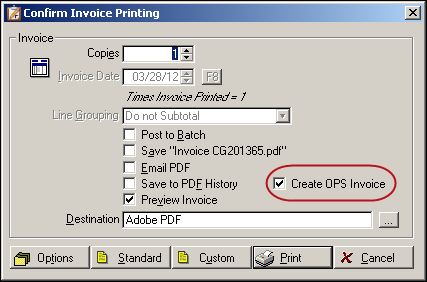
For the file to be created, the invoice must actually be printed, so if during preview an error is detected, simply cancel printing and make the needed changes. Since an invoice cannot be created one more chance is given to abandon the invoice and make changes after the invoice is printed.
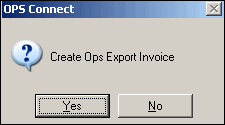
Answer yes, to create the text file to be transferred to Ops Technology.
For details on transferring the text file to OPS Technology, please consult an Ops representative.
Comments
Article is closed for comments.