
Overview
Interface mode gives the ability to make fields required, editable or hidden based on your company’s needs. Interface Mode also gives the ability to determine which tabs are hidden
Interface Mode is available on the Edit Order, Quote, and Claim screens, Customer screen, BidPro, and Commercial Project Management Projects.

Add Ons, Credit Memos, and Overages will follow the settings on the Order.
Setting up
To enter the Interface screen in Order Entry, click the Insert button  to create a new record (customer/order/quote) and Ctrl + Alt + F9.

In Commercial Project Management Projects, click the Insert button on the Projects screen and Ctrl + Alt + F9.
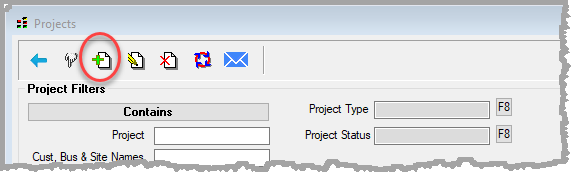
The Set Up Interface Behaviors screen will pop up.

Set Interface Behaviors Screen
Select either to set the behaviors for Users or Globally.
The record will pop up in Interface Mode.
Fields and tabs that can be set as required/editable/hidden are highlighted in green.
The fields will be dark green if they have currently set behaviors.
The fields will be light green if no behaviors have been set.
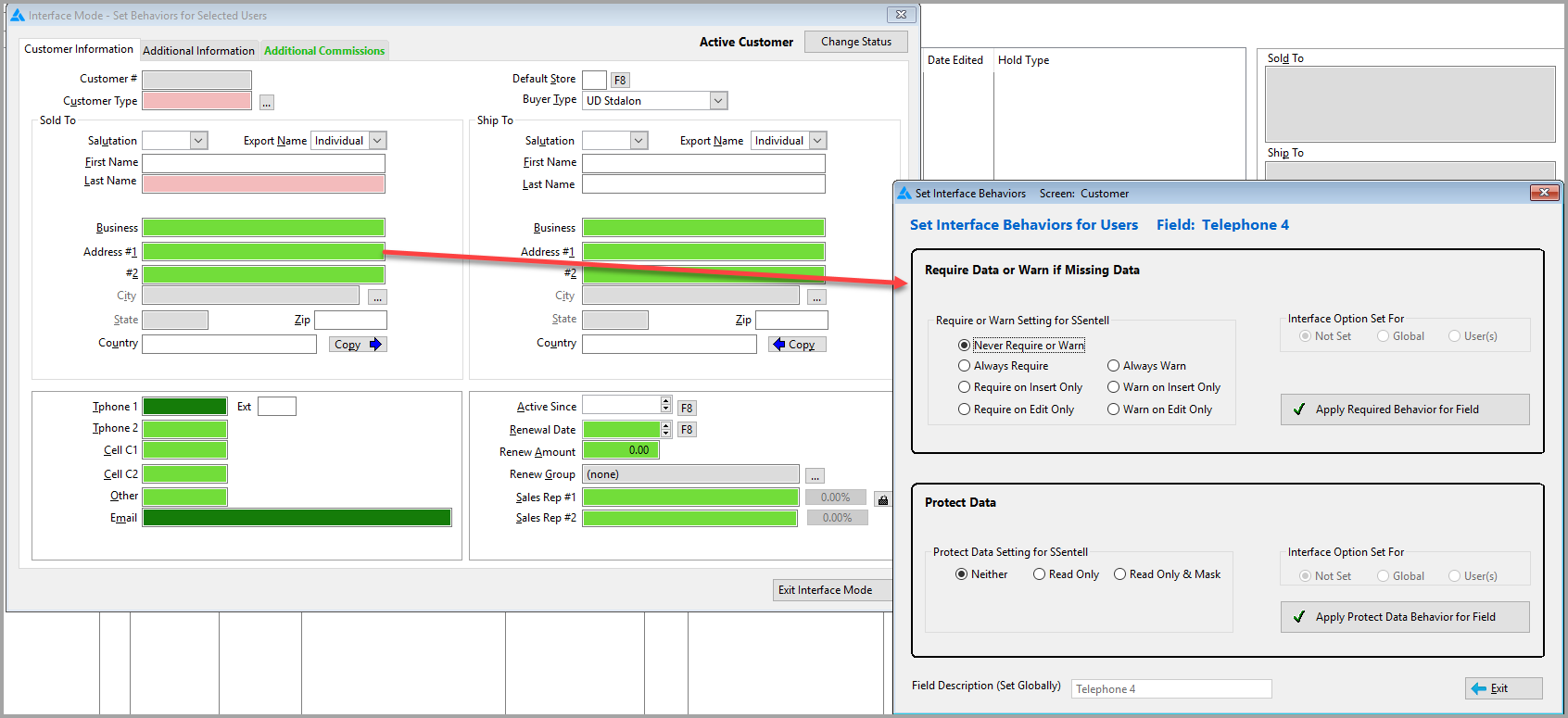
Click the desired field and Ctrl + Alt + F to set a behavior in a field.
Click the tab and Ctrl + Alt + T to hide a tab.
The Set Interface Behaviors screen will appear.
The field that has been selected will be listed at the top of the screen.

Select the choice for Require Data or Warn if Missing Data and Click Apply Required Behavior for Field.
Select the choice for Protect Data and click Apply Protect Data Behavior for Field.
Field Description can only be edited Globally. This is the name used in Required and Warning messages. It will default to the typical description. Currently some prompts can be named differently per user. If this is the case, your interface mode Field Description should include both names.
If the field description name is changed, it does not change the name of the field on the actual screen. It only changes the name on the notification warning message that it is required and not filled in. The ability to change was added for the field that are user defined and may have different names.
If users have the same prompt set as different names they should define the field as both such as Business/Job#
Click Exit  .
.
Protect Data is applied regardless of whether the user is inserting a new record or editing an existing record.
If set to Read Only or Read Only & Mask for a user, then the user will never be able to enter/view data even on Insert Record.
If they are set to Read Only & Mask, they will not be allowed to copy and paste either.
Behaviors are not applied to the screen while it is in Interface. After Interface Mode has been exited, behaviors will be fully applied the next time the screen is opened. This means that if users are currently in the screen editing a record while the Admin is setting it up, they will not see Protect Data Behaviors, BUT they may have Require/Warn messages when trying to exit.
Setting Interface Behavior for Users
When setting the behavior for users is selected, the user will be allowed to select if it is for the current user or multiple users after clicking Apply buttons.
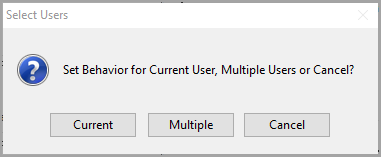
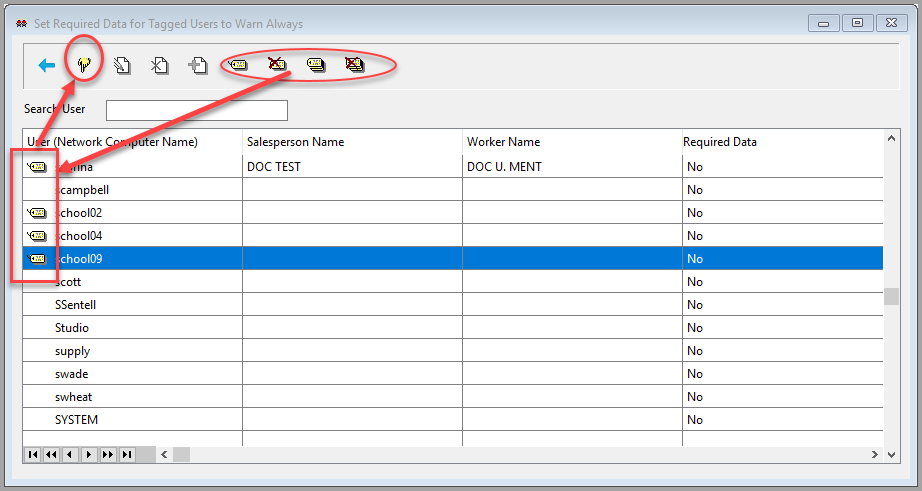
If the Multiple Users button is selected, then Set Required Data for Tagged Users screen appears.
Tag the users and click Select  .
.
Remove Interface Behaviors for Screen
The ability to Remove all the set behaviors is also handled on the Set-Up Interface Behaviors screen.
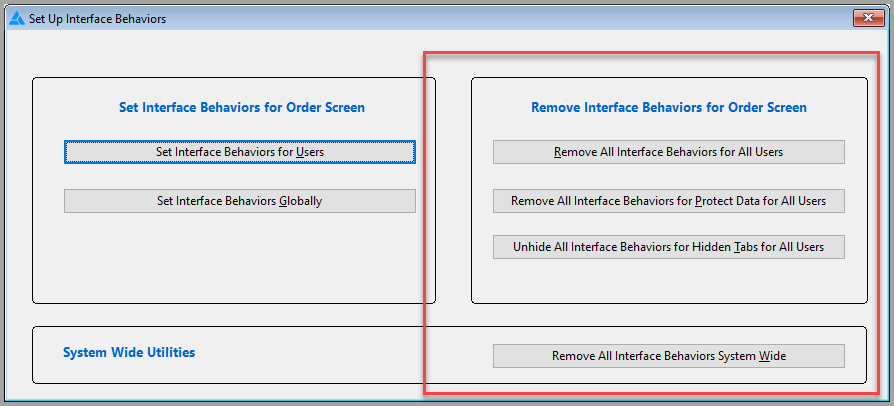
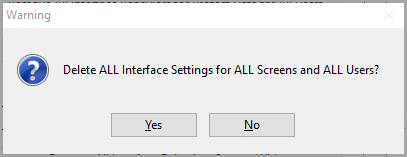
Once an option is clicked a warning message will appear to make sure this is the correct action. Click Yes or No.
Notes about Interface Mode
- When in Interface Mode, all fields that can be set as required will become enabled and all tabs will be unhidden. This allows for changes to be made for disabled fields and hidden tabs.
- Some computers cannot access the F9 key when FN is turned on.
- A Level 1 password is required to enter Interface Mode.
- Interface Mode must be exited to be able to add any new data.
- While in Interface Mode, Ctrl + Alt + F9 can be used to return to the Set-Up Interface Behaviors screen.
- Interface Mode is not available for buttons. Buttons should be password protected.
- When in the new order if another screen opens (for example Sold To), close that screen before doing Ctrl + Alt + F9.
- The Interface Behavior is not available on fields that are set to required by programmer.
Comments
Article is closed for comments.