
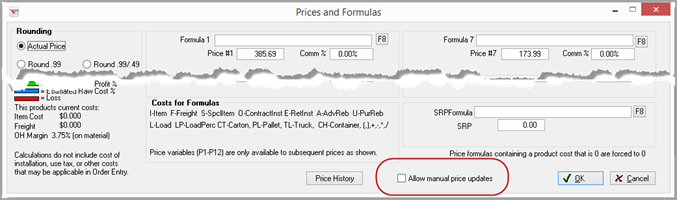
When the Add/View/Edit Prices button is clicked, the Price and Formulas screen opens. On this screen, a multiple of selling prices can be added, edited, or viewed.
Price Ranges on this screen are calculated using basic algebraic formulas.

On the Prices and Formulas screen, prices can be entered as either a formula or an actual selling price.
The Price Level names are set in the Price Level Prompt system option.
If the system is not Store Specific Products, then the system option Default Store for Price Level Labels will need to be set.
Rounding

In creating Products formulas, the first step is to determine if prices are to be rounded up to .99; rounded up to .49 or to use the actual cents.
On the pricing formulas screen in the Products module, there are rounding tools options also available.
Truncate Cents
Selecting this option allows you to round by completely taking the cents portion of the product record price.
Nearest Dime
Selecting this option allows you to round product pricing up to the nearest dime.
Nearest Nickel
Selecting this option allows you to round product pricing up to the nearest nickel.
Round Dollars
Round Dollars
Selecting this option allows you to round dollars only. Once Round Dollars option is selected, the Round Dollars box will become available.

Enter a Regular dollar amount. Entering this amount allows the rounding of the pricing information for this specific product to that nearest dollar amount.
For instance, if you choose to round up to the nearest 9 dollars, all your pricing for this product will round up the nearest 9 dollar amount. Let’s say you are pricing an Oriental Rug, and you want your pricing to be as follows: $399, $379, $359, $329 and $299. Entering 9 in the Round Regular dollars field will achieve this.
You may also enter a High/Low rounding amount. Entering amounts here creates the ability to round pricing for a specific product to a high and low pricing amount.
For instance, if you enter a low amount of 3 and a high amount of 7, all prices that are currently less than or equal to $3 will be rounded to $3. Any prices that are currently higher than $3 and/or less than and equal to $7 will be rounded to $7. Any prices currently greater than $7 will round back to $3.
Round Cents
Selecting this option allows the system to round cents only. Once the Round Cents option is selected, the Round Cents box will become available.

The same properties apply to round cents as to rounding dollars, as explained above.
Rounding Dollars and Cents
Selecting this option will make both the Round Dollars and Round Cents boxes available. Both dollars and cents will round independently of each other.
Show Cost/Price Comparison
When checked, the Prices and Formula Screen displays an estimated gp% of each price level based Cost, Freight, and Overhead Margin as used in order entry. (Cost of installation, use tax, and other costs that may be applicable in customer orders are not included.)

The highest cost is used for rolls, and freight is excluded from service profit calculations.
Profitability is represented by a bar graph where cost is blue-profit is green showing percentage of profit, and prices that are equal to or less than the calculated cost of the product are represented by a red bar.
Formula
The parameters for creating a product formula are shown on the bottom of the screen. 
- Parentheses are required, and all operations within the parentheses should be performed first.
- Use the following symbols to denote which mathematical functions to perform: <*>multiplication, </> division, <-> subtraction, and <+> addition.
- Remember that the formulas will follow the Order of Operation (PEMDAS - Parenthesis, Exponents, Multiplication, Division, Addition, and Subtraction)
- The cost of Zero is not allowed. If a zero cost is needed, enter that cost at .01 to make the formula work.
- Using load percent requires grouping it with the cost factor used to calculate the load percent. (LP * C) Cut Cost or (LP*R) Roll Cost
Press F8 to display the on-line Price Calculator.
For example, if the top-selling price is normally figured by marking the "cut" price up by 45%, enter "(C + F)/.55". The next price point down might be to sell it at a 40% profit. That would be entered "(C + F)/.6". Stock rolls might be priced at "(R + F) /.75” (roll price plus freight divided by .75) for a wholesale price to contractors. If you wanted to list an installed price by calculating the cut cost plus freight plus pad cost, you would first add up those costs, multiply the sum by your tax rate, add to it your contract installation rate, and mark the total up by 40%. Your formula would be "((C + F + P)*1.07+0) /.6"
Standard formulas can be created for all inventory and entered globally through Price Range Edit.

When trying to do prices in SY, to have them to work out correctly in SF, it is advised to put any numbers ADDED or SUBTRACTED into ‘variable’ fields (like the rebates, installation, pad cost, etc.) that can be used in formulas so they will get translated correctly and the price will evaluate adequately.
For example, if a client enters C+5 when he is on SY, he is entering Cost plus $5 SY. Another user on SF will perceive that as C + 5 (cost in SF plus $5 SF – a very different number than intended). The system has no way to determine what the ‘context’ was when the five was entered, so it must assume it is entered correctly for the current setting. The product library that calculates these prices will (correctly) adjust the C portion to SF. After all, it knows it is SY because it is always stored that way in the database (it is divided by nine when pulled in for use). In this example, if the $5 was intended to be a load, $5 should be entered in the load field on the user set to SY. Then, it will automatically be converted to .5556 for the user set to SF.
This rule does NOT apply to numbers being used to MULTIPLY or DIVIDE (particularly when calculating GP or markup, for example). C * 9 will give the correct answer in both SY and SF settings (18SY * 9 = 162 SY, div by 9 = 18SF, 2SF * 9 = 18SF) as will C / 7 (or when calculating GP% or markup, C /.57). In this example, if you put the .57 into a variable (RETAIL INSTALLATION for example) and use it to mark up the price, it will get divided by nine by the system, and you have a margin of .063333 rather than .57, which is close to 100% of the cost.
When using Load percent, the formula does not assume because a cost factor has been used somewhere else that load percent should be applied to that cost. For example this: C + F + (LP*C))/.50 not this C + F + LP/.50.
Generated Price as a Variable in Other Formulas
Price
Once a formula has been created, the system will calculate and post the price in this field. Prices can be manually figured and entered in the price field if formulas are not established. Keep in mind that if a cost factor changes and a formula has not been used, then each product will have to be edited to reflect this change.
When the system option Price Update Method is set to "Update Prices Manually in Products Mode" and a new record is entered with a formula, the selling price WILL NOT be calculated/display unless "Allow the Manual price update option is checked at the bottom of the Prices and Formulas screen.
Commission %
Percentage - This field is to accommodate those companies who are paying commissions on a customer order on a line- by- line basis. For this file to be tied to Order Entry and imported to the individual line when entering the order, the system option Allow Line Commissions must be set to Yes.
The commission percentages must be entered manually based on the rate of commission that management pays at that selling price.
Dollar Amount
To enter an actual dollar amount for the commission, the system options Allow Line Commissions and Line Commissions as Dollars must be set to Yes.
It is advised that you want to add or subtract an amount (like the rebates, installation, pad cost, etc.) you use a ‘variable’ fields rather than a number. This ensures that they will get translated correctly, and the price will evaluate properly on both workstations using SF and workstations using SY.
For example, you have a roll with a $9 per SY cost. If you enter Price = C+ 5 on a workstation set to SY that workstations assumes $1/SF + $.55/S4. = $1.55/SF. Another workstation on SF will perceive that as Price = $1/SF+$5/SF= $6/SF. The system has no way to determine what the ‘context’ was when the five was entered, so it must assume it is entered correctly for the current setting. The product library that calculates these prices will (correctly) adjust the C portion to SF. After all, it knows it is SY because it is always stored that way in the database (we div by nine when we pull it in for use).
This rule does NOT apply to numbers being used to MULTIPLY or DIVIDE (particularly when calculating GP or markup, for example). C * 9 will give the correct answer in both SY and SF settings (18SY * 9 = 162 SY, div by 9 = 18SF, 2SF * 9 = 18SF) as will C / 7 (or when calculating gp% or markup, C /.57). In this example, if you put the .57 into a variable (RETAIL INSTALLATION for example) and use it to mark up the price, it will get divided by nine by the system, and you have a margin of .063333 rather than .57, which is close to 100% of the cost.
See Also Generated Price as a Variable in other Formulas
Comments
Article is closed for comments.