
Claims User Guide
Click the Print Claims Documents button.
Click on the Claim button.

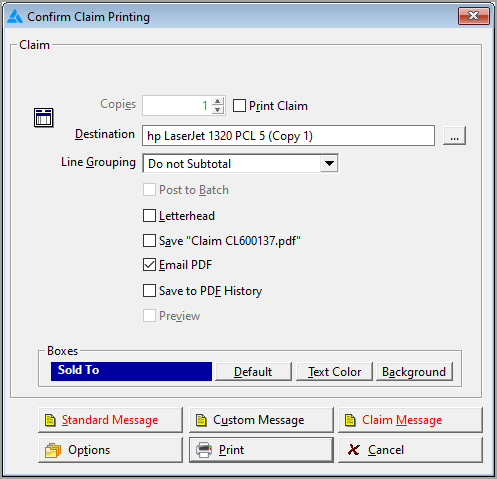
Copies
Enter the number of copies for this Claim.
Print Claim
If this box is not checked, the only option will be to save and/or email the claim.
Destination
The Windows default printer will appear. Click the ellipsis button to change printers, if needed.
Line Grouping
If this record has any line grouping, this option will be active. See Line Grouping for details.
Post to Batch
See Batch Printing
Letterhead
This option is designed for those who have pre-printed letterhead paper. When checked, the Company Information will not be printed on this Claim.
Save “Recordnumber.pdf”
Checking this box will save a copy of the document being printed to the RFMS directory. This file is not part of the database and can be deleted.
Email PDF
Checking this box will automatically open the email system and send a pdf copy of the printed document. If there is an email address in the Claim Against information of the customer order, it will be automatically entered into the send to address.
Preview
Click here to view a copy of the Claim before sending it to the printer.
Boxes
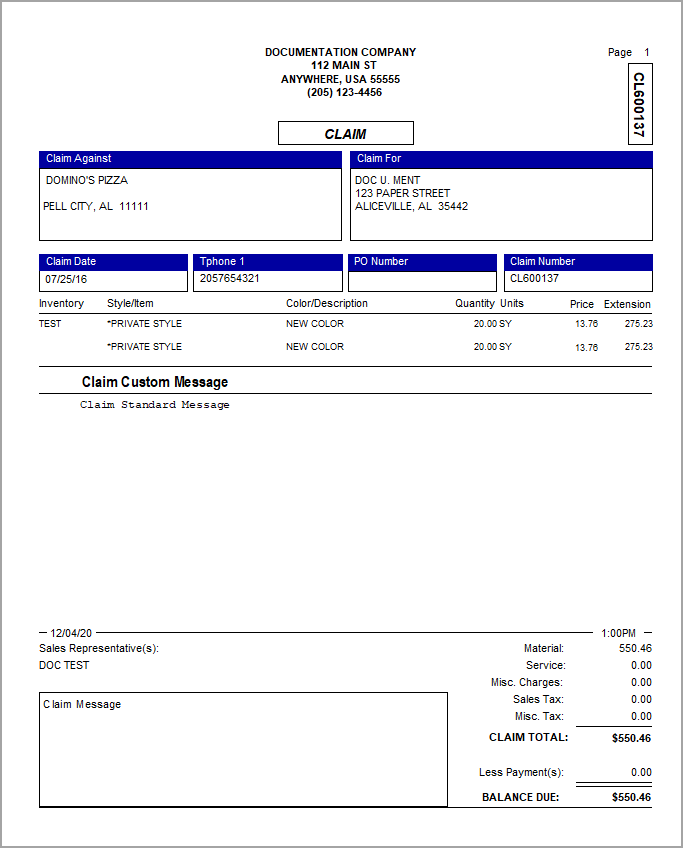
The text color and background color of the Sold-To field can be changed on the Claim printout.
Default
Select this button if the color of text and background has been previously changed to revert to the default. The default colors are Background – Blue, Text – White.
Text Color
Click this button to change the text color for this Claim printout. The color change will remain until manually changed or until the Default button is clicked.
Background
Click this button to change the background color for this Claim printout. The color change will remain until manually changed or until the Default button is clicked.
Standard Message
Enter a message that will print on all customers' Claims. It will remain until changed or deleted. A change may be made from any customer order.
Custom Message
Click the Custom button to enter a custom message to be printed only on this Claim.
Claim Message
This message will appear at the bottom of the Claim printout.
Options
Click the Options button to select various printing functions. See Invoice Printing Options for more details.
Click the Print button to continue with this print job.
Cancel
Click the Cancel button to abort this print job.
Comments
Article is closed for comments.