

Kits allow setting up orders for processing with all the necessary processing information, which will be viewed by customers with only the major materials listed. An estimate can have more than one kit.
If a line is deleted and that line is the 'master' of a kit of estimate lines, the user will be prompted to delete all members of that kit. If no is selected the kit membership information is removed from the remaining members of the kit.
Creating a Kit Example
Start with an estimate with 1 carpet line and 2 installation lines.

Click the kit button and the create line kits screen will display.
Highlight the line to be the master, for this example the carpet. Then click the make master button.

Next, highlight the lines individually to be members and click the add to kit button. Repeat until all members are added.
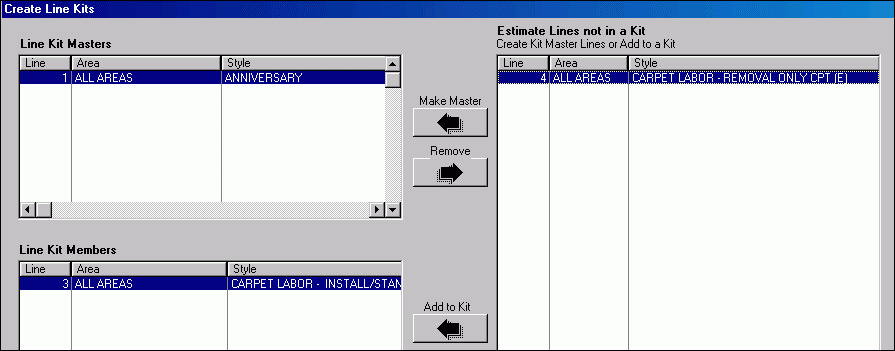
To remove a line from a kit highlight it and click one of the remove buttons.
When all members are added click the ok button to return to the estimate.
When this estimate is posted to the web for use in Property Connect, only the master line will show as a draft selection.

When the draft is submitted as an order, all three lines will be submitted.

Comments
Article is closed for comments.