
Installation Issue: installer does not run
Do you have IIS 6 or above installed on the server with all needed options? If not, select correct IIS options.
Is the .NET framework 4.0 or above installed? If not, install .NET 4.0.
Issue: user setup portion (PropertyConnectSetup.exe) does not complete with success
Is R_IFACE.EXE present in the RFMS directory? If not, add file to RFMS directory.
Is the Web_Login table present in the database? If not, RFMS support should contact development for assistance.
Issue: cannot open website from local network
Are you able to navigate to http://localhost/propertyconnect on the actual server? If not, check that IIS is running.
Do you get an error 500 message or other server error? If so, make sure that the application pool used by Property Connect is running .NET CLR Version v4.0.30319 in integrated mode. If there are other websites (such as Sharepoint, webmail, or other sites) running alongside Property Connect on the same IIS website, create a new top-level site dedicated to Property Connect.
Is Windows Firewall a third party firewall software running on the server? If so, check your firewall rules and ensure they will allow internal web traffic to port 80.
Can you connect to the server through another method (such as RDP or shared windows folders) from the local network? If not, make sure there is a valid path across the network to the server.
Issue: cannot open website from external network (note, check local network first)
Are you using residential internet service? Check that your ISP allows incoming traffic on port 80.
Is Windows Firewall a third party firewall software running on the server? If so, check your firewall rules and ensure they will allow external web traffic to port 80.
Do you have a firewall or router between your server and the WAN? If so, check your firewall rules and ensure they will allow external web traffic to port 80.
Use DNS tools (free online tools are available) to check that points to your network. Does it point to the correct IP address? If not, either configure your DNS host so that points to your network or create a subdomain like that points to your network. Version 17.0 14
Issue: Other website errors
Go to the website section of IIS Go to Property Connect>Click on the Default website button> Look for Index.html and make sure it says Inherited If it isn’t there, go to actions on the right and add index.html
Issue: licensing error message
Do you have a license for Property Connect? If not, request a license file from RFMS and install it.
Does the configuration info in web.config point to the correct database and RFMS directory? If not, correct the web.config information.
Are there errors in your web.config file (missing quotes/brackets, etc)? If so, correct the web.config format.
Go to http://licensing.rfms.com/license/manager.asmx from the server. Did the operation succeed? If you get an error message in the response, find the IIS Application Pool being used for Property Connect and open Advanced Settings. Make sure Load User Profile is set to True. Try the site again, if it still does not work. RFMS support should contact development for assistance.
Other Issues:
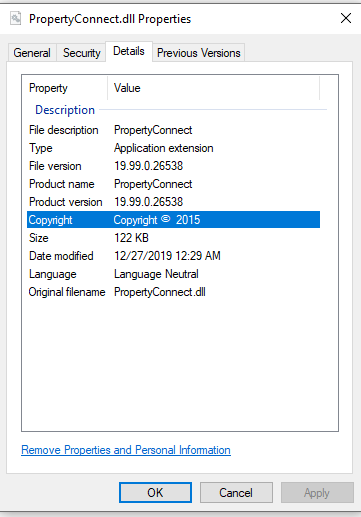
Is your property connect version current?
Comments
Article is closed for comments.