
Full Billing Group and Partial Billing User Guide
Percentage billing allows billing a portion of an original customer order by percentage instead of on a line by line basis. When using the Percentage Billing feature, the portion to bill will be exported to a separate order within a billing group. This process puts a negative line(s) on the original order and creates lines on the new order showing the percentage billed amount.
To Percentage Bill:
1. Utilities>Set Up>Product Codes
Define an Inventory range product code and a service range product to be used for percentage partial billing.
2. Set the following System Options
Set to Yes
Percentage Partial Billing Inventory Product Code and Percentage Partial Billing Service Product Code
Select the Product Codes set up in the first step.
3. Add the Order to Percentage Bill to an existing Billing Group OR, create a new Billing Group.
4. Set this group as a Partial Billing option located at the top of the Billing Group screen. If this option is not selected, the Percentage Billing Feature will not work.
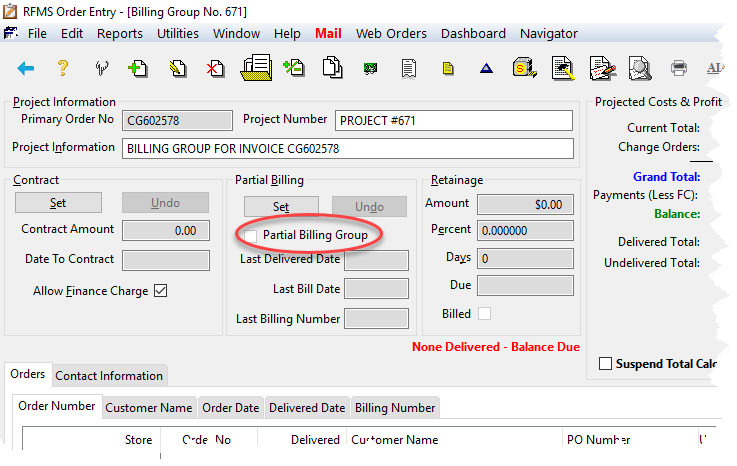
5. Double-click the appropriate Customer Order.
6. Click the Export button  . The Select Export Method screen will appear.

7. Click the Create Percentage Lines button. The Percentage Billing screen will display.

8. Enter the Percent to Bill and the Estimated G/P Percent.
9. Click the elipses beside Target Order Number to search for an existing order number to send the billing lines to or leave as is for a new computer generated invoice number.
10. In the To Be Billed section, the system will calculate the Material, Material Cost, Installation Service, Installation Cost amounts based on the numbers enter above. Click the ? button to see the material and installation cost breakdown.

If these costs are different than the number that is currently in the fields provided change the amounts.
11. Click the Process button when done.
A dialog message will appear that asks to verify to post this billed amount. If so, click YES. To abort this procedure, click NO.

Another dialog box will display, showing the CG number to which this percentage billed amount is now associated with.

12. Negative lines now appear on the Original Order, showing the amount deducted from this order and billed on the other order. Continue this process until the entire order has been billed.

If line overhead is being used, the overhead will be calculated on the actual material and services lines. A positive overhead will show on the percent partial billed lines on the new order, which will be offset by a negative overhead on the percent partial billed lines on the old order.
See Related Articles
Correcting a Percentage Partial Billing
ERRM Percentage Partial Billing
Comments
Article is closed for comments.