
Full Billing Group and Partial Billing User Guide

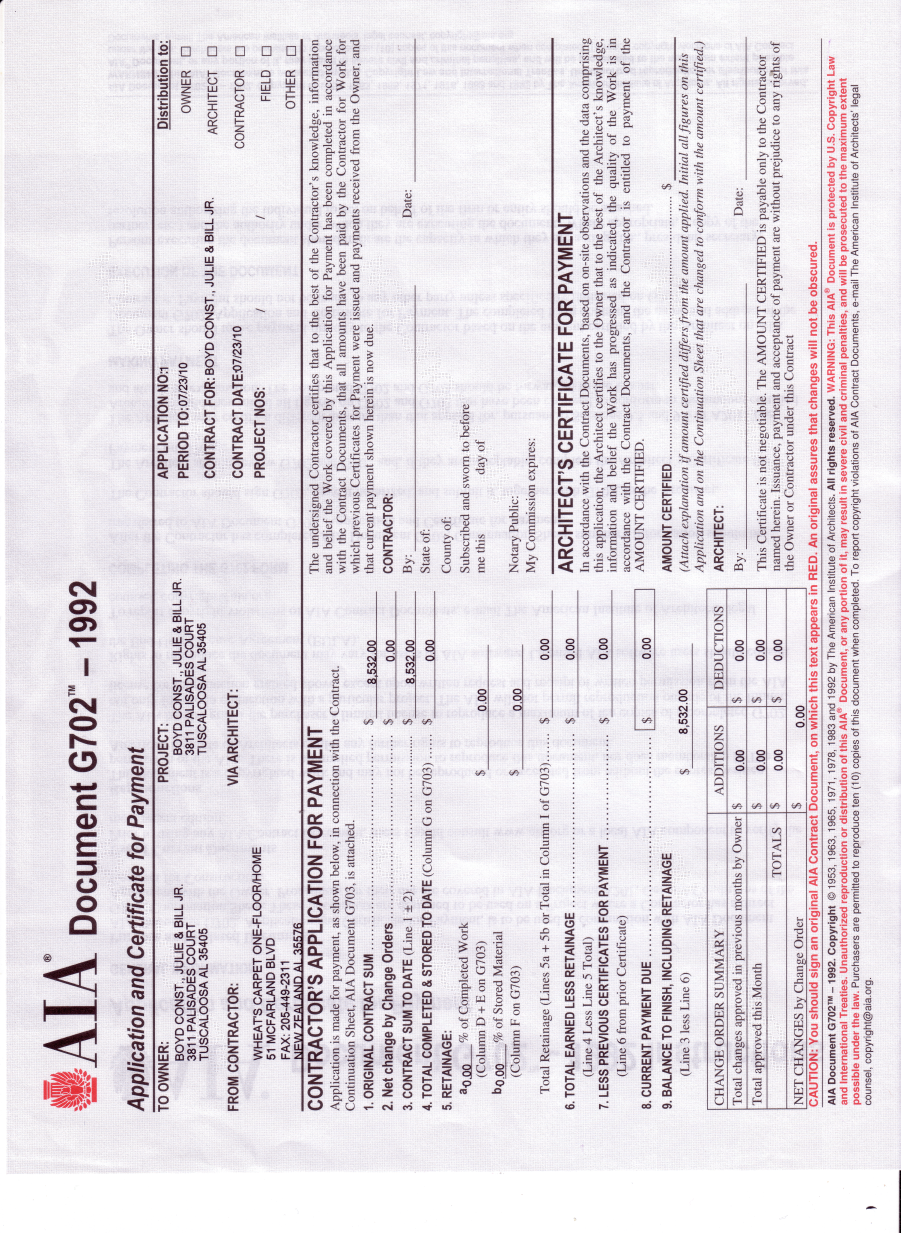
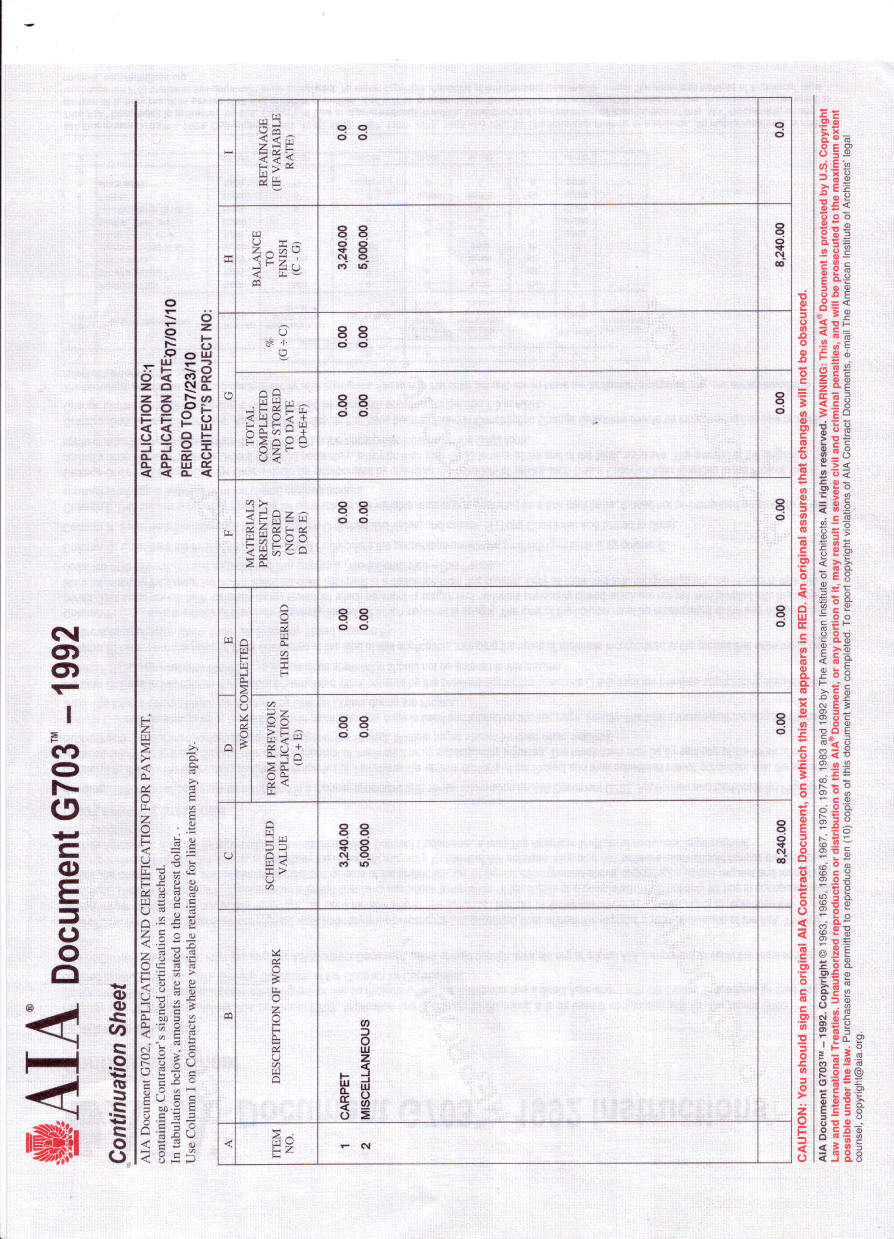
RFMS can print AIA reports on the proper form from RFMS Order Entry Billing Groups. RFMS supports documents #G702 and G703.
To create and print the AIA notices in RFMS, do the following:
- Select the appropriate Partial Billing Group.
- Select the AIA button located at the top of the screen.
- The AIA Billing screen will display.
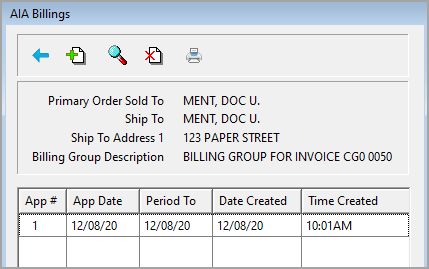
- Click the Insert button.

- Enter the Application Date. The Application Date is the date the AIA reports were created. Enter the Period To date. The date represents the ending date of the Billing Period.
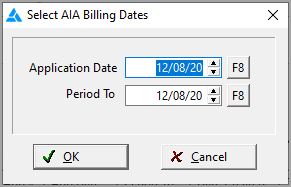
- Click, OK when done.
- The Use All Costed Order Lines screen appears. Select “All Job Costed Order Lines” or “Select Order Lines”
All Job Costed Order Lines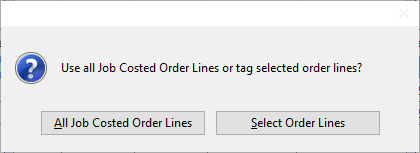
This will create an AIA Billing for all Job Costed Orders (automatically includes all lines) for any order that has been job costed since the last AIA Billing. Click here will open the AIA Billing screen.Select Order Lines
Click this option will open the Select Order Lines to Include Screen.
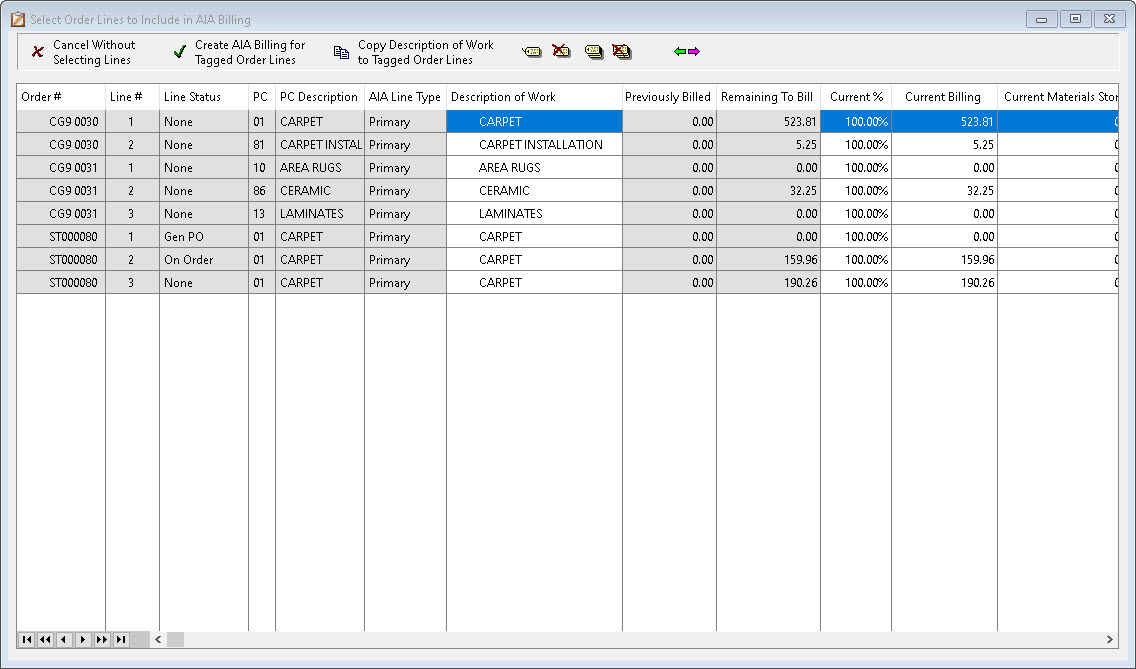
- All order lines can be tagged for AIA Billing regardless of the line status.
- Shows amount Previously Billed for Order Line, amount Remaining to Bill, and current Line Total.
- A portion of an Order Line can be designated for the AIA Billing.
- Double click in the This Billing column to edit the amount. Description of Work can be edited.
- A single order line will not be allowed to have more than one Description of Work.
- If AIA Billing is created with this method, then editing can only be done on the Select Order Lines screen.
Description of Work and Current Billing columns may be edited before printing AIA reports. To edit, highlight the desired line, click in the field, and type in the new amount.
Click  to return to the AIA billing screen to start over.
Click  to create the billing after tagging the lines.
Click  to copy the description of the last line tagged to the other tagged lines.
Click  to split a line's billing total with a new line. From the screen, the description line can also be edited.

Once the line is split, the split icon shows on the line.

Next, load the form G703 into the printer and click OK to print. Then load form G702 in your printer and click OK to print.
The RFMS AIA billing notice has been completed. Each time you create an AIA notice, it will display on the billing screen. There is a printer button located on the top of this screen, which will allow you to print these forms again at any time.
Also, from the AIA Billing Screen, previous AIA reports can be viewed. These can no longer be edited after they have been printed. Click the view button to see an un-editable Browse AIA Detail Screen.
Comments
Article is closed for comments.