
Order Entry>File>Quote>click the Printer button or Order Entry>File>Quote>Edit Quote >click the Printer button
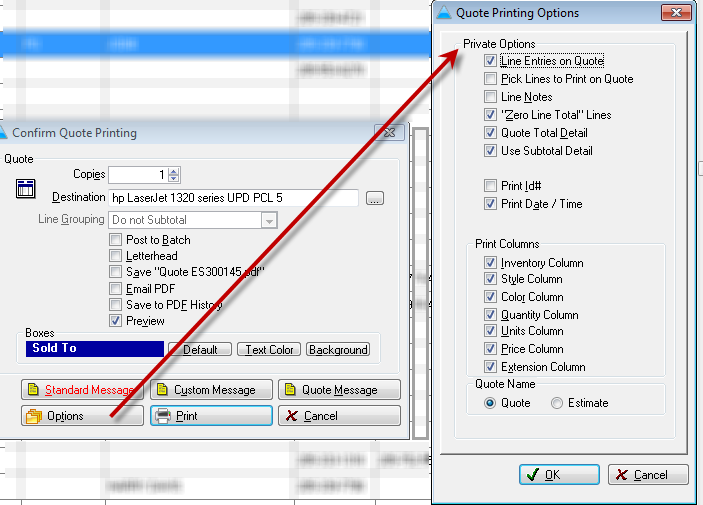
Copies
Enter the number of copies to print.
Destination
The default printer displays here. Click the ellipsis button to select a different printer.
Line Grouping
If the Lines for the document being printed do not have any Line Groups specified, Line Grouping will be set to Do not Sub-total and disabled. If the Lines for the document being printed do have Line Groups specified, Line Grouping will be enabled and will be set to the last grouping request for that type of document.
If using Line Groups, click the down arrow here to choose between not subtotaling by grouping or subtotaling and sorting by either the description or the group number.
Post to Batch
If using Batch Printing, Clicking here will add this print job to the batch print queue.
Letterhead
If this option is selected, the company information will not be printed on this Quote. This option is designed for those who have their own pre-printed letterhead paper.
Preview
Click here to view a copy of the Quote before sending it to the printer.
Boxes
Sold To
Change the text color and background color of the Sold To field on the Quote printout.
Default
Select this button if you have previously changed the color of text and background and wish to revert back to the default. The default colors are: Background – Blue, Text – White
Text Color
Click this button to change the text color for this Quote printout. The color will remain as such until manually changed or until the Default button is clicked.
Background
Click this button to change the background color for this Quote printout. The color will remain as such until manually changed or until the Default button is clicked.
Custom, Standard and Estimate Message
Click the Print button to continue with this print job.
Cancel
Click the Cancel button to abort this print job.
Comments
Article is closed for comments.