
Order Entry>Orders or Quotes>Highlight record>Printer Button  >Options Button
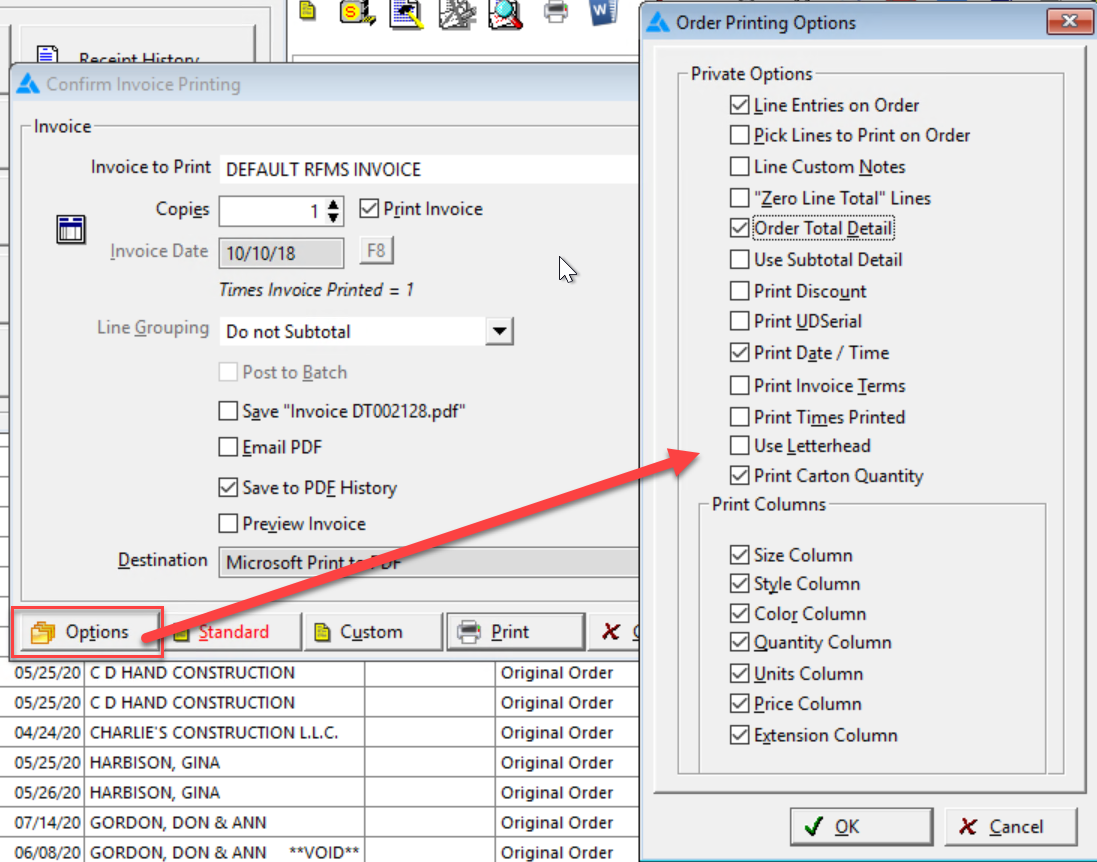
Line Entries on Order
Selecting this option will print each customer order line as they are entered from the order. If the line detail is not desired a description of the sale to print is, use the Custom Message feature.
Pick Lines to Print on Order (Available only if Line Entries on Order selected.)
This selection allows you to pick and choose those lines on the order to have printed on the invoice. A pick list will appear, displaying all lines on the order. Invoices are designed to be printed on a pre-printed invoice form or on standard computer paper.
Line Custom Notes (Available only if Line Entries on Order selected.)
This selection allows line notes entered on a customer order to print on the customer invoice or acknowledgment. This option should be set on each workstation where the feature is needed.
"Zero Line Total" Lines
Selecting this option will print lines entered on the customer order that have a ZERO entered for the selling price.
Order Total Detail
Selecting this option will print detail information on the invoice for Material, Inst. Serv., Misc. Charge, Sales Tax, Misc. Tax, and Invoice Total. Additionally, the Payment Total and Balance will be shown. If this option is not selected, only the Invoice Total, Payment Total, and Balance.
Use Subtotal Detail (Available only if Order Total Detail selected.)
Selecting this option will print Material, Service, and Misc. Charges all combined in one Subtotal line in the Total Detail Area.
Print Discount (Available only if Order Total Detail selected.)
Check this box to print the discounts applied on the Post Payment screen. This does not print any discounts entered on individual lines.
Print "Serial Number Prompt"
This is a user definable field that is entered onto an Item Products record in the Products module. This field name may be set to display whatever the user chooses by clicking the Serial Number Prompt system option.
This field name will display on all Item Product Records through the RFMS system, as well as on the Print Invoices, Quotes and Claims options screen. This field name may be changed at any time. Note that this setting automatically defaults this field name to 'ID #'.
Print Date/Time
Check to have the Date and Time print on the document
Print Invoice Terms
This option pulls from the Customer File Terms and will print on an Acknowledgment & Invoice when checked on an open or Job Costed order.
Print Times Printed (not applicable for quotes)
Each time the document is printed, the number is incremented. If checked the times printed will show on the lower right hand corner. (Not applicable for quote)
Use Letterhead
With this option selected the company address information does not print on the document.
Print Carton Quantity
The carton quantity based on sell in quantity is now an option for printing on Invoices/Acknowledgements and Delivery tickets.
Print Columns
These parameters allow the option to include more detail on invoice/acknowledgements. Select one, all or any of the following options:
Size Column
Style Column
Color Column
Quantity Column
Units Column
Price Column
Extension Column
These are PRIVATE OPTIONS - apply to individual user
Comments
Article is closed for comments.