
Overview: This feature added in 22.1 allows printing or emailing multiple tagged invoices at one time.
This new feature allows several different Scenarios
-
Tag multiple orders and combine them into a single pdf file for emailing. (Email on File or Custom Email)
-
Tag multiple orders and email individual pdf files. (Email on File or Custom Email)
- Tag multiple orders and print individual invoices to a selected printer.
Order Entry>File>Batch Processing or F12
Select Invoicing
Use Find  to narrow the list of possible invoices.
The delivery date to and from has been added to the Invoice find to be used with this new function.
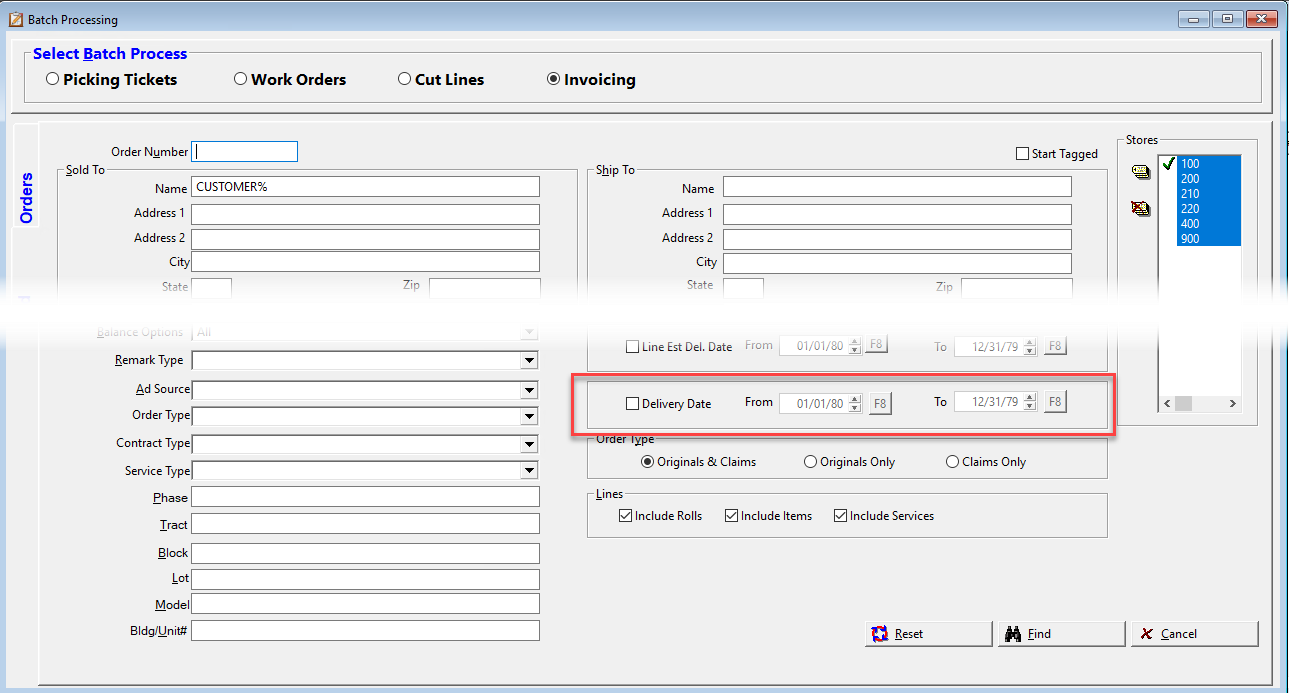
Tag the invoices to batch process.
Select the printer icon.
The Confirm Batch Invoice Screen will display.
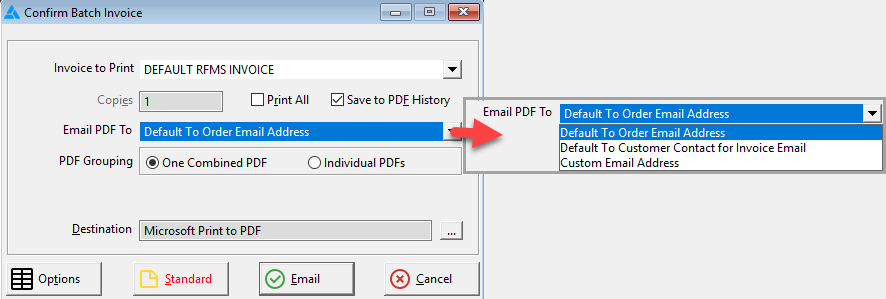
Select the invoice to print.
Print All: If selected, the number of copies to print is available. Also if selected, nothing will be emailed. This selection is sticky.
This option prints allows tagging and printing a group of invoices, for example if a customer wants a hardcopy of all their invoices.
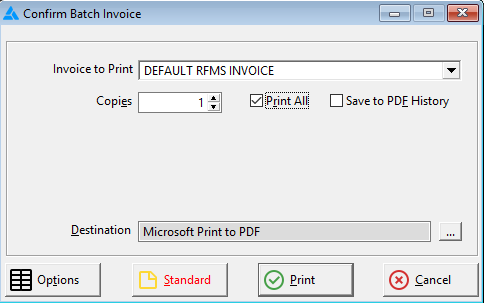
Save to PDF History: this is optional
Email PDF To: There are 3 options for the email to use.
Default to Order Email Address
The hierarchy the system uses in selecting the email to use is:
- Email address on the order header
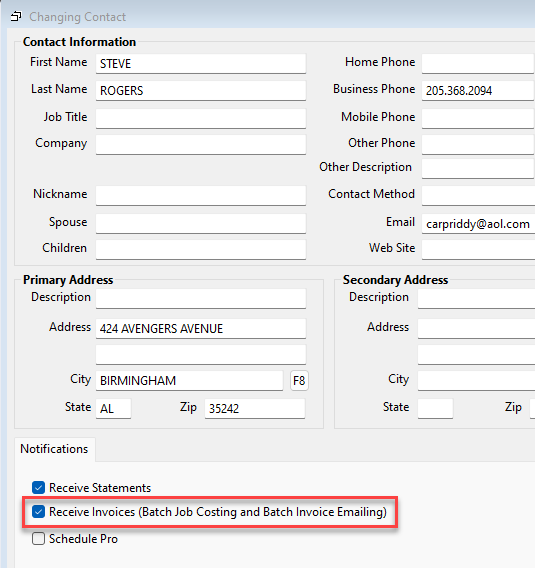
- Contact to receive invoices
- Customer email
Default to Customer Contact for Invoice Email
The hierarchy the system uses in selecting the email to use is:
- Email address on the order header
- Contact to receive invoices
- Customer email
If multiple emails are listed with a colon between them each will receive an email. Example email1; email2.
With either of these options; If no email is found a paper copy of the invoice(s) will print to alert the user that no email was sent.
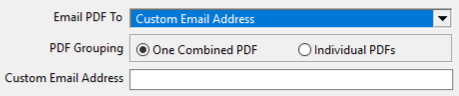
Custom Email Address
- When using this a pop up screen allows entering an email address to use.
For a helpful article about Customer Contacts click here.
PDF Grouping:
Select either to combine all tagged invoices into a single pdf or a pdf file per invoice.
Destination: For a helpful article about selecting printers click here.
Select the printer to be used. This will be used for the Print all option or printing invoices where no email is found.
Invoice Printing Options: For a helpful article about printing options click here.
The selections available here are the same as when printing single invoices.
Standard Note:
A message can be entered here that will be added to all invoices.
Select the Print/Email button to process the invoices.

A temporary pdf is created but is deleted after the email is sent.
Invoices are untagged and system is ready to process the next batch.
Comments
Article is closed for comments.