
Order Entry>Edit>Print>Work Order or Order Entry>Print Button>Work Order
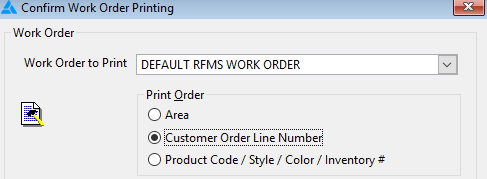
Print Order
This is the order in which the following information will appear on the printed copy of the Work Order.
- Area-Selecting this option will print areas first on the Work Order.
- Customer Order Line Number-Selecting this option will print Customer Order Line Number first on the Work Order.
- Product Code/Style/Color/Inventory # - Selecting this option will print Product Code (1st), Style, Color, and Inventory # on the Work Order.
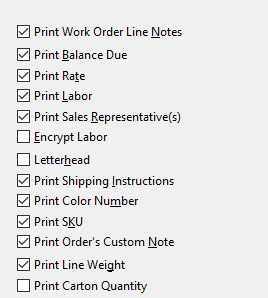
Options
Select by checking the box to have the listed information appear on the printed work order.
Print Work Order Line Notes
Notes associated with the Work Order will be displayed.
Print Balance Due
Prints the balance of the ENTIRE Customer Order associated with the Work Order line or lines.
Print Rate
Allows the rate used to be printed.
Print Labor
Allows the cost of labor to be printed.
Print Sales Representative(s)
Includes all salespeople associated with the customer order on your work order.
Encrypt Labor
Use this option to conceal Labor Information.
If print labor is selected, the rate for all service lines can be printed in a way that only those who know the encryption key will be able to read the rate.
The first character (X) is a random letter.
The second character (8) is a random number.
The third character (H) is a random letter and is the beginning of the labor rate.
The next occurrence of that letter (H) is the end of the labor rate.
Example: R1B3250B6M21. The labor rate is between B's and is 32.50.22.
Example: C8O0OW0E6A.23. The labor rate is between the O's and is 0.00
Letterhead
By selecting this option, the Company Information that is normally included on a Work Order is removed to make room at the top/center for printing on letterhead paper.
Print Shipping Instructions
This feature is related to the Ship-To button located on the Notes screen on the Browse Work Orders Lines screen.

To use this feature, on the Customer Order, a Ship-To Name pulled from the Customer file must be included. The Ship-To Name must be located under Customer Additional Ship-To's.
The Shipping Instructions there that you wish to have appear on the Work Order must be entered from the Ship-To button from the Notes screen.
Print Color Number
This Color Number is pulled in if a product exists on this work order that was downloaded
using the EC Module.
Print SKU
This SKU number is pulled in if a product exists on this work order that was downloaded
using the EC Module.
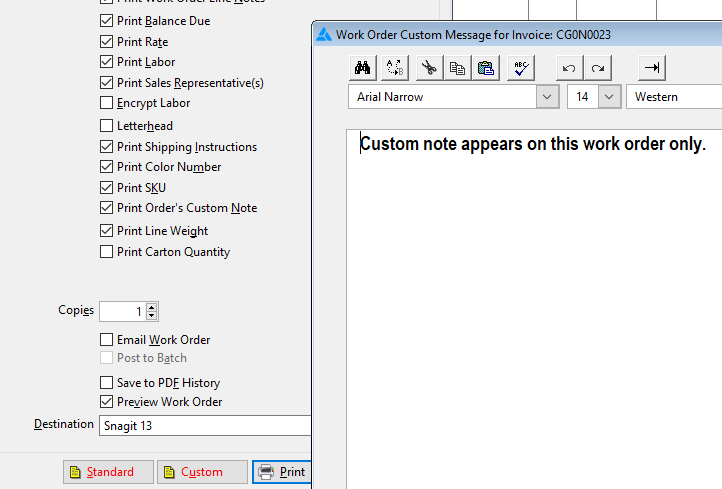
Print Order's Custom Notes
Prints the Order's Custom Notes on the Work Order.
Print Line Weight
Prints the Line Weight on the Work Order.
Print Carton Quantity
Prints the carton quantity on the Work Order.
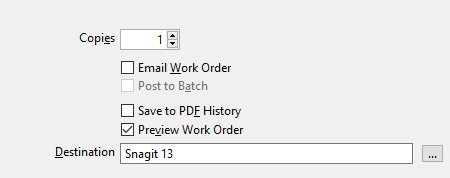
Copies
Enter the number of copies to print in this field.
Email Work Order
Check this box to have the work order emailed as a PDF
Post to Batch
Only valid with Batch Printing enabled.
Save to PDF history
Saves a pdf copy of the work order.
Preview Work Order
Select this option if you wish to review the Work Order before printing.
Destination
Select the appropriate printer destination.
Standard (Note)
Click here to enter a standard message that will appear on each work order.
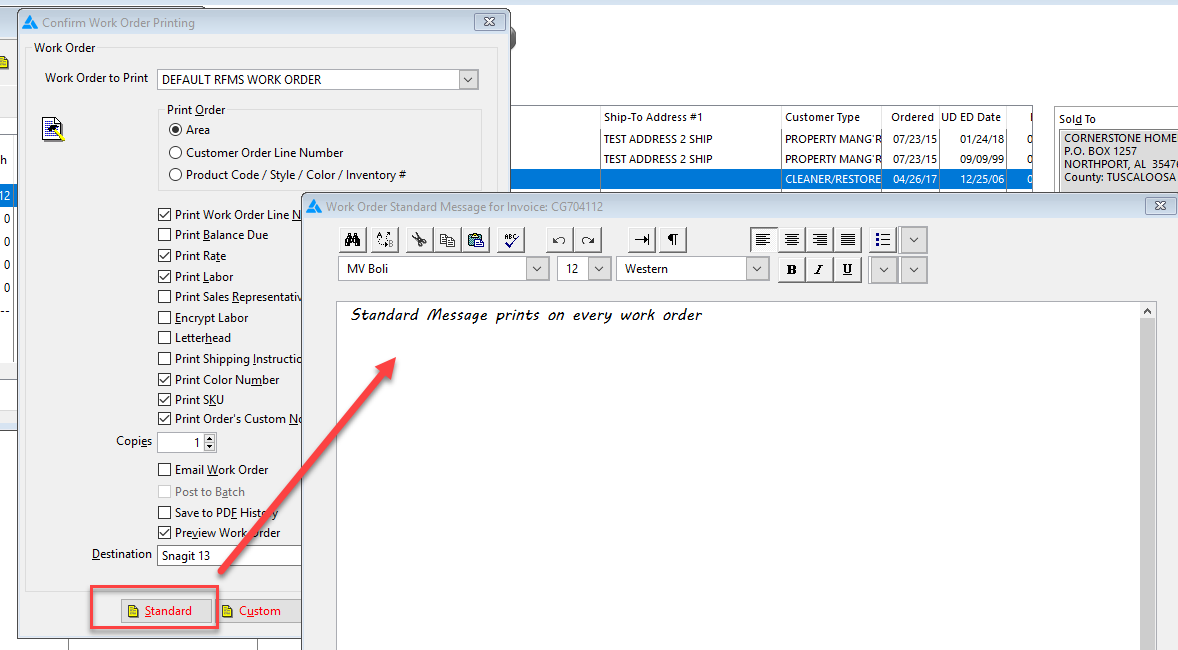
Custom (Note)
Click here to enter a custom message that will appear only on this work order.
Comments
Article is closed for comments.