
Schedule Pro>File>Quick Schedule
Jobs listed here are determined first by the default settings in System Options>Schedule Pro with the category Default Filters.
Use the find button to locate other jobs. To go back to the default settings while still in the screen, use the reset button.  The clear filter button
  will set the find to include all records. The remark type was added to the options for finding scheduled jobs in, Scheduled Jobs, Quick Schedule, Quick Edit, Weekly Grid and Create Providers. Only scheduled jobs with the selected remark type will be found. Remarks can be added to scheduled jobs in Client Management or via the Commercial Project Management Remote Actions Button
  while in Schedule Pro.
The Quick Schedule screen allows viewing all jobs for a single day as well as:
- Adding jobs to the schedule from Order Entry based on the Estimated Delivery Date in the order header.
- Viewing scheduled job Entry totals for a selected day for each job type.
- Editing multiple jobs simultaneously to: assign or change crews, assign or change time slots or stop numbers, or change the values for "User Defined 1 or 2."
- Deleting multiple jobs from the schedule simultaneously.
- Updating Scheduled jobs directly from Order Entry.
- Batch printing RFMS Work Orders for a day's scheduled jobs
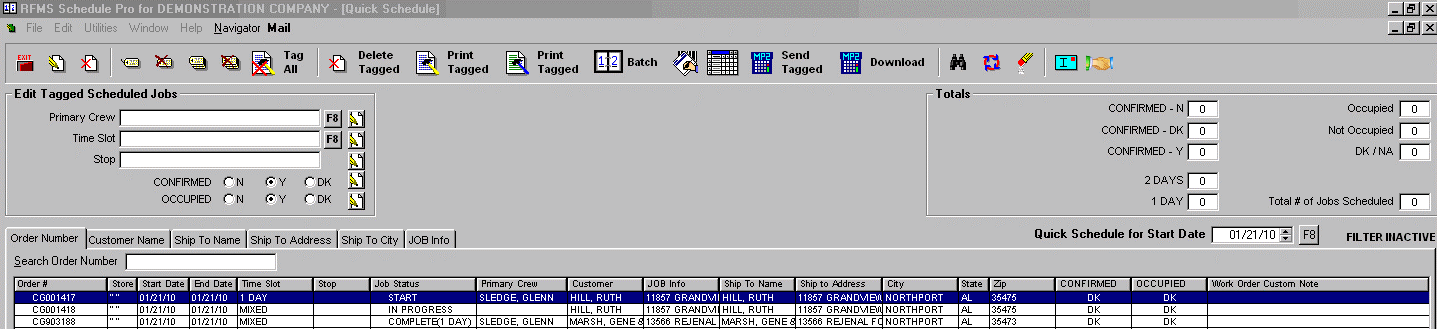
When the Quick Schedule screen is first opened, it will show all jobs scheduled for today's date. Use the Find Function to narrow the jobs to view. All the jobs that meet the filter criteria will be listed in the browse below. Use the tabs at the top of the browse list to sort and search the list.
The grey box at the top left of the screen will display the Total Number of those Jobs Scheduled that meet the criteria listed and a few other totals, such as the User Defined 1 Values and the count of jobs that are scheduled for each of the two Primary Time Slots, as defined in Utilities>System Options>Schedule Pro>Scheduling> Quick Schedule Display Time Slot Totals 1 and Quick Schedule Display Time Slot Totals 2.
Many of the column widths in this browse list are adjustable.
Comments
Article is closed for comments.