
Baseline
Order Entry>File>Customer Orders>Baseline button  or
or
CMM>Projects  >
>
This screen allows creating a baseline for the highlighted customer order or the billing group that order belongs. The baseline is a "snapshot" of the order at that moment in time. A report that compares a previous baseline with the order in its current status can also be printed. Baseline points can be used to compare how a job is doing over a period of time and the final quantity, cost, selling price and gross profit percentage.
A Customer Type can be set to automatically display a message prompting the user to create a baseline if one does not exist. This applies to both Baselines for Billing Groups and for Individual Orders. This can be set up through Order Entry>Utilities>Set Up>Customer Type.
The baseline is always created from the Order and Order Lines even if the Order has been Job costed. Orders that have been Job costed will use the Job costed data for the Delivered and Current columns. Orders that have not been Job costed will use the Order and Order Lines data for the Undelivered and Current columns. Change Orders can only be included in a Billing Group baseline.
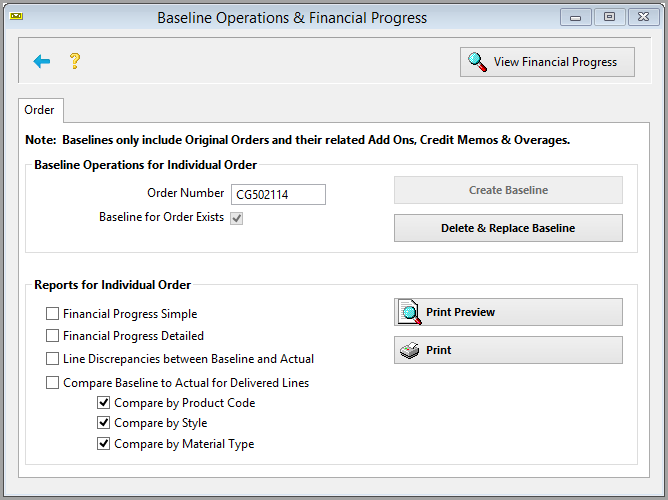
Creating a new baseline
The first time the baseline button is selected for a customer order, the only option available on the screen is to create a new baseline. If the order is part of a billing group choose between creating the baseline for the order only or for the whole billing group. When opening the baseline screen from the billing group screen, only billing group features will be enabled. The baseline is created for the way the customer order is at that very moment. The baseline screen disappears and you are returned back to the customer order browse screen. A baseline includes all lines on the customer order. It does not include any misc. charges or taxes.
After the create baseline button is clicked, confirm to create a baseline.
The screen will then change to options to print a report of that baseline information.
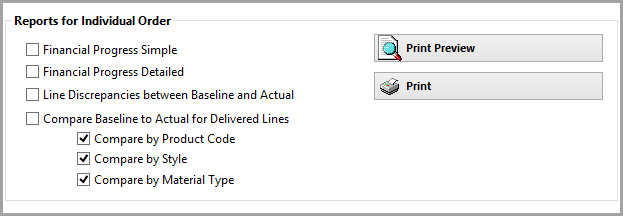
Modifying an existing baseline
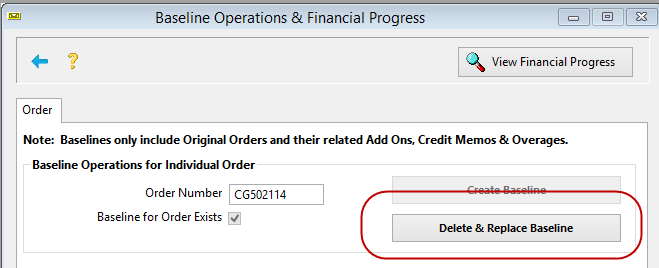
After a baseline has been created, modify it by selecting this option. When modifying the existing baseline, another "snapshot" is taken of the order and it replaces the previous baseline numbers.
Reports
Go to the baseline screen and print a report at any time for an order which already has a baseline created.
Financial Progress Simple
In this report, the costs and sales are not broken out in detail and Change Orders are not shown in their own columns.
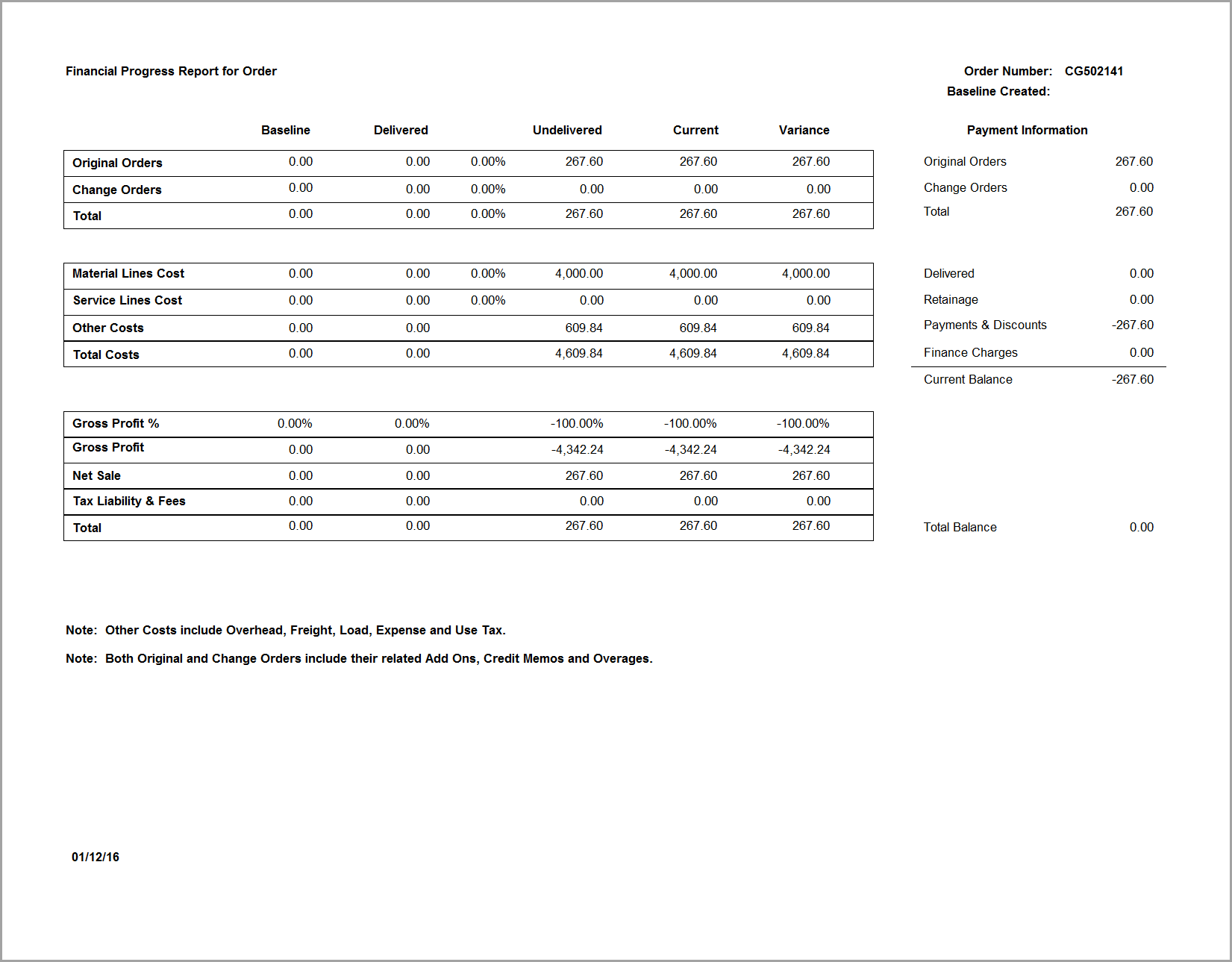
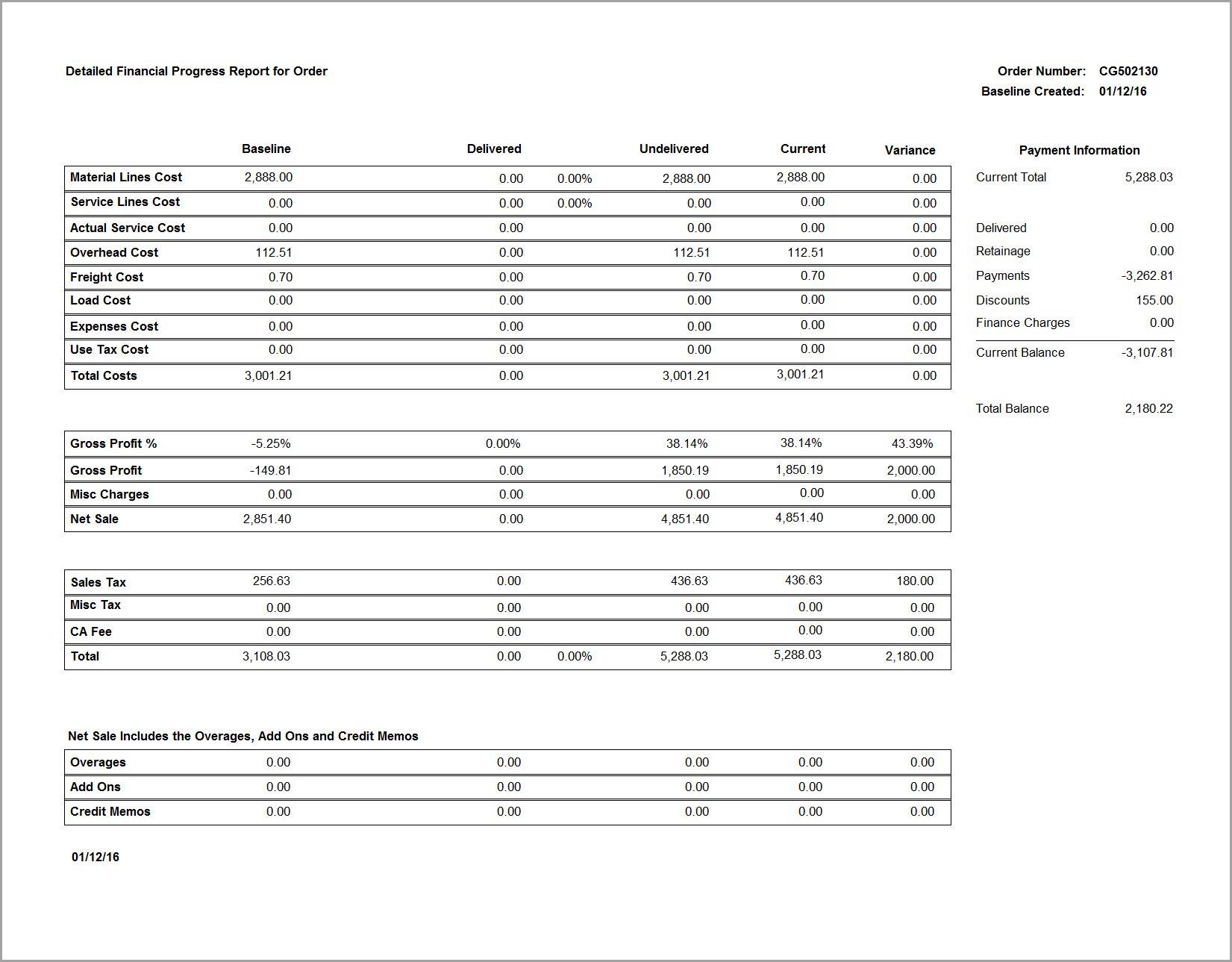
Financial Progress Detailed
Compare the baseline to Actual
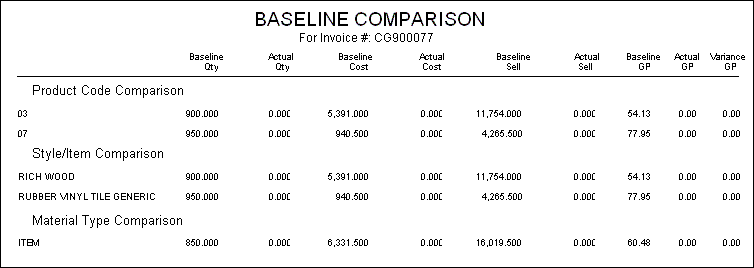
The latest baseline can be compared to the current status of the order. The baseline quantities, costs, selling prices and gross profit percentages are compared on a report against the same data on the order at the time the comparison is done. Three categories can be compared: Product Code, Style/Item and/or Material Type (Roll, Item or Labor). At least one of the categories must be selected. Lines that are in a DELIVERED or JOB COSTED status are used for the comparison (Actual Amounts).

The cost on the Baseline Comparison report now includes product cost, freight, load and overhead.
Reports for Billing Groups
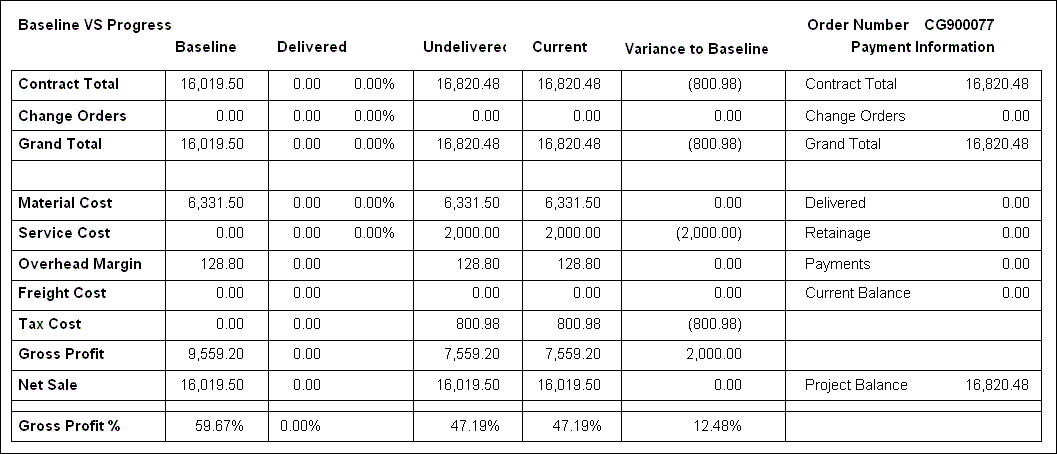
This report can be printed for a single order or for the billing group if they both have baselines.
Contract Total includes Add Ons and Credit Memos and Misc. Charges.
Material Cost includes Load.
Tax Cost includes all Sales Tax, Misc. Sales Tax and Use Taxes.
Net Sale does not include Sales Tax.
Retainage is only applicable to Billing Groups.
Variance = Current Cost – Baseline Cost.
Discrepancies between Baseline and Actual
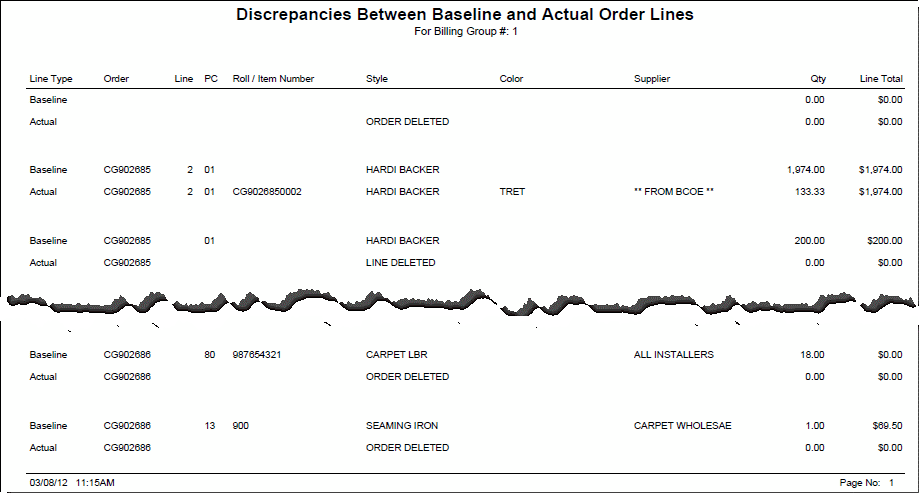
This report compares and prints discrepancies between the Baseline Order Lines and the Actual Order Lines. This includes Order Lines that have been deleted and new order lines that have been added. It also includes any Order Lines where there is a difference in the Style Name, Qty or Line Total. The Line Total is without tax.
Financial Progress Screen
Order Entry>Customer Orders>Baseline  >
>  or
or
Order Entry>Customer Orders>Billing Group  >Baseline > or
CMM>Projects >
> >
>
This button can be found at the top of the Baseline screen. It can be viewed for an Order, a Billing Group or a CMM Project.


Export Order Financial Progress to CSV
This screen allows the Financial Progress Data to be exported to a CSV. The user can pick the data to export from the list. The settings can aslo be saved as the Default Settings.

Notes on Baseline and Financial Progress
- A Baseline does not need to be created to view this screen
- It includes Original Orders and their related Change Orders, Overages, Add Ons and Credit Memos.
- Change Orders will never be included in the Baseline.
- The Baseline plus the Change Orders do not always add up to the current total. Users can change the original order the baseline was created on.
- Billing Group Change Orders Column only displays when viewing in Billing Groups
- Service Line Cost is based on Service Lines. Actual Service Cost is based on Provider Records.
- Expenses are broken out into material, service, overhead, freight, load, expenses and use tax.
- Sales are broken out into material, service and miscellaneous charges.
- Payment Information includes Delivered, Retainage, Payments, Discounts and Balance Due.
- Finance Charges are included in the Current Balance and Total Balance in the Payment Information.
- Claims are NOT included.
- If the Gross Profit is Negative, then it will be displayed in red
- CA Recycle Fees are in the Fees row. Total posted includes the CA Recycle Fees.
- Add Ons, Credit Memos and Overages display separately at the bottom
- The password for this button on the Billing Groups screen and in Commercial Project Manager will be picked up from the password set on the Browse Orders screen.
Comments
Article is closed for comments.