
RFMS has added the ability to search by typing in keywords and numbers in the Search field and hitting tab. This change will make it easier to find only the information you want and need. This change effects Order Entry, Products, Inventory, Accounting and Schedule Pro.
Type in words, numbers, etc. into the Search field to get smaller amounts of information so what is needed is easier to find.
The more information that you can type in the Search field the closer you can get to what you are looking for.
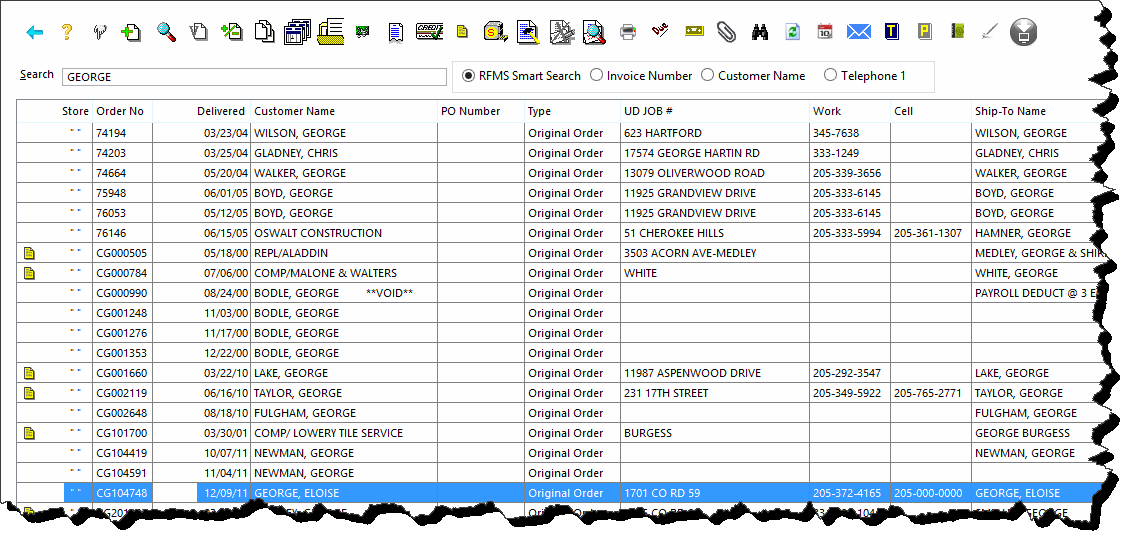
Here is a great example. You remember the word Main is somewhere on an order that you discussed with a salesperson this morning. You type in what you think the name of the Customer is and you get all the information below.
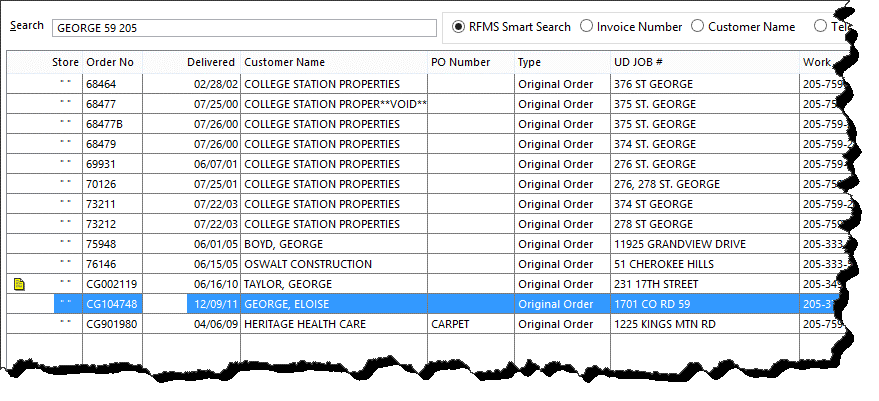
You then remember the mention of the number 59 and you know the phone number is in area code 205. The information to choose from drastically decreases.
Below is a list of field that the RFMS Smart Search looks at in each module.
Orders/Quotes/Claims
Invoice Number
Customer Name
Job Name
Job Number (User Defined Field)
PO Number
Telephone 1
Customer Address 1
Sold To City
Job Address 1
Customer
Customer Name
Customer Address 1
Ship Name
Ship Address 1
Sold-To Business
Ship-To Business
Telephone 1
Sold-To City
Customer Number
Relationship (User Defined)
Rolls from Order Entry
Style
Color
Roll Number
Supplier
A/P Invoice Number
PO Number
Sidemark
Comments
Color Number
Style Number
Product Code (PC: must be typed before the number
Items from Order Entry
Style
Color
Item Number
Supplier
A/P Invoice Number
PO Number
System Reference Number
Sidemark
Comments
Serial Number Prompt (User Defined)
Product Code (PC: must be typed before the number
Combined Inventory from Order Entry
Style
Color
Roll Number/Item Number
Supplier
PO Number
Color Number
Style Number
Product Code (PC: must be typed before the number)
Products
Private Style
Private Style Number
Private Color
Product Code (PC: must be typed before the number)
Item Inventory
Style
Color
Item Number
Supplier
A/P Invoice Number
PO Number
System Reference Number
Sidemark
Comments
Serial Number
Product Code (PC: must be typed before the number)
Roll InventoryStyle
Color
Roll Number
Supplier
A/P Invoice Number
PO Number
Sidemark
Comments
Color Number
Product Code (PC: must be typed before the number)
Purchase Orders
PO Number
PO Line Number
Supplier
Style
Color
Sidemark
Order Date
A/P
Supplier
Invoice Number
Journal
Account Code
Description
Check Number
Order Entry Invoice Number
Comment
PO Number
Supplier
A/P Invoice
Roll/Item Number
Provider
Job Number
Transaction Date
Scheduled Jobs
Invoice Number
Customer Name
Track 1 Description
Track 2 Description
Crew Name
Job Number (User Defined Field)
Job Name
Job Address 1
Job City
Comments
Article is closed for comments.