
To Print the Invoice /Acknowledgement after exporting a quote and editing it, use the Express Checkout option. Make sure the following system options are set for users to have the ability to print or not to print certain options from the screen.
How to Print an Invoice/Acknowledge from the Express Checkout Screen
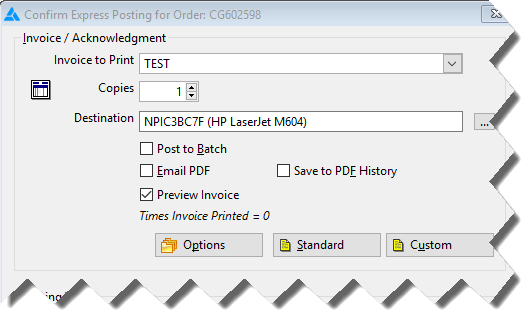
An invoice can be printed from the Express Checkout screen if the following conditions exist:
All lines are in a Cut or Delivered Status
The order is paid in full (or the "Job cost without Full Payment" switch is set on)
All inventories is costed (or the "Job cost "Not Costed" Inventory" switch is set on)
If the "Integrate Provider's Earnings" option is set to yes but there are NO service lines on the order.
If the job meets the criteria above for job costing, choosing to print an Acknowledgment instead; will not job cost the job.
If any of the above conditions are false, only an acknowledgment can be printed as Express Checkout is designed for a true Point of Sale environment.
Copies: default is set as 1 copy. Click the arrows to increase or decrease.
Destination: click to select a different printer than the one set as your default.
Post to Batch: Places the invoice in the Batch Print
Email PDF: Opens the email screen to allow the invoice/acknowledgement to be sent
Preview Invoice: click in this box to be able to view of copy of the invoice on the screen before printing to the printer. See Utilities>System Options>Order Entry>Invoice>Invoice Name Print Order to control how names print.
Save to PDF History: Check this box to save a pdf copy of the work order. For more details on this feature, click here.
Options: Click in one or more of the available boxes to print the information contained in those fields.
Standard: Up to 4 standard messages can be selected to print on the purchase order. These are set in Utilities>System Options>Inventory>Purchase Orders>Stock Purchase Order Messages. Messages may not be changed or entered through the Order Entry module.
Custom: click to enter custom notes for this customer order that will print on the invoice or acknowledgment.
Express Printing System Options
The Express processing screen has the ability to limit access to certain functions by using the following system options.
If Print Express Invoice, Print Express Job Cost Sheet and Print Express Picking Ticket are all set to no, then the Express button  in Edit Order will be grayed out. If any of these system options are set to yes then the Express button
is enabled and the section that is set to no will be grayed out.
Print Express Invoice
x>Utilities>System Options>Order Entry>Order Entry
Category-Reporting
Type-Can be Global, Assigned or User
If set to yes, then when a user clicks the Express button
in Edit Order, the user will be able to print an invoice. If this option is set to no, the Invoice section will be grayed out.
Print Express Job Cost Sheet
x>Utilities>System Options>Order Entry>Order Entry
Category-Reporting
Type-Can be Global, Assigned or User
If set to yes, then when a user clicks the Express button
in Edit Order, the user will be able to print a job cost sheet. If this option is set to no, the Job Cost Sheet section will be grayed out.
Print Express Picking Ticket
x>Utilities>System Options>Order Entry>Order Entry
Category-Reporting
Type-Can be Global, Assigned or User
If set to yes, then when a user clicks the Express button in Edit Order, the user will be able to print a picking ticket. If this option is set to no, the Picking Ticket section will be grayed out.
Comments
Article is closed for comments.