
Utilities>Set Up>Order Entry Field Mapping
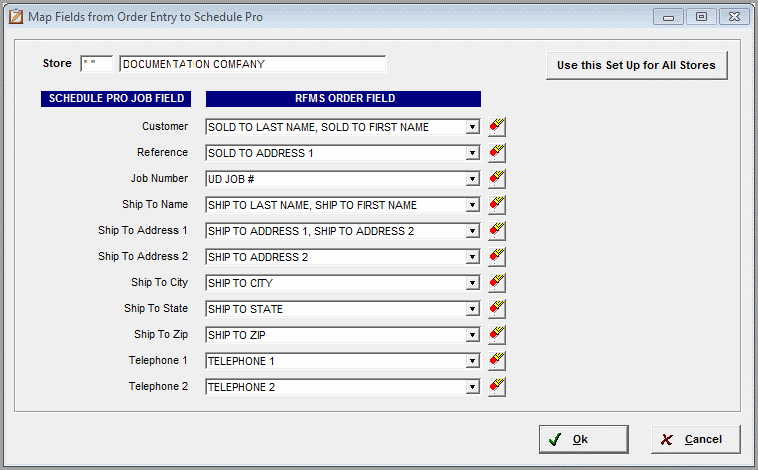
This is where editing the field mapping that is used when a job is pulled from Order
Entry to Schedule Pro is done. These settings are store code specific. To use this
Set Up for all stores, just click the button.
The defaults are listed below, and put the Sold-To Order Header information in the
Customer field in Schedule Pro and the Ship-To Order Header Information in the Ship
To information in Schedule Pro. Although this screen WAS created to edit mapping
if needed, it is recommended to keep it as close to the default as will work, as
the reports are built with this data setup in mind.
Customer: Default Setting = Sold to First Name, Sold to Last Name
Reference: Default Setting = BLANK OR PO Number (This refers to the Order Entry Header
PO Number)
Job Number: Default Setting = RFMS User Defined Job Number, often known as the "Sidemark"
Ship to Name: Default Setting = Ship to First Name, Ship to Last Name
Ship to Address 1: Default Setting = Ship to Address 1, Ship to Address 2
Ship to Address 2: Default Setting = BLANK
Ship to City: Default Setting = Ship to City
Ship to State: Default Setting = Ship to State
Ship to Zip: Default Setting = Ship to Zip
Telephone 1: Default Setting = Telephone 1
Telephone 2: Default Setting = Telephone 2
Use this Setup for All Stores: Click the button to copy these settings to all stores
in the system.
Comments
Article is closed for comments.