
Schedule Pro>Utilities>Set Up>Crews
Add/Edit Crews
To add a new crew, click the insert button  and follow the instructions on the Crew Information screen.
To edit an existing crew, highlight the crew name and click the edit button  to open the Crew Information screen (or double click the crew that to edit).
General Information – Crews
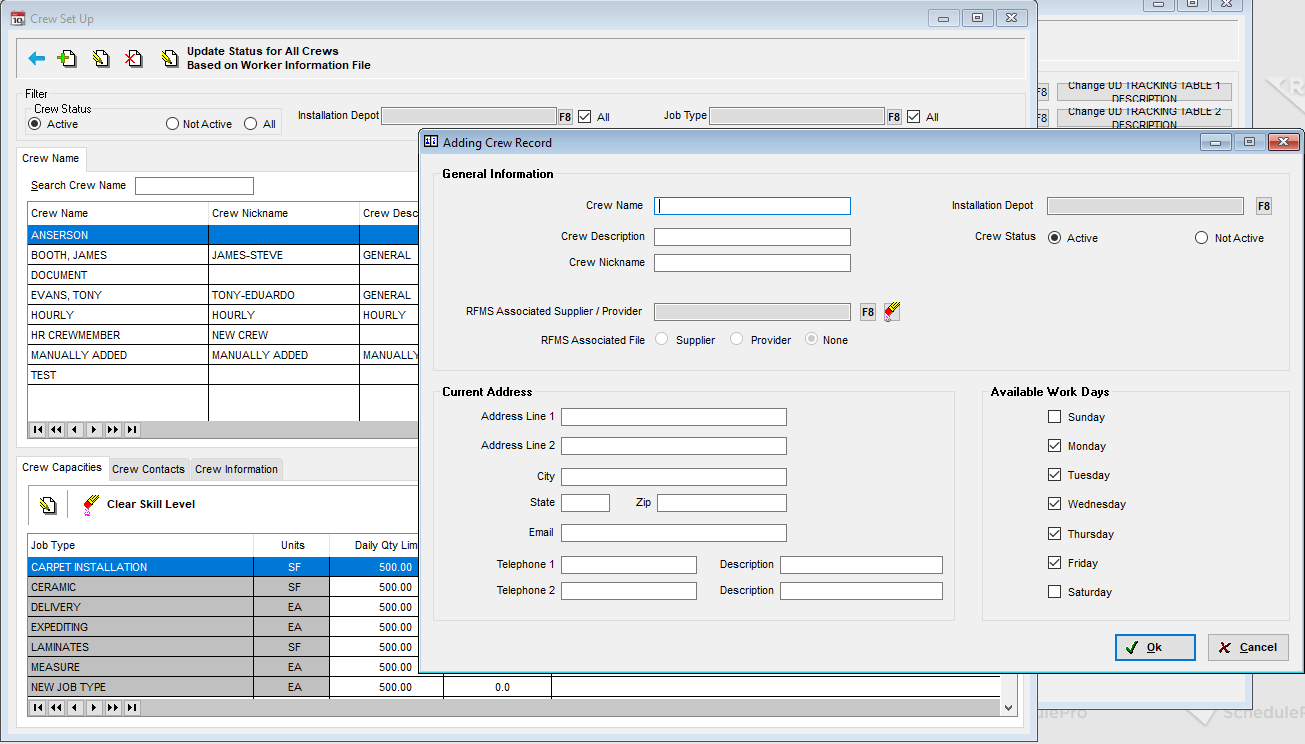
RFMS Associated Supplier/Provider
Though this is not the first field on the screen, it is the first that should be entered. Click the F8 button, and then choose either “Supplier” to pull from the RFMS Supplier file or, more commonly, “Provider” to pull from the RFMS Human Resources Worker Information File.
To use the Create Provider Records feature of Schedule Pro now or sometime in the future, it is
best to add crews by first pulling the record in from the Worker Information or the Supplier File.
This will tie the crew to the record used to pay them. Provider records cannot be successfully
created for crews that are entered without importing. To enter a crew manually, just fill in Crew
Name, Depot, and any other desired information
The Provider box must be checked in the Provider record in the Worker Information File for the Providers to show up in the list. (Active and Scheduler boxes must also be checked.)
Double-click the desired Supplier/Provider to select, and it will fill in many of the Crew fields.
Crew Name
This field will auto-populate from the RFMS Associated Supplier/Provider selection, but can be
edited afterward. For example, a provider named Theodore, is known as Ted, change the Crew
Name to Ted, and this will appear throughout the schedule, while the provider records will still
get created using “Theodore.”
Crew Description & Crew Nickname
These fields are optional and will not appear on any reports or many screens. Use these to
note any nicknames or the primary type of material this crew installs.
Installation Depot
Click the F8 button to choose an installation depot from the list. A provider can only be
assigned to one depot.
Crew Status
Click inactive for a crew who cannot be deleted because jobs have been assigned to them but
should not show on the selection list.
Comments
Article is closed for comments.