
RFMS Navigator>Sales Reports>File>Sales>Sales Information
This allows printing a report of Sales based on a specific time period.
|
Purpose |
Sales Analysis |
Data Source |
Delivered: job cost file. Written: customer order header |
|||
|
By Store |
Y |
By Sales Rep |
Y |
By Product Code |
N |
|
|
Profit |
N |
Customer Type |
Y |
Balance Due |
Y |
|
|
Order Status |
Written or Delivered or Both |
.CSV output |
Y |
User Defined |
Y |
|
|
Paper Size |
8.5 X11 |
Balance to |
|
|||
|
Common uses: Monitoring quotas and sales goals |
||||||
|
Tips for Use: Entering hand written orders and job costing in a timely manner makes this report more valuable. Un-jobcosted records are shown as a negative.
A separate report will be printed for written and delivered sales.
For orders with multiple sales representatives, the sale amounts will be split between the representatives. |
||||||


Report On
Written: This would be the order date of the invoice. So if the order was job costed (delivered) after the date chosen on the report it will show as written only. This report pulls from the header file.
Delivered: This would be the job cost (delivery) date of the invoice. So if the order was job costed (delivered) after the date chosen on the report it will show as written only.
Both: This option will give a separate report for each of the options above. If the date range chosen includes the order date and the job cost date for an order, it will be included on both reports.
Date Range
Select the appropriate Start and End dates to define the range of this report.
Sort By
This option allows sorting the printed sales report by:
Customer type /Invoice Number: Subtotals by Customer Type sub sorted by invoice number see sample report.
Invoice Number: No subtotals, does not include customer type, job id or salesperson on the report.
Salesperson Sorts: Salesperson and Invoice Number, Salesperson and Customer Type or Salesperson and Job ID
Any sort by Salesperson will subtotal by salesperson. If there are two salespersons on the job, the totals will be halved on the report.
Marketing Fields:The options for ad source, contract type, order type, and service type.
Stores
Select the store(s) to include on this report by single clicking on the store number(s). To select all stores, click the Tag All button that is located to the left of this field.
Group By Store: If selected, this option will group stores together in the report.
Sales People
Select the sales person (people) to include on the report by single clicking on the name(s) provided. To select all sales people, click the Tag All button that is located to the left of this field.
Customer Type
Select the customer type(s) to include on this report by single clicking on the name(s). To include all customer types, click the Tag All button that is located to the left of this field.
Customer
F8 to select an individual customer
Print Options
This option allows setting up printing parameters for this particular report. Click in the box provided to select one or all print parameters.
Break after Sort Changes- This option will cause a separate page to be printed each time a new value for the sort option occurs. For example, if sorted by Salesperson/Job type, a page break will be inserted after each Salesperson.
Print Summary Only-Prints only the totals
Print Preview- Click to review this report before printing.
Print Greenbar- Check this box for highlighting every other line for easier reading.
Output to CSV file: Enter the location to save the file for example c:\\reports
Select Printer- The default printer is listed. To change this printer, click the ellipsis button.
Copies: Select the number of copies of the report to print
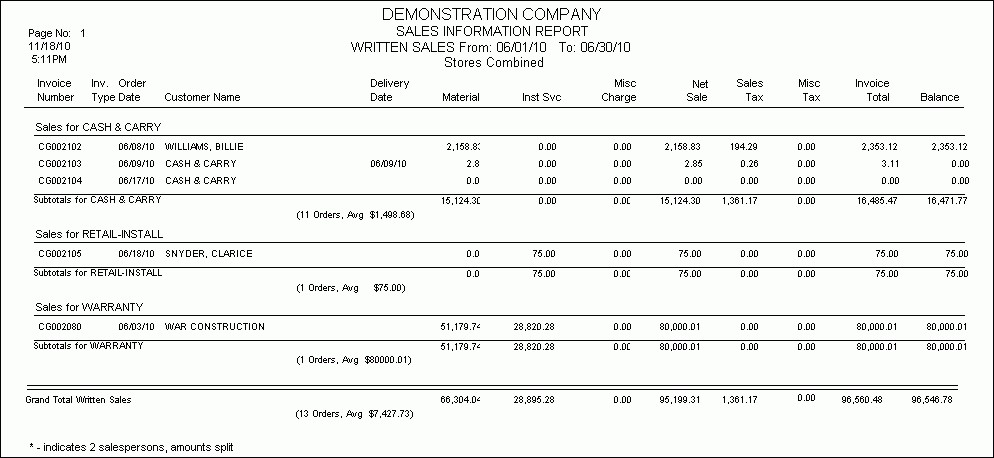

Material
Total Price for all material lines
Inst Service
Total selling price for all service lines
Averages
The sales amount for the total or per sort.
This report can Save/Load/Clear filters. For more information on these, go to Saving and Loading Filters
Comments
Article is closed for comments.