
Order Entry>Utilities>Settings>Cities
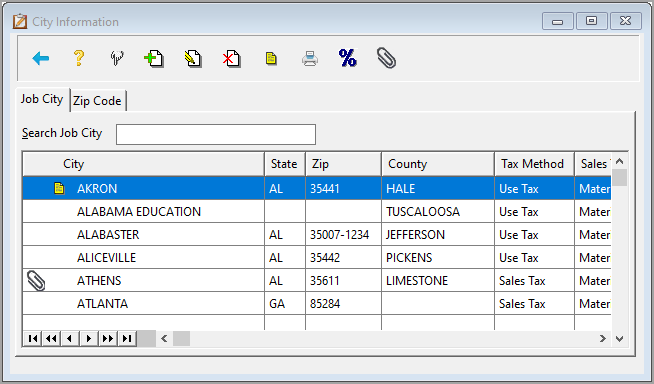
The information entered here will dictate how Tax Liability reports will be sorted. This is especially useful in Use Tax states since a report listing of cost of material used on each invoice and a total of material used in each different city and county location is given. The basis for determining the tax method of any customer order is the information found in the "Ship to City" field. (If there is no "Ship to City" stated, then the system will default to the Store Code information for the tax method to be used. The field explanations for the City List are the same as entered for Store Codes.
Adding a City
Click the Insert button to display the "Adding a City Record" screen. A dialog box displays asking, "Carry Information forward?” Select YES or NO.

Enter the City information. This info will include: City, State, Zip, County, Tax Method, Sales Tax Base, Sales Tax Percent, and Use Tax Percent, Misc Tax Base, Misc Tax Percent, Pay Tax When and license expiration date if applicable.
When finished, click OK. This will save the city information entered and it will now display in the City List.
Tax Information
Choices are:
Use Tax
All Use Taxes are calculated on installed jobs only and are automatically based on the net of what the material cost. If this selection is made, the system will still calculate sales tax on orders without labor charges. If configured as a Use Tax state and there is not a figure in the sales tax field of a customer order, the system will assume that this is a Use tax order. If there is a figure in the sales tax field of a customer order, the system will assume that it is a Sales tax order.
Sales Tax
This selection should be made in states that require that taxes be paid on the total selling price, including profit, of either material only or material and labor. If configured as a Sales Tax state and there is no figure in the sales tax field of a customer order, the system will assume that order is tax exempt. If configured as a Sales Tax state and Line Balancing has been enabled, tax will automatically be broken out at the time of exporting the line totals to the header.
Line Tax
Line Tax allows the tax method to be determined on a line-by-line basis when entering the customer order. Therefore, an invoice or order may have lines on which use tax is paid and other lines on which sales tax is paid. If this selection is made, each order entry line will ask "Use Tax line?" (Y/N). If a Tax Method of Use Tax or Sales Tax is chosen, that question will not appear.
Sales Tax Base
Elect to use as sales tax base (GST base in Canada):
Material
Material + Labor
Material + Labor + Misc. Charges (+ GST in Canada)
Material + Misc. Charges (+ GST in Canada)
Misc. Tax Base
Elect to use as miscellaneous tax base (Sales Tax base in Canada):
Material
Material + Labor
Material + Labor + Misc. Charges
Material + Labor + Misc. Charges + Sales Tax
Material + Misc. Charges (+GST in Canada)
Material + Misc. Charges + Sales Tax
The tax percentage rate commonly used must be entered, whether it is for use tax, sales tax, GST (for Canadian companies), or a miscellaneous tax.
Pay Tax When
When the tax reports are printed, the tax considered due is based on the selection to "Pay Tax When":
Delivered: Tax is due if the customer order has been job costed
Delivered & Paid: Tax due if the customer order has been job costed & paid in full.
License Expiration
The date that the license with this city expires.
Report
Click the printer button  for a report of the city list.

Clicking the print license expiration date only prints a listing of cities which include an expiration date within the date parameters.
Batch Adjustment for State Tax 
To adjust counties, cities, and states, click the Percent Icon and the Adjust Rates for selected States screen will open.
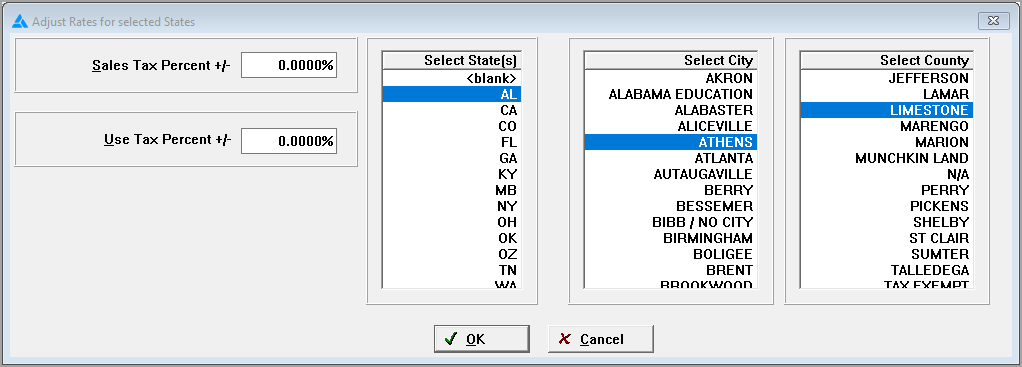
Adjust the Sales Tax or Use Tax percent appropriately by entering the amount that the percent has changed (not the actual tax percent).
Select the state(s), city(cities), or county (counties) to be changed from the list on the right. This list is pulled from all the cities in the city list.
Click Ok.
Note
Click the note button  to add or edit a note.
When a note is present a note button will be shown to the left of the city name.

Comments
Article is closed for comments.