
Time Off
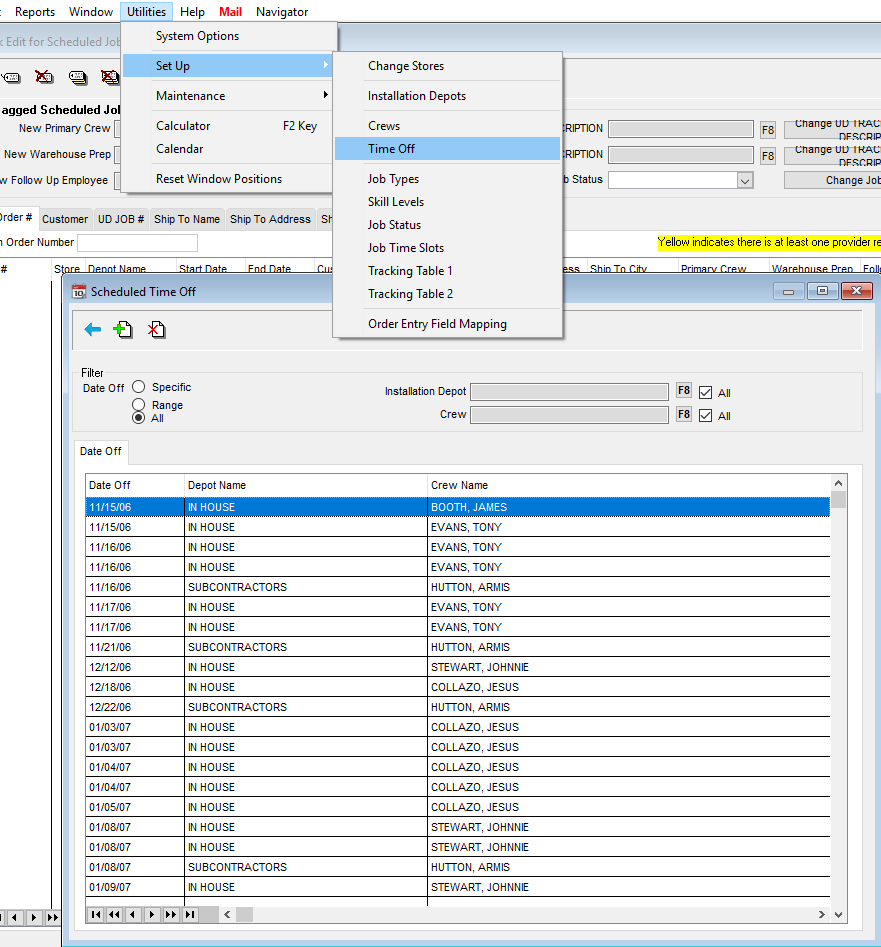
Schedule Pro>Utilities>Set Up>Time Off
The days off scheduled for each crew can be added, deleted and viewed from here.
In the Weekly Grid, a day off will be noted with a black dot
In the Select Crew screen, a day off is noted with a black dot next to their name.
Scheduling Time off for an individual Crew
To enter a new Scheduled Time Off date, click the green plus (Insert). Then, on the pop-up screen, select an Installation Depot from the F8 pop-up list. Then, select a Crew from the second F8 pop-up list.
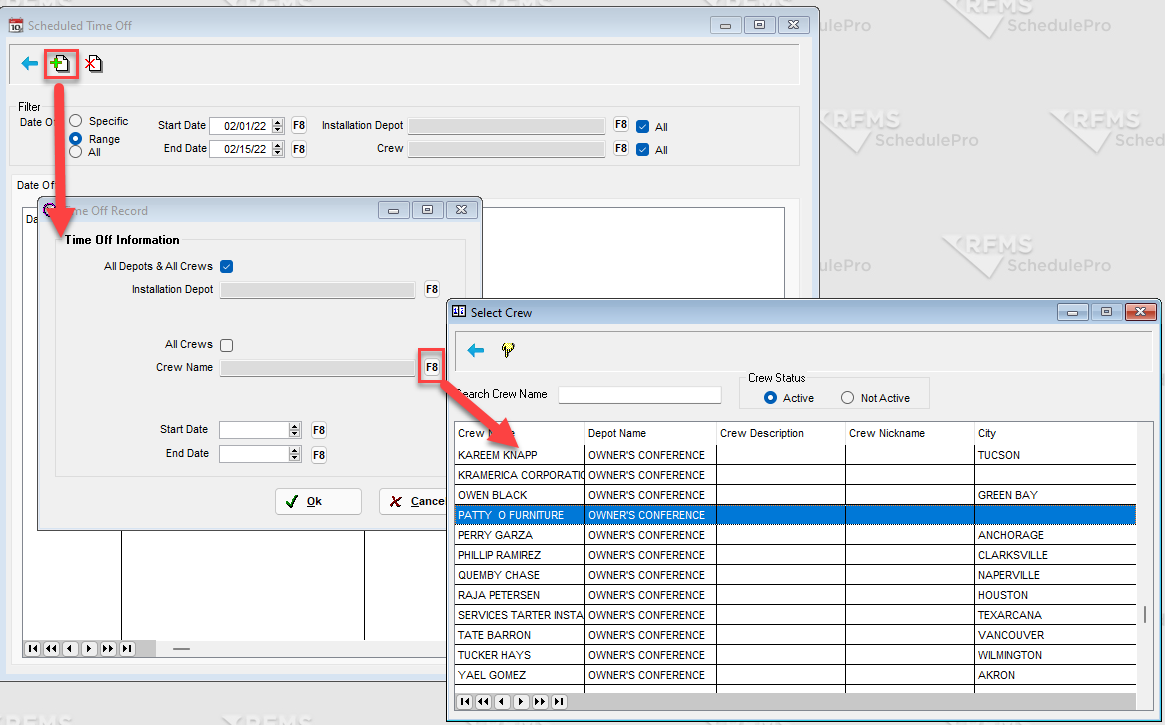
Add a Start Date and an End Date, and then click “OK" This will add the day(s) off to the schedule.
A message will display indicated the day off was successfully added to the schedule.
Enter an additional day off or click exit when finished.
Scheduling Time off for all crews
To enter a new Scheduled Time Off date, click Insert (Green Plus). Then, on the pop-up screen, leave the All Depots & All Crews and All Crews check boxes checked. Add a Start Date and an End Date, and then click OK. This will add the holiday to the schedule.
Viewing Scheduled Time Off
This screen has a few filters, like many of the other screens in Schedule Pro. If a day off is missing, check the filters first. The Date range will default according to System Options. This will be filtered to “Specific”, which is one day, defaulting to today, “Range”, which is two weeks, defaulting to today and the next two weeks, or “All”, which does not filter by date. A single depot and/or crew can also be used as a filter.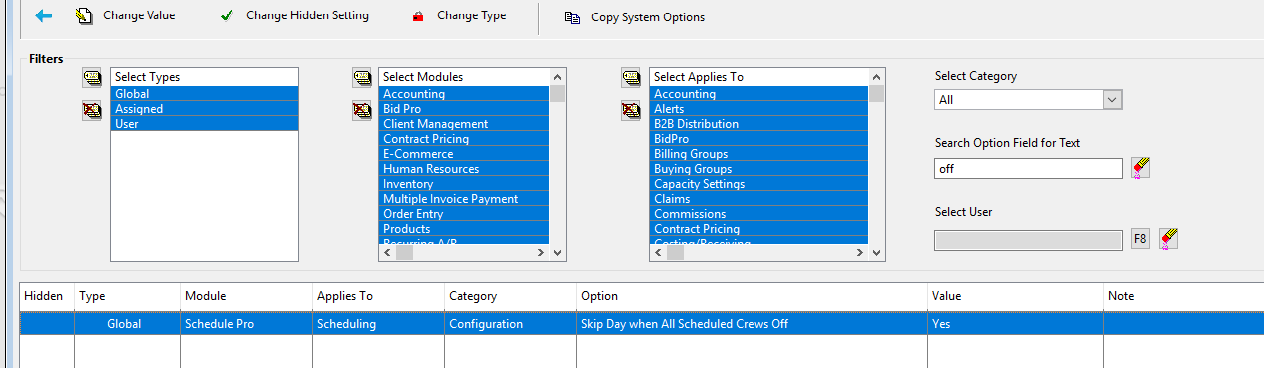
Comments
Article is closed for comments.