
Human Resources can automatically calculate GST Amount based on the setup. The following areas must be setup.
System Option
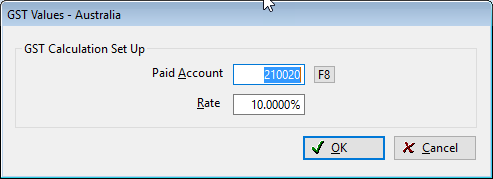
GST Setup Values x>Utilities>System Options>System Wide>Accounting Category Configuration
Type- Must be Global 
This system option has been added to allow for the GST Calculation setup. The Paid Account (pulled from the Chart of Accounts) and the Rate are set up here.
Subcontractor Setup
If you would like an automatically calculated GST amount, it is only necessary to edit the Subcontractor and enabling “Subcontractor GST Calculation” as shown below:

If the checkbox is enabled, then HR will reserve an entry line for GST. The example below is a new employee and is set up for automatic GST calculation.
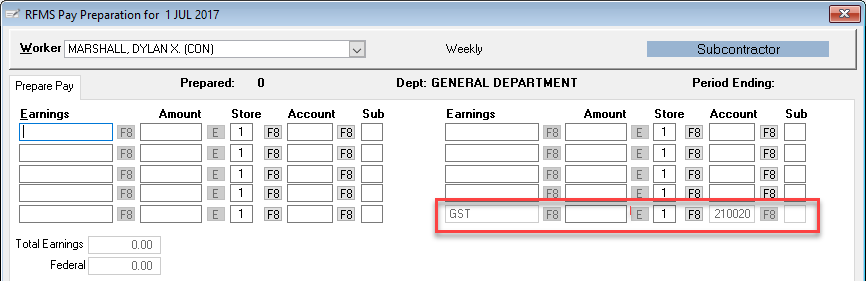
As non-GST accounts are entered, the GST Amount will automatically calculate:
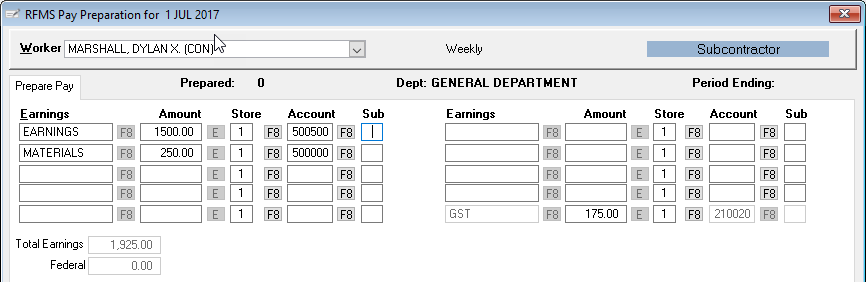
In the example above, all non-GST earnings are calculated and then multiplied against the GST Rate. So, in this instance, the non-GST total is $1750.00. Therefore, GST will be $1750.00 * 10% = $175.00.
If the user wants to adjust the calculated GST amount, enter the desired amount in the GST after all the Earnings amounts are entered. The value will be retained until that payroll is done. The GST will then be returned to the normal calculated value.
If an Earnings value is adjusted after the GST amount is changed, the GST amount will revert to the calculated amount.
Note: If the “Subcontractor GST Calculation” checkbox is not enabled, the automatic calculation will not occur, but the user can enter the desired GST in the Earnings section by using entering a Description, Amount, Store, Account (Paid Account), and Sub.
Comments
Article is closed for comments.