
>Utilities>System Options>Human Resources>Accounting
Category Configuration
Type- Must be Global 
Departments
This feature is used to departmentalize payroll. Each worker must be assigned to a department. Even though they may be set as an active worker, if a department is not tied to them, they will not show up in prepare pay. A message will display on the prepare pay screen saying, You have active workers without a dept assigned to them.
This feature has two main purposes:
-
Multiple users may now be preparing payroll at the same time.
-
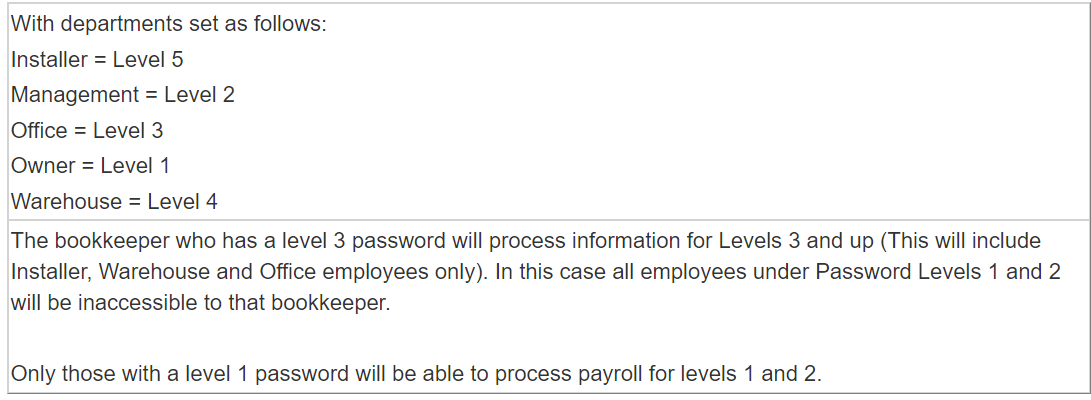
Employees may be separated into departments in order to password protect different levels of payroll information.
Procedure for Adding or Editing Departments
- Click the Insert or Edit button.
- Enter the appropriate Department name. For example, to create a department for all administrative employees, type administrative. Next, select the appropriate password level.
- Click OK when done.
- Continue this procedure for all departments and password levels.
- Departments cannot be deleted unless it is not in use anywhere. Departments which have been used can be made inactive.
- To abort this procedure, click CANCEL.
- Once completed, assign each employee to the correct department.
Unlocking Departments
To unlock a department so that a different user can process that department's payroll for one department, just edit and erase the assigned user. To unlock all departments, click on the Unlock Button. Make sure that no one is preparing payroll at the time.
Comments
Article is closed for comments.