
Human Resources>File>Worker Information
Click the Edit button  and select the Personal Deductions tab.

Click Insert or Change.

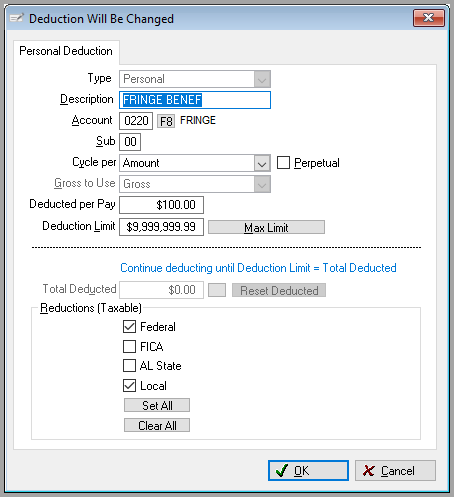
This screen allows entering deductions that will be withheld from the employee's paycheck. The percentage rate or an amount, limit and cycle can be entered to have the system keep up with specific deductions. This is where 401K and cafeteria deductions are set up.
The fields pertaining to personal percentage deductions are:
Type
This field describes the type of deduction added. Personal is the default and cannot be changed.
Description
This can be up to 12 characters. Enter a word or phrase that identifies this deduction. (Union Dues or Cafeteria Fund)
Account
The General Ledger Account to which this deduction should be assigned.
Sub
Select the appropriate Sub Account Code to which this deduction should be assigned.
Cycle per
Per Pay Cycle - The percent will be deducted each pay cycle. With this cycle, the Max Deduction field is the maximum deducted per pay check.
Per Year - With this cycle the percentage will continue to be deducted until the Total deducted is equal to the Max Deducted.
Per Hours Worked - If the employee is an hourly worker, all earnings hours are totaled (regular, overtime, double-time, sick, vacation, holiday and other). This is considered the "straight time" number. If this is any other type of worker (including subcontractor), an average hours number is used: weekly hours = 40, biweekly hours = 80, semimonthly hours = 87, monthly hours = 174. The number of hours worked is then multiplied by the personal percentage deduction rate and cannot be higher than the amount in the limit field. With this cycle, the Max Deduction field is the maximum deducted per pay check.
Amount - This would be for a specific dollar amount to be deducted per pay period. Notice with this option checked, the Max deducted is no longer an option.
Examples, an employee may pay Union Dues at the rate of 1.0000% on up to $500 for each pay cycle. Or he may pay Cafeteria Funds of 1.0000% of all earnings for the year. If the deduction is to be made on all earnings with no ceiling or limit, simply enter a large number such as 99999, that would never be reached, in the "limit" field.
Perpetual
Check this box if the deduction has no end date or amount.
At year end, other personal deductions are cleared from the RFMS system. Perpetual deductions are deductions that carry over after year end.
For example to withhold retainage from installers, use Perpetual Deductions. Let’s say Joe Installer is hired with the agreement that he will be required to withhold $1500 in retainage. Use Perpetual Deductions to set up a specific percentage to be deducted for each pay period until that retainage is met. Because it is set up in a Perpetual Deductions file, the deductions carry over at year end. RFMS has reporting capabilities that will allow viewing the total deduction amount that has been taken out to date.
For previously deducted amount for the system to take into account, click the perpetual tab and click Insert. Add the amount that has previously been deducted and click the OK button. Each time a Perpetual Deduction is taken out of the workers’ pay, this amount will increase accordingly. Use the Pay History Report to have a physical listing of all Perpetual Deductions.
The switches allow to customize the level of detail in the report (Detail, Summary or Both) and whether to include a Grand Total Page of all Perpetual Deductions. An example of each selection is in the Report Layout below.
Gross to Use
This controls the gross amount on which this personal percentage deduction is to be made: Gross, Federal, FICA, State #1, State #2, and Local. For example, some wages can be exempt from certain deductions such as Cafeteria or 401K and so might want a "gross" base of Federal or FICA wages. Others such as Union dues may be taken on all earnings and so would have a "gross" designation of Gross. For states such as FL, TX TN with no state income tax select Gross, not State.
Rate
The percentage to be deducted per pay period, when the cycle is set to Pay Cycle, Year or Hours Worked. Five percent should be entered as "5.0000%." One half of one percent should be entered as "0.5000%."
Amount
The dollar amount to be deducted per pay period when the cycle is set to amount.
Earnings Limit
The gross dollar base on which that deduction should be made. These tie directly to the "cycle." Be sure to enter a number greater than zero. If the limit is zero, the system will consider the deduction at its limit and will not calculate at all.
Max Deduction
The maximum amount of a deduction depending on the cycle.
Max Limit/Max Deduction
Clicking on either of these buttons max the corresponding field’s limit equal to $ 999,999.99 effectively meaning there is no limit.
Total Deducted
Gives the total dollar amount deducted. This field can be locked. This field is not editable for Perpetual Deductions.
Reset Deduction Button-
Reset to Zero
Reductions (Taxable)
For each deduction, select from Federal, FICA, All States, and Local for reduction types. These will be the taxes this deduction is exempt from. Buttons are available to select or clear all the options at one time. States to be included can be tagged (instead of selecting All States).
Comments
Article is closed for comments.