
Full Direct Deposit User Guide

Payroll for Direct Deposit and non Direct Deposit employees must be run separately.
Prepare payroll as normal in RFMS. Print payroll checks to plain paper making sure that you select the new clearing checking account that you created.
Direct Deposit Software>Direct Deposit>Import from RFMS Payroll

Click Last RFMS Payroll or a Date Specific RFMS Payroll. The normal selection would be the Last RFMS Payroll. You may need to select a Date Specific payroll if for some reason a transmission failed.
Payroll Date
Enter the date only if you selected Data Specific RFMS Payroll.
Date Available
Enter the date on which the payroll funds will be available in the employee's bank account.
Click OK.
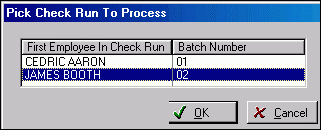
Direct Deposit allows processing multiple payroll runs created on the same day. Choose which Payroll Batch to process and then only employees that were paid in that batch are processed.
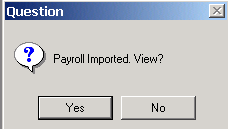
Click Yes.
If data has been imported in a prior session and never performed a transmission, the opportunity will be given to use either the existing data or delete and re-import.
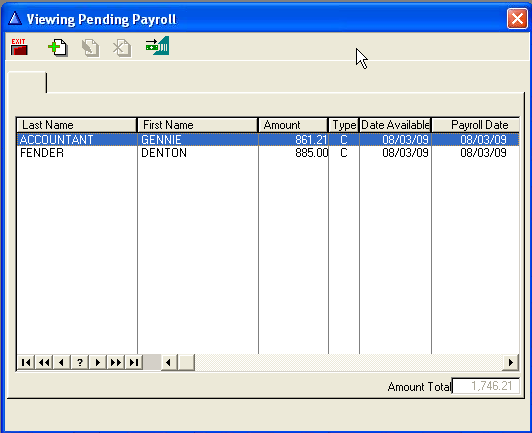
View the pending Payroll to make sure the amounts and dates look correct.
Direct Deposit allows entering a deposit record for your 940 and 941 tax liability for each electronic payroll performed. This eliminates the need for manual check writing. Check with your financial institution to verify that electronic tax deposits will be accepted.
To add the tax payments, click Insert  .
.
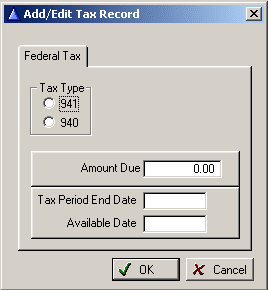
Field Explanations
Tax Type
Click on either 941 or 940.
Amount Due
Enter the total tax liability you are depositing in the electronic transmission. This amount may be obtained from your tax liability reports that print from the RFMS payroll run.
Tax Period End Date
Enter the ending date of the QUARTER – not the payroll period for 941's.
Enter the ending date of the YEAR for 940's.
Available Date
Enter the date the deposit will be available for payment. This is the date the amount will be subtracted from your account.
Click on Transmit Payroll  .
.
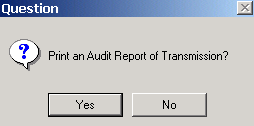
Click Yes for a Audit Report of the Transmission.
After you have transmitted payroll, go back into RFMS.
Click Accounting>File>Banking> Add/edit Checks
Select the Main checking account and do a transfer of funds for the net amount of the payroll to your clearing payroll checking account.
General Ledger Considerations
Most of the general ledger entries are posted when performing the payroll run in RFMS. The entries made are as follows:
Credit
- Net Amount of Payroll
- Electronic payroll check account
Credit Employee
- Share of Liability accounts withholding taxes
Debit
- Gross Amount of Payroll Salary Expense Account
After the direct deposit has been transmitted post a transfer in your checking registers. The transfer function will post the following general ledger entries:
Credit
- Net Amount of Payroll
- Main checking account from which funds are deducted.
Debit
- Net Amount of Payroll
- Electronic payroll checking account used during payroll.
The net amount of payroll can be found on the Final General Ledger Distribution Summary Report which is generated at the end of the pay run in RFMS Payroll.
Comments
Article is closed for comments.