
Order Entry>File>Quotes or Order Entry F4
The Quotes module in RFMS Order Entry allows you to enter customer information just like a regular customer order.
Quotes can be printed and given to your customers and saved for future reference.
In addition, once you "close-the-deal", the Quote can be easily exported into Order Entry as a regular customer order.
If you require the need to track your samples, a built-in function allows you to check samples in and out directly from the Quote line.
The use of barcoding and scan technology makes this process quick and easy.
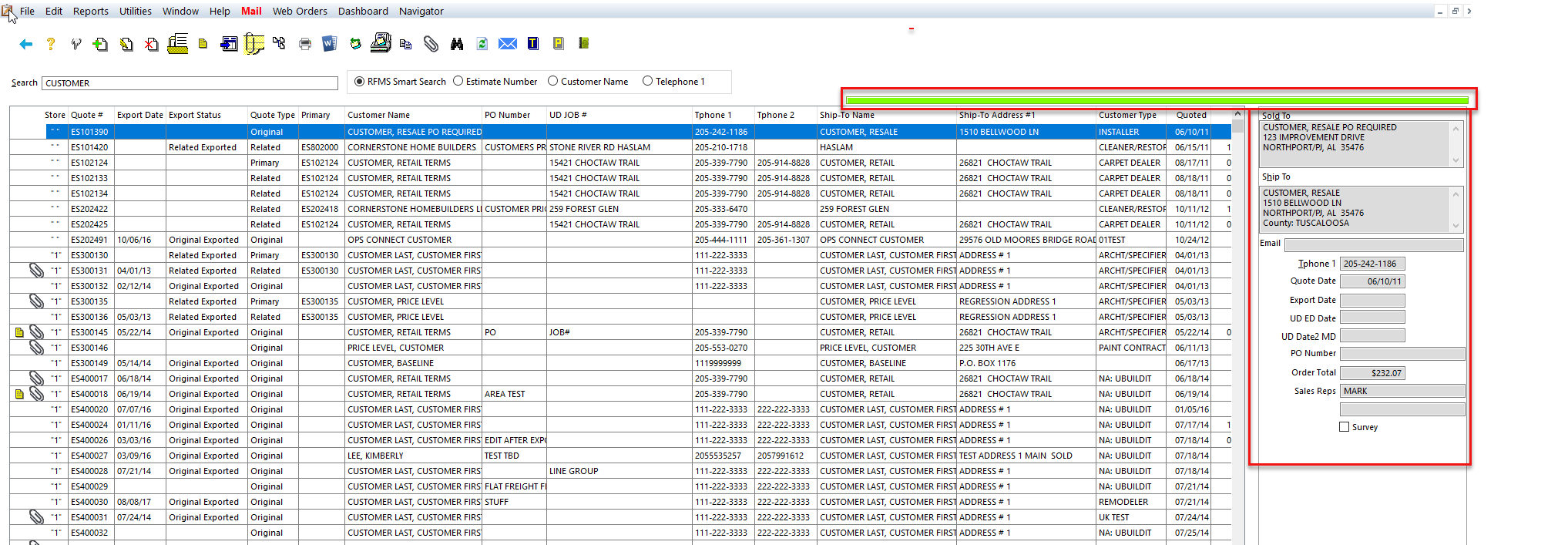
The first screen that appears in the Quotes module is the Quotes Browse screen. From here, you can search for existing Quotes, add new Quotes, enter notes, attach pictures or graphics, print Quotes, and finally, export a Quote to Order Entry.
The quote screen has a green bar at the top to differentiate it from the order entry or claim screen
Exit: Exit the Current Module
Help: Access the Help Files
Select: Activates or selects the highlighted record
Add Quote: Creates a new Quote in the system.
Edit Quote: Allows changes to existing Quote. Editing an existing exported Quote will open a prompt asking if the user would like to clear the export date.
Delete: Deletes the current Quote. There are no system-specific prohibitions on deleting Quotes.
View Lines: Using this feature displays the lines on the Quote without locking the record. Locking the record prevents everyone else from having access to the record.
Notes: Manage all notes associated with this Quote.
Export To Order Entry: Sends the highlighted Quote to Order Entry on a new order.
Append To Order Entry: Append uses the same process as export. The main difference is selecting an existing non-job costed order.
Relate to Another Quote: Allows relating the highlighted quote to another quote.
Print: Prints the highlighted Quote.
Word Merge: Allows printing a quote via the word merge function.
Return Samples: Allows scanning the barcode on a sample to mark the sample as returned.
Sample Report: This report displays a listing of sample records along with their current status. The report can be printed by store, sales rep, and can include Samples Due, Samples Checked Out. You can also print the report for each sales rep (Page Break on Sales Rep.) to produce a document for the sales rep to use for contact management.See Article
Copy Quote: This option allows you to duplicate a quote. Highlight a quote by single-clicking on the appropriate line and select the "copy quotes" button, which is located on the far right of the toolbar. You will notice that the highlighted quote will automatically be copied and the new version will appear on the Quotes screen. The new quote will be assigned the next estimate number in the sequence.
Attachments: Originally, the system only allowed images to be attached to an order. We can now attach virtually any file available to the order including spreadsheets, word documents, etc.
Find: Opens framing parameters that allow the user to filter the screen.
Reset Filter: This resets and clears any filters activated with the Find feature. This refreshes the screen, updating for any new Quotes that may have been added at another computer.
Mail Options: Send RFMS Internal mail or email in reference to the highlighted record.
Tracking Table: Click to view the tracking record created for every record insert made into Orders, Quotes, and Bid Pro Estimates. If gray, no records are present.
PDF History: To see pdf history, click the pdf button. If there are no pdf files attached the button will be gray
Client Management Module: Clicking on the button, allows the highlighted record to be added to a project, have an alert, appointment, task, or remark added or a letter can be related to it.
Quick Recap Area
This area is a recap of key components of the highlighted Quote. Note the green bar at the top of this area - this is a visual reminder that you are in Quotes and not Order Entry as the screens are nearly identical.
Comments
Article is closed for comments.