
Getting Ready to Use Barcodes or UPC
Prepare Roll Inventory Bar Code Tags
Scan in Inventory with Pre-Printed UPC Codes
Preparing and Printing Bar Code Labels for Items without a UPC Code
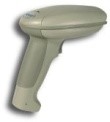
A Trigger Scanner is used to enter Order Lines.
Getting Ready to Use Barcodes or UPC
Barcoded inventory tags can expedite order entry processing and ensure accuracy. Barcode labels can be produced for rolls and items and the UPCs already printed on products sold.
- Prepare the roll inventory bar code tags.
- Print the bar code labels for roll inventory*PrintingtheBarCodeLabels>Main
- Scan in item inventory with pre-printed UPCs
- Prepare and print bar code labels for items without UPCs
Prepare Roll Inventory Bar Code Tags
Preparing Bar Codes
To prepare roll inventory for scanning, print bar code labels for each roll in stock.
If using the RFMS Barcoded inventory system, roll tags are probably already printed. These do not need to be reprinted for Order Entry if scanning directly from the roll tag itself.
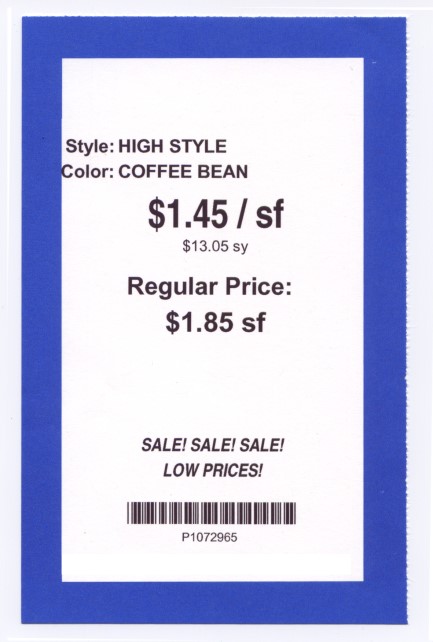
To avoid removing the tag from the roll, a sheet or section of labels can be printed and attached to the roll tag to be removed at the time of sale. Order Entry has a function that produces a bar code for each roll number in the inventory file in a batch to reduce processing time. You do not have to generate each roll manually. RFMS Labels are printed on standard size labels that can be purchased at office supply stores:
Dot Matrix 3.5 x 15/16 1 up
Laser 1 x 4 2 up
To Generate Bar Codes for Existing Roll Inventory:
File> Bar Codes>Import Bar Codes
Field Explanations - Import Bar Codes
Beginning & Ending Product Code
You may print bar code labels for all product codes, a range of product codes, or a single code.
Origin
You may print barcode labels for roll inventory, item inventory, or products. If from products, the system will automatically generate a bar code number (you don't have roll or item numbers for products). Use the products method to print out labels for samples. The style and color will print on the label along with the bar code.
Roll Inventory
These bar codes are inherently unique because they consist of a Roll Product Code + Roll Number. RFMS does not allow duplicate Roll Numbers.
Item Inventory – General
These barcodes are not unique because they consist of an Item Product Code + Item Number. RFMS does allow duplicate Item Numbers. Order Entry will search Item Inventory for a matching Item with enough Quantity left to satisfy the Order Line.
Item Inventory – Unique
This bar code is used in those instances where you only want the bar code to refer to a specific inventory piece, for instance, an expensive rug. This bar code is prefixed by an "I" and a sequence number unique to each Item record. Example: I36521456
Roll Products – Unique
This bar code is unique in that it refers to a specific Roll Product and Color. A "P" and a sequence number unique to each Color record prefix this bar code. Example: P574862
Roll Products – Group
This bar code is designed to reduce the amount of bar codes necessary for Roll Products. Scanning this bar code will bring up the Roll Products Browse, positioned over the appropriate Roll Product. You may then select the desired Color from the browse. "PC" and a sequence number unique to each Product record prefix this bar code. Example: PC665425
Item Products – Unique
This bar code is unique in that it refers to a specific Item Product and Description. A "P" and a sequence number unique to each Description record prefix this bar code. Example: P4715
Item Products – Group
This bar code is designed to reduce the amount of bar codes necessary for Item Products. Scanning this bar code will bring up the Item Products Browse, positioned over the appropriate Item Product. You may then select the desired Description from the browse. "PC" and a sequence number unique to each Product record prefix this bar code. Example: PC7843
Services
This bar code is unique in that it refers to a specific Service. This bar code consists of a Service Product Code and a sequence number unique to each Service record. Example: 81734
Import Inactive
This switch allows you to import products or services that have previously been marked as inactive.
UPC
This bar code is drawn from those UPCs that have already been defined in Files / Bar Code / Browse UPC Codes. This allows you to print RFMS Bar Codes based on the manufacturer's UPC.
Match Style
Enter a private style name if you want to print bar code tags by private style. Filter: Begins With, Contains, Exact.
Date Received
Click in the Use Date Received box to enter a range of dates. The system will select records that have a date received within the range you specify. The Use Date Received option is only available for Roll or Item Inventory. Click the F8 button to access the calendar feature.
Roll Number
Click in the Use Number box to enter a range of roll numbers. The system will select records that have a date received within the range you specify.
Stores
Click in the All Stores box to import from all store codes at one time. If you want to import from only one store at a time, do not click in this field and then enter the store code in the single store field. Click the F8 button to access the store code picklist.
Miscellaneous - Number of Copies
Enter the number of labels you will need to print for each record.
Miscellaneous - Clear Existing
Click this box for existing bar code records that should be deleted before generating a new list.
Printing Roll Barcode Labels
Order Entry>Reports> Barcodes
After generating the bar code print file (Import Barcodes), send the file to the printer.
Tag Origin
Click to select all or a group of tagged records in the bar code print file.
Print Width for Rolls
Click to select this option to have the width of rolls printed as a bar code.
Print All Stores
Select this option if printing labels for all store locations. To print for a single store only, click in this box to remove the checkmark. Then, enter a store code or click the F8 button to select from the store code picklist.
Print Price
Select this option to print the selling price. The selling price is selected in the following manner:
For Inventory, the price on the inventory record is used.
For Products, price 1 is the default unless set differently in Price Levels to Display.
Print Inventory #
This selection will print the Roll Number (Roll Inventory) or the Item Number (Item Inventory), Style Number (Products).
For a Unique Products Barcode Inventory Number, the program will check each field listed below in order until it finds one with a value:
Private Color Number, Color Number, Private Style Number, Style Number
For a Group Products Barcode Inventory Number, the program will check each field listed below in order until it finds one with a value: Private Style Number, Style Number.
Printer Type
Select whether the printer is a dot matrix or laser.
Print Order
Choose the order in which to print the labels.
Preview
Check to preview the labels before actually printing them. If they are not correct, you can choose not to print them.

The bar code print file will clear those records that have been printed. For example, if you have tagged rolls and items together but only print the roll bar codes, the items will remain in the file for printing at a later time. The roll bar codes will be deleted. It is recommended that you print several copies of each roll number and staple them to the roll tag. When the sales rep sells a cut from that roll, they can take one of the labels to the Order Entry station, where it can be scanned in, thus increasing speed and accuracy. Click the Position button if using a page of labels that have been partially used.
Label Print Position
Click the Position button to tell the printer what position the first label on the 8.5 x 11 sheet of labels is in. This is a handy feature to use if you have a partial sheet of labels.
Scan in Inventory with Pre-Printed UPC Codes
Order Entry>File>Bar Codes>Browse UPC codes
Most items come with a pre-printed UPC. Instead of creating bar code numbers, it is recommended to use the preprinted code, eliminating the need to print labels. However, the Order Entry system must be “taught” what the UPCs mean. To do this, gather a sample of each item to inventory. When scanning a UPC during an Order Entry transaction, the system will recognize the code and provide the appropriate inventory information.
 Click the Insert button.
 Scan the pre-printed UPC. If not using a scanner, manually enter a UPC number in this field.
 - Origin - Click to designate as either Roll or Item.
- Click the ellipsis button to the right of the Roll or Item number field to select the appropriate inventory record for this UPC. It must come from inventory because the product is in hand and obviously in stock.
- Click OK to save the record.
Preparing and Printing Bar Code Labels for Items without a UPC Code
For items that do not have a pre-printed UPC, print Bar Code labels in the same manner as roll inventory. Instead of importing, a bar code may be manually added.
Add a Bar Code Manually:
- Clicking on File, then on Bar Codes.
- Click Browse Print File.
- Click the Insert button.
- >Origin - Click one of the buttons that indicate where the product information for this stock or service can be found.
- Number of Copies - Specify the number of labels to print for this stock or service.
 Price - Selling price is either from the inventory record or one of the six prices on the products record. Or you may enter a different price entirely. This price will print on the barcode label.
- Click OK to save the record.
Clearing the UPC File
File>Bar Codes>Maintenance
This is a maintenance function that removes all records in the UPC file that no longer have inventory associated with them. This function should be performed periodically to clean out any unnecessary records from the file.
System Option
Set Use Price Level to yes.
Comments
Article is closed for comments.