
Go to www.rfms.com and select E-Learning from the Training Tab or click the link supplied by your trainer to view their availability.
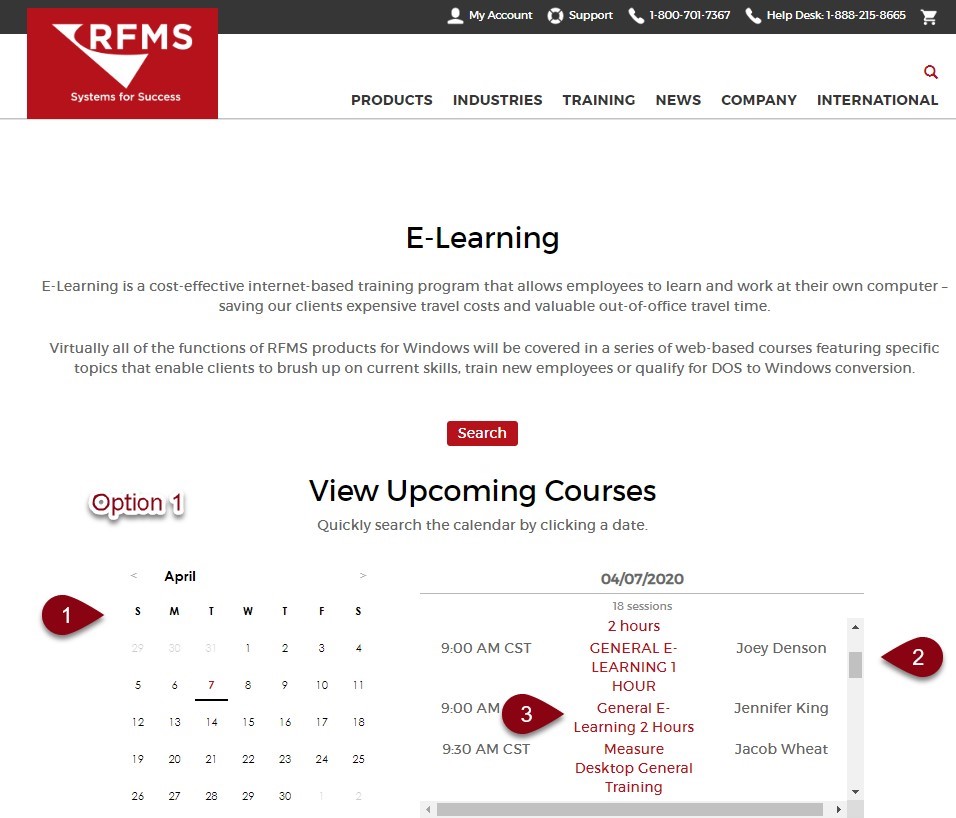
Option 1
- Select a date from the calendar
- Scroll down the list on the right for a trainer and time
- Click on the Red Meeting title to schedule
Option 2
- Scroll down to Search for Available E-Learning section and click Any Trainer to select your trainer from the
- Change Date option to Any Date
- Click Search
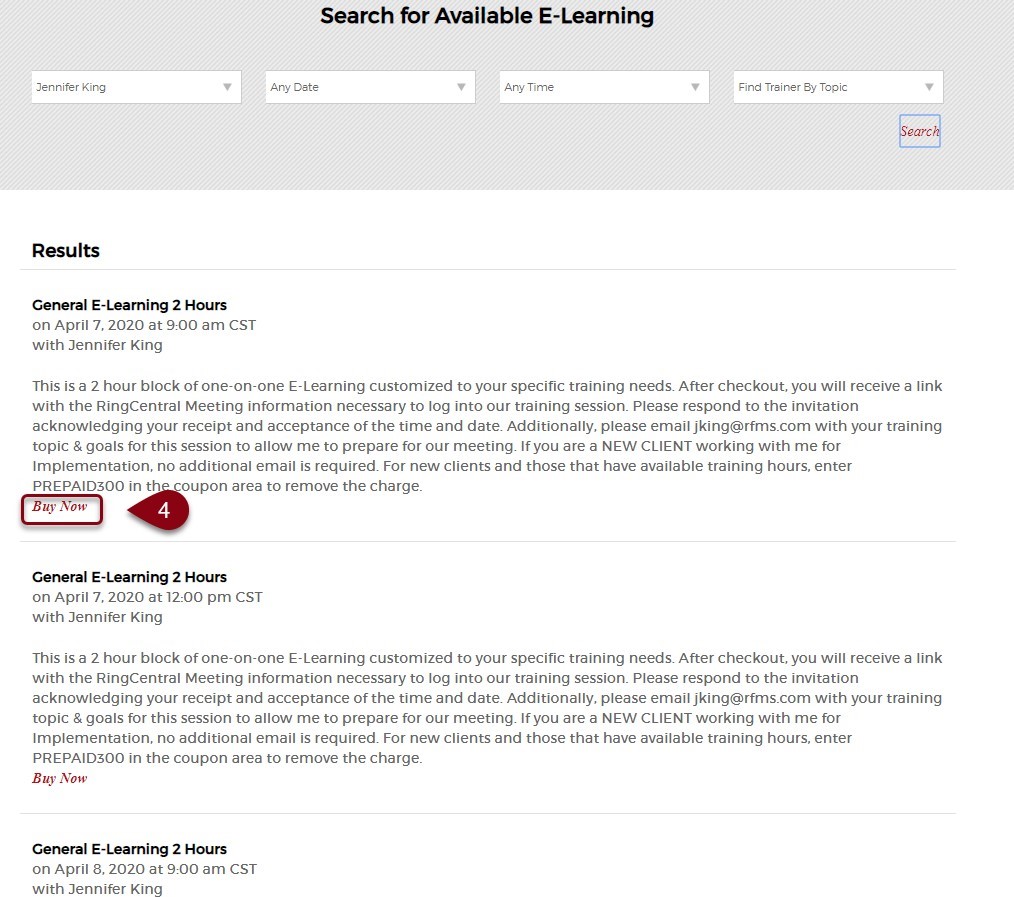
- Click Buy Now to schedule
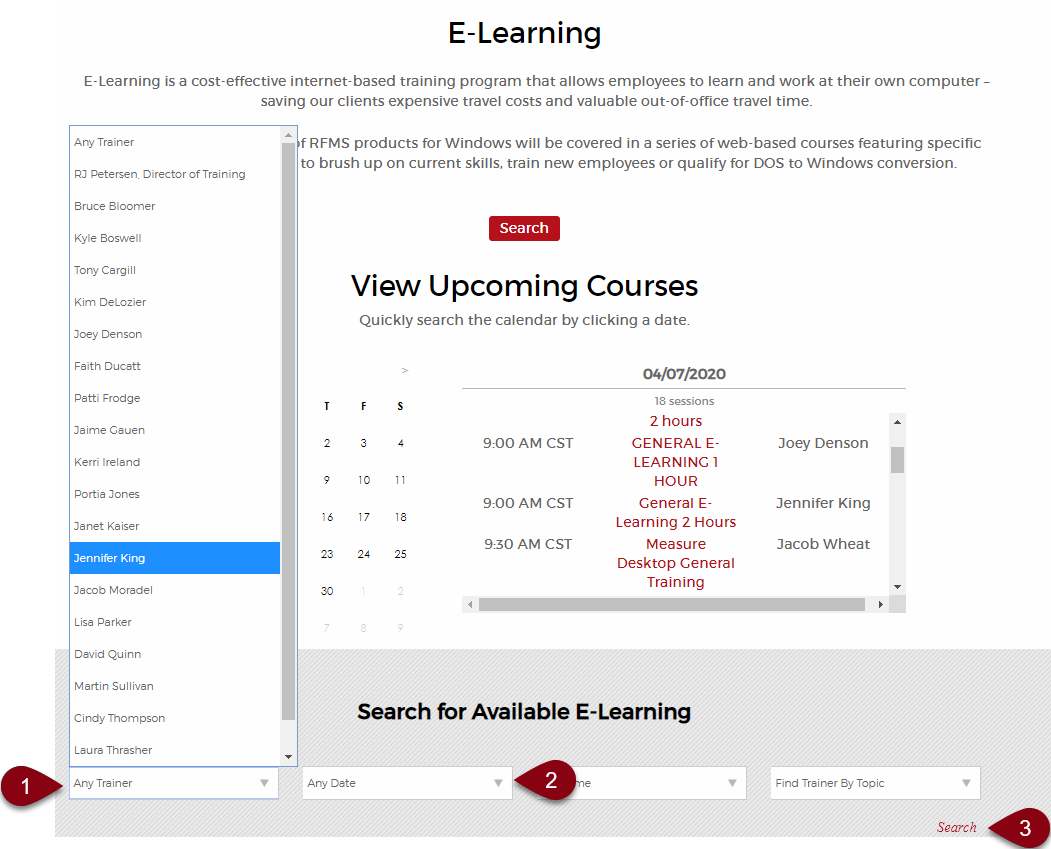
Note: If your trainer sent you a link, the list will already be populated with their available meeting times.
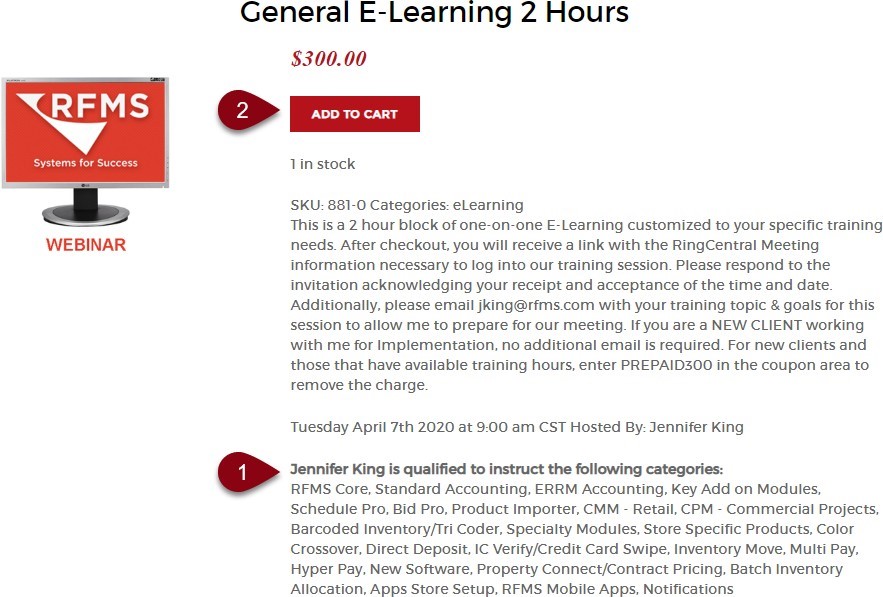
Once you click on the desired meeting, you will see the following screen, if you do not currently have an assigned trainer, please review the topics the trainer selected is qualified to instruct before continuing.
- Review trainer qualifications
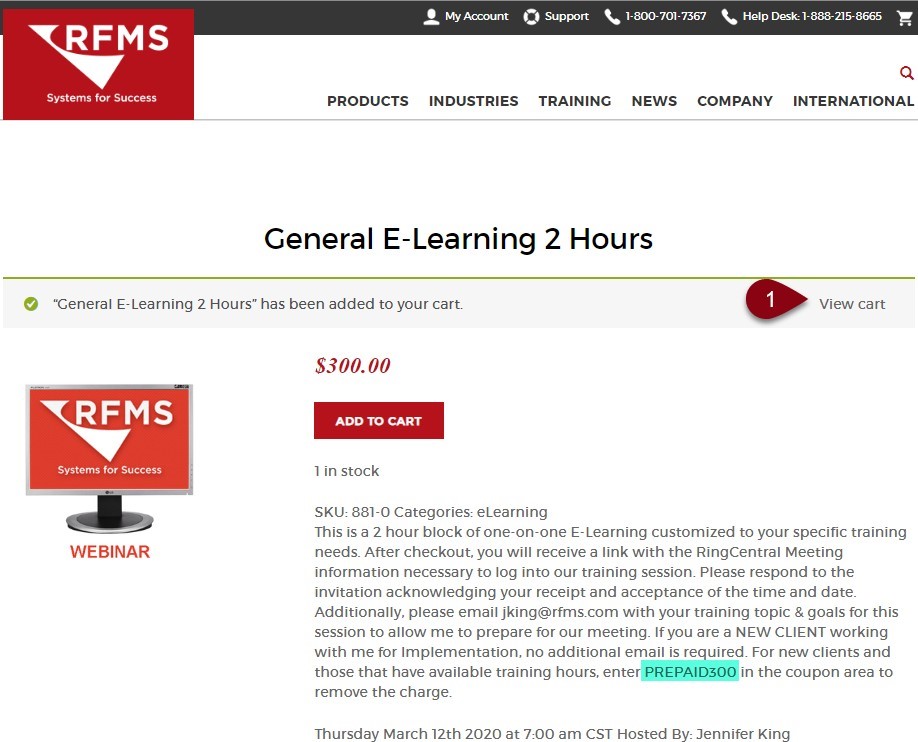
- Add to cart
If you have a new contract or training time on account, make note of the coupon code included in the body of the meeting. In order to use the coupon code, each meeting will need to be booked individually.
- Click View Cart
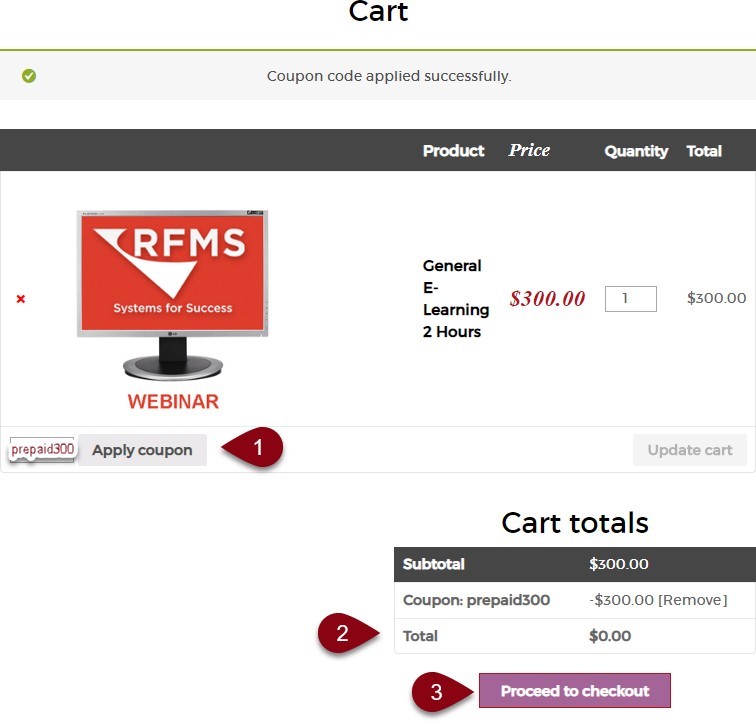
2. Enter coupon code from first screen and click Apply Coupon
3. Note the balance due should be zero if using coupon code
4. Click Proceed to Checkout

The first time you purchase online, you can click the small check box underneath the Billing Details to create an account so that you do not have to fill in the information each time.
- If you created an account on previous purchase, click here to login with your email and password used to create the account. Note: this is for purchasing time online only and is not related to any other RFMS login.
- If this is your first time purchasing, complete the required
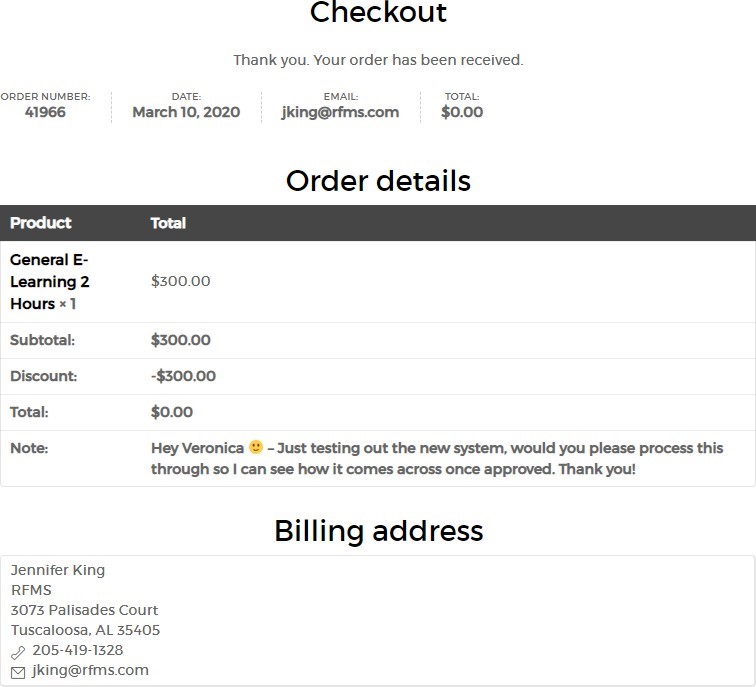
- If you are not working on a known project with your trainer, please include the topic(s) you would like to cover during this meeting. You may also email your trainer a list of topics in advance to allow your trainer to prepare and maximize your training
- Click Place Order

The last screen will be an order confirmation and you will also receive an email order confirmation.
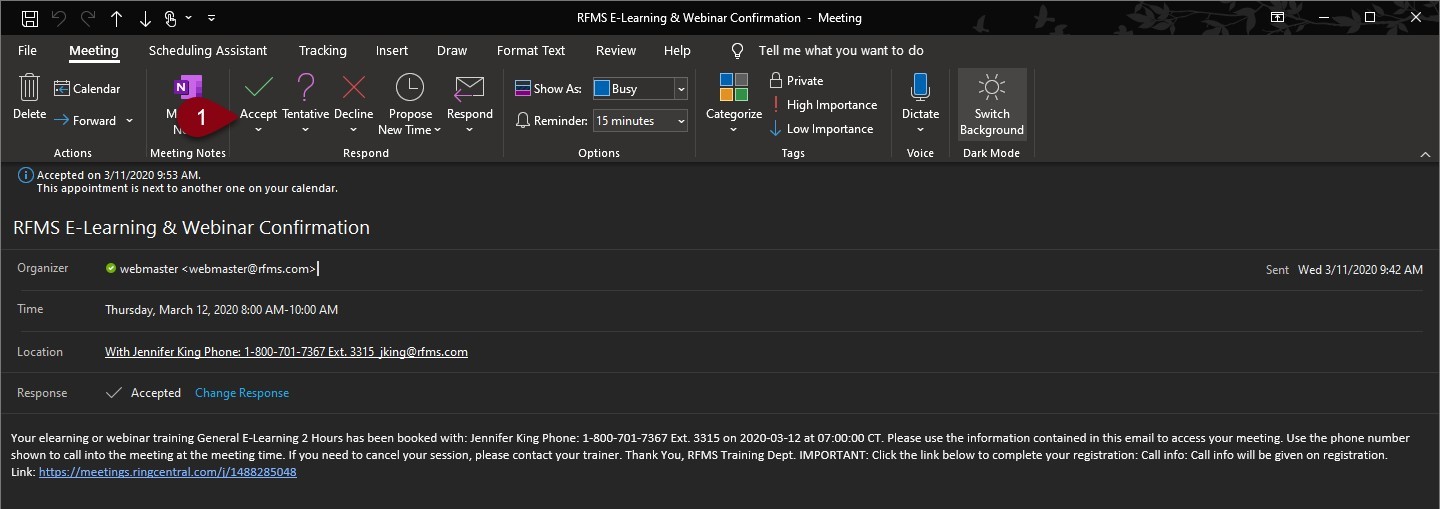
Once the office has processed your order, you will receive an email meeting link for the date and time you selected.
- Click on Accept to add the meeting to your calendar.
Comments
Article is closed for comments.